
Install Snap on Fedora when a package you need is published through Canonical’s Snap Store and DNF or Flatpak do not provide the build, channel, or vendor packaging you want. Fedora still treats DNF as the system package manager and Flatpak as the usual desktop-app format, but mutable Fedora systems such as Workstation, Server, and Spins can install snapd from Fedora’s own repositories.
The mutable-host workflow targets current Fedora releases, including Fedora 44 and Fedora 43. Fedora Atomic desktops such as Silverblue and Kinoite use a read-only root filesystem, so the normal DNF and /snap symlink workflow does not fit them cleanly. On those systems, use Flatpak first unless you intentionally want to manage host package layering and reboots with rpm-ostree.
Install Snapd on Fedora Linux
Snap support on Fedora comes from the snapd RPM. A clean install also pulls the package surfaces snapd needs on Fedora, including snap-confine, snapd-selinux, squashfs-tools, and xdelta.
Check Whether Snapd Is Already Installed
Start by checking whether the snap command already exists:
snap versionIf Fedora prints snap and snapd version lines, skip to the verification steps. If the shell reports snap: command not found, continue with the DNF install.
Refresh Fedora Packages
Refresh repository metadata and apply pending updates before adding a new package manager daemon:
sudo dnf upgrade --refreshThis is Fedora’s normal package-update path. If you want Fedora system packages to update automatically later, set up DNF Automatic on Fedora. For major Fedora release upgrades, use the dedicated DNF5 system-upgrade workflow instead of treating dnf upgrade as a release-upgrade command.
Install Snapd from Fedora Repositories
Install the Fedora-packaged Snap daemon:
sudo dnf install snapdFedora 44 currently provides snapd from the Fedora updates repository. The package creates and enables snapd.socket, but enabling it explicitly keeps the next step clear on systems where the package was installed earlier or the socket was disabled. For broader package-manager examples, see the DNF5 install command guide for Fedora.
Enable Snapd Socket and Classic Support
Enable the systemd socket that starts snapd on demand:
sudo systemctl enable --now snapd.socketFedora’s snapd package stores snaps under /var/lib/snapd/snap. Classic-confined snaps expect a /snap path, so create the symlink used by Canonical’s Fedora Snap installation instructions when it is not already present:
if [ ! -e /snap ]; then
    sudo ln -s /var/lib/snapd/snap /snap
fi
Sign out and back in, or reboot when you need desktop launchers and the /snap/bin PATH entry to appear in a graphical session. For immediate terminal validation, wait for snapd’s first seeding step before installing your first snap:
sudo snap wait system seed.loadedThis wait step prevents the early first-run error device not yet seeded or device model not acknowledged, which can appear if you install a snap immediately after starting snapd.
Verify Snapd on Fedora
Confirm that the snap client, snapd daemon, Fedora release, kernel, and architecture are visible:
snap versionA current Fedora 44 system reports lines like these, although your package and kernel values can differ:
snap          2.75.2-0.fc44
snapd         2.75.2-0.fc44
series        16
fedora        44
kernel        7.0.8-200.fc44.x86_64
architecture  amd64
Then verify the socket is enabled and active:
systemctl is-enabled snapd.socket
systemctl is-active snapd.socket
Expected output:
enabled
active
Test Snap with Hello World
Install Canonical’s small test snap to confirm the store and runtime are working:
sudo snap install hello-worldRun the snap through snapd:
snap run hello-worldSuccessful runtime output is short:
Hello World!
Remove the test snap after the check so it does not stay in your installed app list:
sudo snap remove --purge hello-worldInstall Snap Store GUI on Fedora
The Snap Store GUI is optional. The terminal workflow above is enough for installing and updating snaps, but the GUI helps when you want to browse packages, check screenshots, compare channels, or manage installed snaps visually. Canonical currently brands the snap-store package as App Center on Snapcraft, while some launchers and older screenshots still call it Snap Store.
Install Snap Store on Fedora
Install the GUI from the Snap Store:
sudo snap install snap-storeA bare install currently tracks the App Center 2/stable channel on Fedora:
snap list snap-storeRelevant output includes:
Name        Version         Rev   Tracking  Publisher    Notes
snap-store  0+git.10310e85  1367  2/stable  canonical**  -
Installing Snap Store can also pull runtime snaps such as bare, core24, gnome-46-2404, gtk-common-themes, and graphics support snaps. That is normal for a graphical snap and explains why the first GUI install can take longer than a small command-line snap.
Launch Snap Store on Fedora
Launch it from a terminal with the snap-managed command:
snap run snap-storeFrom the desktop, open Activities and search for App Center or Snap Store. If the launcher does not appear right away, sign out and back in so the desktop session reloads snapd’s application entries.
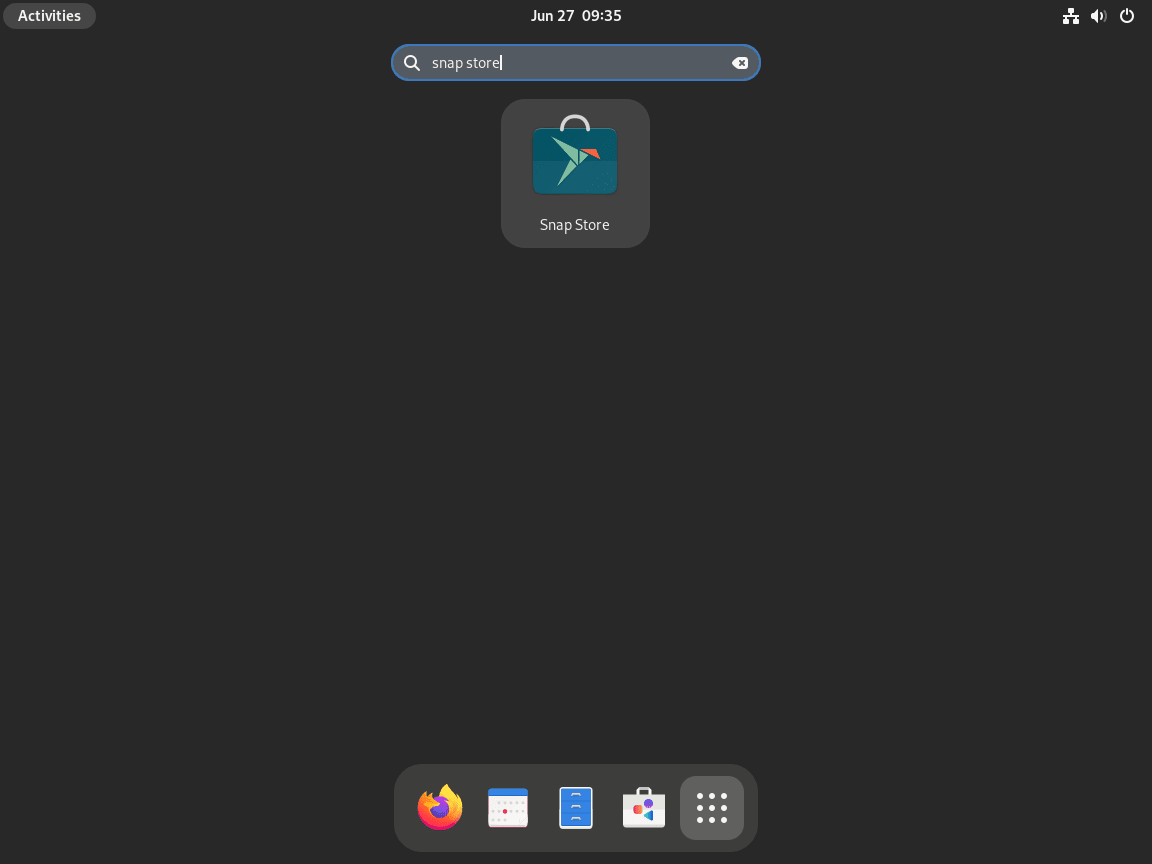
Use Snap Store on Fedora
After the GUI opens, you can search the catalog, inspect publishers, install apps, remove apps, and switch available channels. Treat publisher names carefully: a verified Snap Store publisher marker is a store trust signal, but it does not always prove the upstream project itself publishes that snap.

Manage Snap Packages on Fedora
Once snapd is installed, Snap commands are the same on Fedora as on other snap-enabled distributions. Use snap run app-name for reliable terminal launches because it does not depend on your current shell seeing /snap/bin.
Search and Inspect Snap Packages
Search the store from the terminal:
snap search spotifyInspect publisher, channel, contact, and release information before installing an app:
snap info discordWhen a Snapcraft page or snap info output names a publisher, compare that publisher with the upstream project’s own Linux packaging notes before calling the snap official or upstream-maintained.
Install and Launch a Snap App
Install a snap by package name:
sudo snap install discordLaunch it through snapd:
snap run discordDo not add --classic by habit. Classic confinement is a package-specific choice. Use it only when snap info, the Snapcraft page, or the install error says that snap requires classic confinement:
sudo snap install code --classicThe /snap symlink created earlier is what lets classic-confined snaps work on Fedora.
Refresh Snap Packages
Snapd checks for updates automatically several times per day. Review pending updates before applying them manually:
snap refresh --listRefresh all installed snaps immediately:
sudo snap refreshCheck the current refresh schedule and the next planned refresh window:
snap refresh --timeIf automatic refreshes need a maintenance window, set one with snapd’s system refresh timer. This example limits refreshes to 4:00 through 7:00 local time:
sudo snap set system refresh.timer=4:00-7:00
snap get system refresh.timer
Snap’s update controls are documented in the official Snap update management guide.
Switch Snap Channels
Check available channels before switching tracks:
snap info package-nameSwitch an installed snap to another channel only when you understand that channel’s stability level:
sudo snap refresh package-name --channel=betaReturn to the stable channel with:
sudo snap refresh package-name --channel=stableReview Changes and Revert a Snap
List recent snapd tasks:
snap changesInspect a specific change ID from that list, replacing CHANGE-ID with the number shown by snap changes:
snap change CHANGE-IDIf a refresh breaks an application, revert to the previous revision while you investigate:
sudo snap revert package-nameRemove One Snap App
Use purge mode when you want snapd to remove the app without saving an automatic recovery snapshot:
sudo snap remove --purge package-nameVerify that the app is no longer installed:
snap list package-name 2>/dev/null || echo "package-name not installed"If you remove without --purge, snapd can save a recovery snapshot. Review saved snapshots with sudo snap saved and remove an unwanted snapshot with sudo snap forget <set-id>.
Troubleshoot Snap on Fedora
Most Fedora Snap problems fall into a few predictable categories: a session that has not picked up /snap/bin, snapd still seeding after installation, a missing classic confinement symlink, squashfs support on trimmed images, or SELinux denials.
Snap Command Not Found on Fedora
If snap is missing, confirm that snapd is installed:
rpm -q snapdIf the package is installed but app commands are missing from your shell, check whether /snap/bin is in your session PATH:
echo "$PATH" | tr ':' '\n' | grep /snap/binOpen a new login session, sign out and back in, or reboot the desktop session when the PATH entry is missing. Use snap run app-name for a terminal launch that works even before the shortcut path is visible.
Cannot Communicate with Snapd Socket
If a snap command cannot reach /run/snapd.socket, snapd is either not installed, not socket-activated, or still starting:
error: cannot communicate with server: Post "http://localhost/v2/snaps": dial unix /run/snapd.socket: connect: no such file or directory
Check the package and socket state:
rpm -q snapd
systemctl is-enabled snapd.socket
systemctl is-active snapd.socket
Reinstall or re-enable the socket when those checks show snapd is missing or inactive:
sudo dnf install snapd
sudo systemctl enable --now snapd.socket
sudo snap wait system seed.loaded
Device Not Yet Seeded Error
If the first install fails with device not yet seeded or device model not acknowledged, snapd is still finishing its first startup. Wait for seeding, then retry the install:
sudo snap wait system seed.loadedClassic Confinement Requires /snap
Classic-confined snaps can fail when Fedora does not have the expected /snap path. Check where the path resolves:
readlink -f /snap
test -d /var/lib/snapd/snap && echo "snap mount directory exists"
The important result is that /snap resolves to snapd’s Fedora mount directory:
/var/lib/snapd/snap
snap mount directory exists
Create it when it is missing:
if [ ! -e /snap ]; then
    sudo ln -s /var/lib/snapd/snap /snap
fi
Cannot Mount Squashfs Image
Cloud images, containers, and trimmed Fedora environments can fail the first snap install with a squashfs mount error. On normal Fedora hosts, make sure the kernel module package is present:
sudo dnf install kernel-modulesFor container-style environments where kernel modules are not available inside the container, Canonical’s Fedora troubleshooting path uses FUSE helpers:
sudo dnf install fuse squashfuseIf the host kernel itself lacks squashfs support, fix that on the host rather than trying to work around it inside snapd.
SELinux Denials with Snap on Fedora
Fedora’s snapd install includes snapd-selinux, which provides the packaged SELinux policy. Confirm it is installed before creating any local policy module:
rpm -q snapd-selinuxIf audit tooling is missing, install it before checking recent denials:
sudo dnf install auditSearch recent AVC denials for snap-related entries:
sudo ausearch -m AVC -ts recent | grep -i snap || trueIf no snap-related AVCs appear, SELinux is probably not the blocker. If denials remain after Fedora and snapd are fully updated, treat them as a policy bug or app-specific confinement issue. Avoid blindly generating an audit2allow module from every denial because that can grant broader access than the snap actually needs.
Fedora Atomic Desktop Boundary
Fedora Silverblue, Kinoite, Sway Atomic, and other Atomic desktops do not follow the same mutable-host package flow. Their read-only root filesystem can block the /snap symlink required for classic snap support. Prefer Flatpak on Atomic desktops, or document a separate rpm-ostree layering workflow only when you are prepared to handle the required reboot, rollback, and cleanup behavior.
Remove Snap and Snap Store from Fedora
Remove installed snaps first, then remove the Fedora RPM. This order keeps app cleanup explicit before the package manager removes snapd itself and its dependencies.
Remove Installed Snap Apps
List installed snaps:
snap listRemove each app you no longer need. Use the package name from the first column of snap list:
sudo snap remove --purge package-nameFor Snap Store specifically, remove the GUI snap with:
sudo snap remove --purge snap-storeRemove Snapd RPM Packages
Disable the socket and remove snapd with DNF:
sudo systemctl disable --now snapd.socket
sudo dnf remove snapd
On Fedora 44, removing snapd also removed the unused dependency packages installed with it: snap-confine, snapd-selinux, squashfs-tools, and xdelta. Review DNF’s transaction summary before confirming in case those packages are still needed by another workflow on your system.
Clean Remaining Snap Data
Check which Snap paths remain after package removal:
ls -ld /snap /var/lib/snapd /var/cache/snapd /var/snap "$HOME/snap" 2>/dev/null || trueThe cleanup commands permanently delete system-wide snap state and per-user snap settings for the current account. Back up any app data you still need from
/var/lib/snapd,/var/snap, or$HOME/snapbefore deleting those paths.
Remove the leftover symlink, system data, cache, and current user’s snap directory when you want a full reset:
sudo rm -f /snap
sudo rm -rf /var/lib/snapd /var/cache/snapd /var/snap
rm -rf "$HOME/snap"
Verify Snap Removal on Fedora
Confirm the Fedora package is gone:
rpm -q snapdExpected output after removal:
package snapd is not installed
Clear the shell’s command cache and confirm the snap command no longer resolves:
hash -r
command -v snap || echo "snap command removed"
Check the service unit state:
systemctl status snapd.socketExpected output starts with:
Unit snapd.socket could not be found.
Finally, verify each cleanup path is absent:
for path in /snap /var/lib/snapd /var/cache/snapd /var/snap "$HOME/snap"; do
    if [ -e "$path" ]; then
        echo "leftover: $path"
    else
        echo "missing: $path"
    fi
done
Official Snap Resources for Fedora
- Install snap on Fedora: Canonical’s Fedora-specific snapd setup, including the classic confinement symlink and squashfs troubleshooting notes.
- App Center / Snap Store: Canonical’s current Snapcraft listing for the
snap-storepackage and its channels. - Manage snap updates: Official refresh, hold, and timer controls for snapd.
- Snapcraft forum: Community support for snapd, Snapcraft, and Snap Store issues.
Conclusion
Snap is now available on mutable Fedora systems as a secondary app source alongside DNF and Flatpak. Use it when a Snap Store publisher, channel, or package format fits the job, then keep snap info, refresh windows, and snap remove --purge checks close by. Fedora system packages still belong to DNF, so keep Snap app updates separate from routine system maintenance.


Formatting tips for your comment
You can use basic HTML to format your comment. Useful tags currently allowed in published comments:
<code>command</code>command<strong>bold</strong><em>italic</em><blockquote>quote</blockquote>