
This guide walks through how to install Rust on Debian, covering both APT packages and the official rustup installer. Rust is a systems programming language that delivers memory safety and high performance without relying on a garbage collector. Its unique ownership model catches memory errors at compile time, making it ideal for building command-line tools, WebAssembly applications, network services, and embedded systems. Additionally, the built-in package manager Cargo handles dependencies, builds, and testing, streamlining development workflows.
This guide covers two installation methods: Debian’s APT repository for a quick system-managed setup, and rustup for the latest compiler with self-updating capabilities. By the end, you will have a working Rust development environment with the compiler, Cargo package manager, and the ability to compile and run Rust programs.
Update Debian System Packages
Before installing Rust, update your Debian system to ensure all existing packages are current. This step prevents compatibility issues during installation:
sudo apt update && sudo apt upgradeChoose Your Installation Method
Debian offers two ways to install Rust: the APT repository for a quick system-managed installation, or rustup for the latest version with self-updating capabilities.
| Method | Channel | Version | Updates | Best For |
|---|---|---|---|---|
| APT Repository | Debian Repos | Distribution default | System package manager | Quick setup, system integration |
| Rustup (Recommended) | rustup.rs | Latest stable | Self-updating via rustup update | Latest features, multiple toolchains |
For most users, rustup is recommended because it provides the latest Rust version with automatic updates and is the official installation method endorsed by the Rust project. However, choose APT only if you need system-integrated packages or are working on projects that require older Rust versions.
Debian’s APT version lags behind the latest Rust release, particularly on Debian 11 and 12. If you need features from recent Rust editions or want to follow the official Rust documentation, choose rustup. For building older projects or preferring system-managed packages, APT works well.
Install Rust via APT Repository
The APT method installs Rust directly from Debian’s official repositories, providing a stable, system-integrated installation managed through your package manager.
sudo apt install rustc cargoAfter installation completes, verify it worked:
rustc --versionThe output displays your installed version (varies by Debian release):
rustc 1.x.x
Expected versions by Debian release: Debian 11 ships rustc 1.48, Debian 12 ships 1.63, and Debian 13 ships 1.85. Your output will match your specific release.
Similarly, confirm Cargo is available:
cargo --versionThe output appears similar to:
cargo 0.x.x
From here, skip to the Create a Test Rust Application section to verify your installation works correctly.
Install Rust via Rustup
Rustup is the official Rust toolchain installer recommended by the Rust project. As such, it provides the latest stable compiler, easy updates, and the ability to switch between Rust versions.
Install Build Dependencies
Rust requires build tools to compile programs and link libraries. Furthermore, if you’re setting up a development environment, you may also want to install CMake on Debian for projects with complex build systems:
sudo apt install curl build-essentialDownload and Run Rustup Installer
Download and run the official rustup installer script:
curl --proto '=https' --tlsv1.2 -sSf https://sh.rustup.rs | sh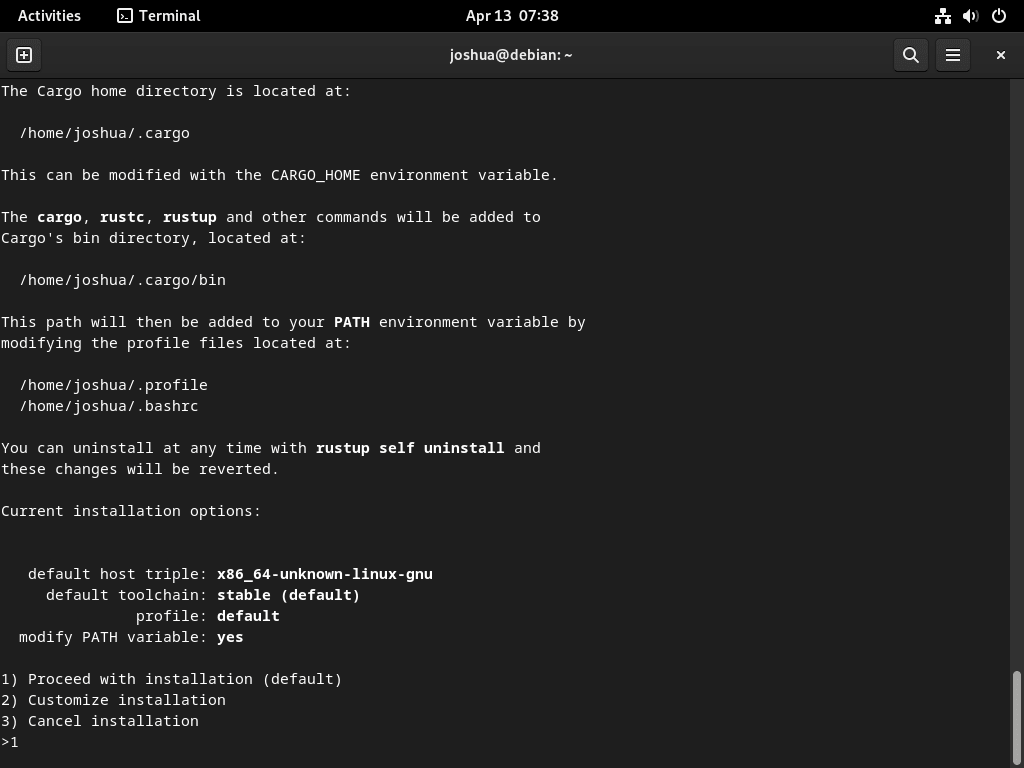
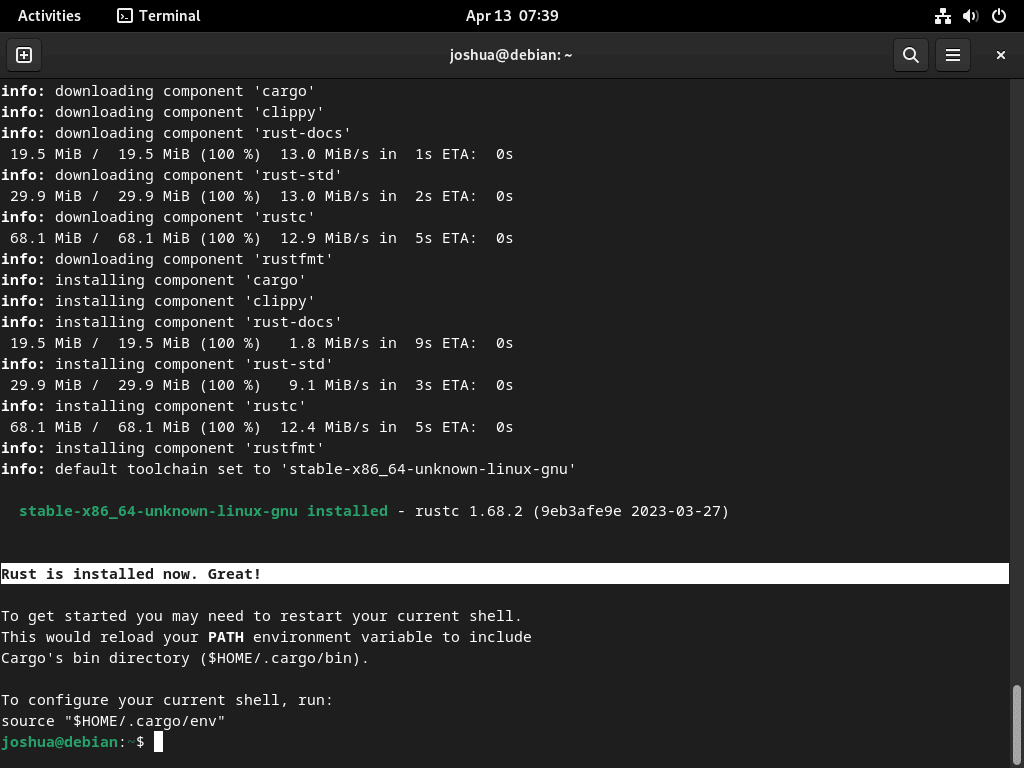
During the installation process, you will be prompted to choose an installation option. Simply type 1 and press Enter to proceed with the default installation, which installs the stable toolchain.
Activate Rust Environment
After rustup installation, activate the Rust environment for your current shell session:
source ~/.cargo/envVerify Rustup Installation
Confirm Rust installed correctly by checking the compiler and Cargo versions:
rustc --versionThe output displays the current stable version with build hash and date:
rustc 1.x.x (xxxxxxxxx yyyy-mm-dd)
Likewise, check that Cargo is available:
cargo --versionThis confirms your Cargo version:
cargo 0.x.x (xxxxxxxxx yyyy-mm-dd)
Rustup always installs the latest stable release. The version numbers above are placeholders—your output will show the current stable version at the time of installation.
Create a Test Rust Application
At this point, test your installation by creating a simple “Hello World” program, which verifies both the compiler and your development environment work correctly.
Create a Workspace Directory
First, create a directory for your Rust projects:
mkdir ~/rust-projectsCreate a Sample Application in Rust
Next, change to the projects directory and create a Rust source file:
cd ~/rust-projects && nano helloworld.rsThen add the following Rust code:
fn main() {
    println!("Hello World, this is a test provided by LinuxCapable.com");
}
When finished, save the changes by pressing CTRL+O, then exit nano by pressing CTRL+X.
Compile Rust Test Program
With the source file saved, compile it using the Rust compiler:
rustc helloworld.rsThis creates an executable file named helloworld. To confirm, list the directory contents:
lsAs expected, the directory now contains both files:
helloworld helloworld.rs
Run the Test Application
Finally, execute the compiled program:
./helloworldThe terminal displays:
Hello World, this is a test provided by LinuxCapable.com
Seeing this output confirms your Rust installation is working correctly.
Update and Remove Rust
Notably, the update and removal commands differ depending on which installation method you used.
Update Rust (APT Method)
With APT, Rust updates through your regular system updates:
sudo apt update && sudo apt upgradeUpdate Rust (Rustup Method)
In contrast, rustup provides its own update mechanism:
rustup updateA successful update displays the toolchain being updated:
info: syncing channel updates for 'stable-x86_64-unknown-linux-gnu'
info: checking for self-update

  stable-x86_64-unknown-linux-gnu unchanged - rustc 1.x.x (xxxxxxxxx yyyy-mm-dd)

info: cleaning up downloads & tmp directories
If a new version is available, rustup downloads and installs the updated components automatically.
Remove Rust (APT Method)
Remove APT-installed Rust with the following command:
sudo apt remove rustc cargoAdditionally, to remove configuration files:
sudo apt purge rustc cargo && sudo apt autoremoveAfterward, confirm removal succeeded by verifying the commands are gone:
rustc --versionExpected output confirming removal:
bash: rustc: command not found
Remove Rust (Rustup Method)
To uninstall rustup and all installed toolchains, run:
rustup self uninstallWhen prompted, type y to confirm. The output shows the removal progress:
Thanks for hacking in Rust!

This will uninstall all Rust toolchains and data, and remove
$HOME/.cargo/bin from your PATH environment variable.

Continue? (y/N) y

info: removing rustup home
info: removing cargo home
info: removing rustup binaries
info: rustup is uninstalled
The rustup uninstall command removes Rust tooling but preserves your projects and compiled executables. To fully clean up, manually delete the
~/.cargo/and~/.rustup/directories after uninstalling.
Afterward, verify uninstallation by checking the command is gone:
rustc --versionExpected output confirming removal:
bash: rustc: command not found
If you want to delete user data as well:
Be aware that the following command permanently deletes your Cargo cache, installed crates, and rustup configuration. As a result, any downloaded dependencies will need to be re-downloaded if you reinstall Rust.
rm -rf ~/.cargo ~/.rustupTroubleshoot Common Rustup Issues
These troubleshooting steps apply to rustup installations. APT-installed Rust uses system paths and typically doesn’t encounter these issues.
Command Not Found After Installation
After installing rustup, you may see this error when running Rust commands:
bash: rustc: command not found
This happens because your shell’s PATH hasn’t been updated to include ~/.cargo/bin. First, check if the cargo directory exists:
ls ~/.cargo/bin/If you see rustc, cargo, and other binaries listed, source the environment file to fix your PATH:
source ~/.cargo/envVerify the fix worked:
rustc --version && cargo --versionYou should see version output for both commands. For a permanent fix across terminal sessions, add this line to your ~/.bashrc:
echo '. "$HOME/.cargo/env"' >> ~/.bashrcSSL Certificate Errors During Installation
If the rustup download fails with SSL errors, you may see output like:
curl: (60) SSL certificate problem: unable to get local issuer certificate
This indicates your CA certificates are missing or outdated. Reinstall them:
sudo apt update && sudo apt install --reinstall ca-certificatesVerify curl can now reach HTTPS sites:
curl -sI https://sh.rustup.rs | head -1Expected output showing SSL works:
HTTP/2 200
Once certificates are working, retry the rustup installation:
curl --proto '=https' --tlsv1.2 -sSf https://sh.rustup.rs | shConclusion
You now have Rust installed on Debian using either APT for system-managed packages or rustup for the latest stable compiler. Both methods were verified by compiling a test program. Keep your toolchain current with apt upgrade or rustup update, then explore The Rust Programming Language book and start new projects with cargo new.

Formatting tips for your comment
You can use basic HTML to format your comment. Useful tags currently allowed:
<code>command</code>command<strong>bold</strong><em>italic</em><blockquote>quote</blockquote>