
Quick screenshot markup, simple annotations, and small paint edits are easier when the editor stays out of your way. To install Pinta on Ubuntu, the practical choice depends on your release: Ubuntu 22.04 still carries a distro package, Ubuntu 24.04 needs Snap or Flatpak for current builds, and Ubuntu 26.04 can also use a source-build updater command that pulls the latest official tarball for you.
Pinta is a lightweight desktop image editor for quick drawing, cropping, text overlays, and screenshot cleanup. The project’s current Linux downloads point to Snap and Flathub rather than an official Ubuntu .deb. Both builds track Pinta 3.1.1, and the application still needs a graphical session when you launch it.
Install Pinta on Ubuntu
Four installation paths make sense across current Ubuntu LTS releases, but the source build applies only to Ubuntu 26.04. If you are not sure whether the APT or source row applies to your system, check Ubuntu version first.
| Method | Channel | Ubuntu 26.04 | Ubuntu 24.04 | Ubuntu 22.04 | Best For |
|---|---|---|---|---|---|
| APT | Ubuntu package search | Not packaged | Not packaged | Pinta 1.6 | Ubuntu 22.04 users who want the distro-managed package |
| Snap | Snapcraft | Pinta 3.1.1 | Pinta 3.1.1 | Pinta 3.1.1 | The shortest cross-release install on standard Ubuntu systems |
| Flatpak | Flathub | Pinta 3.1.1 | Pinta 3.1.1 | Pinta 3.1.1 | Users who already rely on Flathub or prefer Flatpak’s app sandbox |
| Source build | Official Pinta releases | Pinta 3.1.1 | Blocked by libadwaita floor | Blocked by libadwaita floor | Ubuntu 26.04 users who want a native /usr/local install with a reusable updater command |
Quick pick:
- Choose Snap when you want the fastest setup on Ubuntu 26.04 or 24.04 and are happy with Ubuntu’s default universal package format.
- Choose Flatpak when Flathub is already part of your desktop workflow or you want to keep Pinta inside the Flatpak ecosystem.
- Choose the source build on Ubuntu 26.04 when you want the official tarball installed under
/usr/localand a reusableupdate-pintacommand for later upgrades. - Choose APT only on Ubuntu 22.04 when you specifically want the older distro-managed Pinta 1.6 package from Universe.
These steps support Ubuntu 26.04, 24.04, and 22.04. Ubuntu 22.04 still packages Pinta in Universe, Ubuntu 24.04 does not, and Ubuntu 26.04 can either use Snap or Flatpak like Noble or build the current tarball from source.
All four methods can be installed from a terminal. Pinta itself is still a desktop application, so use a graphical session when you launch it.
Ubuntu did not simply hide a working package in newer releases. Debian removed the old Pinta 1.6 package from unstable in 2023 as RC-buggy and still depending on GTK2, and Ubuntu 24.04 plus 26.04 never published a replacement source package. That is why newer Ubuntu LTS releases have no apt install pinta candidate in the default archive.
The source build is now practical on Ubuntu 26.04 because Resolute ships dotnet-sdk-10.0, libadwaita-1 1.9, and GTK 4.21.6 in the default archive. Ubuntu 24.04 and 22.04 still fail at configure because Pinta 3.1.1 requires libadwaita-1 >= 1.7, while Noble ships 1.5.x and Jammy 1.1.x. On 26.04, the source path below uses a reusable updater script so you do not have to keep copying a fixed tarball URL by hand.
Update Ubuntu Before Installing Pinta
Refresh the package index and apply pending upgrades first so Pinta installs against current libraries and runtime packages.
sudo apt update && sudo apt upgradeThese commands use
sudofor tasks that need root privileges. If your account does not have sudo access yet, follow the guide to add a new user to sudoers on Ubuntu before continuing.
Install Pinta from Ubuntu Repositories on Ubuntu 22.04
The native Ubuntu package is available only on Ubuntu 22.04. It lives in the Universe component, so if APT cannot find pinta on Jammy, enable Universe first by following the guide to enable Universe and Multiverse in Ubuntu. Only Universe is required for this package.
sudo apt install pinta -yVerify the APT Pinta Installation on Ubuntu 22.04
APT package metadata is the cleanest verification method here because it confirms the installed version without relying on a desktop-aware launch command.
apt-cache policy pintaExpected output on Ubuntu 22.04:
pinta:
  Installed: 1.6-2.1
  Candidate: 1.6-2.1
  Version table:
 *** 1.6-2.1 500
        500 http://au.archive.ubuntu.com/ubuntu jammy/universe amd64 Packages
        500 http://au.archive.ubuntu.com/ubuntu jammy/universe i386 Packages
        100 /var/lib/dpkg/status
If you see Candidate: (none) or an “installation candidate” error instead, you are either on Ubuntu 24.04 or 26.04, where Pinta is no longer packaged, or you are on Ubuntu 22.04 with Universe disabled.
Install Pinta with Snap on Ubuntu 26.04, 24.04, and 22.04
Snap is the shortest cross-release path on Ubuntu because standard desktop installs already include snapd. It also keeps you on the current 3.1.1 branch instead of the older Ubuntu 22.04 package.
Ubuntu includes Snap by default on standard installs, but minimal or heavily customized systems can still miss it. If the
snapcommand is not available, install the service first withsudo apt install snapd.
sudo snap install pintaVerify the Snap Pinta Installation on Ubuntu
snap list confirms the installed channel and revision without opening the graphical application.
snap list pintaExpected output:
Name   Version  Rev  Tracking       Publisher       Notes
pinta  3.1.1    90   latest/stable  james-carroll*  -
Enable Flathub for Pinta on Ubuntu
Flatpak is the other current cross-release option. Add the Flathub remote first, then install Pinta from the same system scope.
Flatpak is not pre-installed on Ubuntu. If you have not set it up yet, install it with
sudo apt install flatpakand restart your session before continuing. For the full setup, follow our Flatpak installation guide for Ubuntu.
sudo flatpak remote-add --if-not-exists flathub https://dl.flathub.org/repo/flathub.flatpakrepoConfirm that Flathub is available before the install step. The grep command in Linux keeps the output focused on the remote you just added.
flatpak remotes | grep "^flathub"Expected output:
flathub system
Install Pinta with Flatpak on Ubuntu 26.04, 24.04, and 22.04
Pinta’s Flathub app ID is com.github.PintaProject.Pinta. Because the remote was added with sudo, keep the install at the same system scope.
sudo flatpak install flathub com.github.PintaProject.Pinta -yVerify the Flatpak Pinta Installation on Ubuntu
flatpak info reports the installed app metadata without trying to launch the editor, which makes it the cleanest verification command for the Flathub method.
flatpak info com.github.PintaProject.PintaExpected output:
Pinta - Edit images and paint digitally

          ID: com.github.PintaProject.Pinta
         Ref: app/com.github.PintaProject.Pinta/x86_64/stable
        Arch: x86_64
      Branch: stable
     Version: 3.1.1
     License: MIT
      Origin: flathub
  Collection: org.flathub.Stable
Installation: system
Install the Pinta Source Build Dependencies on Ubuntu 26.04
Ubuntu 26.04 ships the needed .NET, GTK, and libadwaita packages in the default repositories, so you can build the current release without adding an extra vendor feed.
sudo apt install dotnet-sdk-10.0 autotools-dev autoconf-archive gettext intltool libadwaita-1-dev libgtk-4-dev pkgconf build-essential ca-certificates curl -yCreate the Pinta Source Update Script on Ubuntu 26.04
This updater command handles the first install and later source upgrades from the same workflow. It resolves the latest official tarball automatically, builds inside $HOME/pinta-source, and installs Pinta under /usr/local.
sudo tee /usr/local/bin/update-pinta > /dev/null <<'SCRIPT_EOF'
#!/usr/bin/env bash
set -e

INSTALL_PREFIX="/usr/local"
BUILD_DIR="$HOME/pinta-source"

if [ "$(id -u)" -eq 0 ]; then
  echo "Run this script as a regular user; use sudo only for install steps."
  exit 1
fi

for cmd in curl tar make gcc pkg-config dotnet; do
  if ! command -v "$cmd" >/dev/null 2>&1; then
    echo "Error: $cmd is required but not installed."
    echo "Run: sudo apt install dotnet-sdk-10.0 autotools-dev autoconf-archive gettext intltool libadwaita-1-dev libgtk-4-dev pkgconf build-essential ca-certificates curl"
    exit 1
  fi
done

mkdir -p "$BUILD_DIR"

CURRENT_VERSION=$($INSTALL_PREFIX/bin/pinta --version 2>/dev/null | grep -oE '[0-9]+\.[0-9]+\.[0-9]+' | head -n 1 || echo "missing")
RELEASE_JSON=$(curl -fsSL https://api.github.com/repos/PintaProject/Pinta/releases/latest)
LATEST_VERSION=$(printf '%s\n' "$RELEASE_JSON" | grep -oE '"tag_name":\s*"[^"]+"' | head -n 1 | cut -d '"' -f4)
TARBALL_URL=$(printf '%s\n' "$RELEASE_JSON" | grep -oE '"browser_download_url":\s*"[^"]*pinta-[0-9.]+\.tar\.gz"' | head -n 1 | cut -d '"' -f4)

if [ -z "$LATEST_VERSION" ] || [ -z "$TARBALL_URL" ]; then
  echo "Error: Could not fetch the latest Pinta release metadata."
  exit 1
fi

echo "Current version: $CURRENT_VERSION"
echo "Latest version:  $LATEST_VERSION"

if [ "$CURRENT_VERSION" = "$LATEST_VERSION" ]; then
  echo "Already up to date."
  exit 0
fi

echo "Downloading Pinta $LATEST_VERSION..."
cd "$BUILD_DIR"
rm -rf pinta-*/
rm -f pinta-*.tar.gz
curl -fL "$TARBALL_URL" -o "pinta-$LATEST_VERSION.tar.gz"

echo "Extracting source archive..."
tar -xf "pinta-$LATEST_VERSION.tar.gz"
cd "pinta-$LATEST_VERSION"

echo "Configuring Pinta $LATEST_VERSION..."
./configure --prefix="$INSTALL_PREFIX"

echo "Compiling Pinta $LATEST_VERSION..."
make

echo "Installing Pinta $LATEST_VERSION..."
sudo make install

NEW_VERSION=$($INSTALL_PREFIX/bin/pinta --version 2>/dev/null | grep -oE '[0-9]+\.[0-9]+\.[0-9]+' | head -n 1 || echo "unknown")
echo "Installed version: $NEW_VERSION"
SCRIPT_EOF
Make the script executable. Because it lives in /usr/local/bin, you can run update-pinta from any terminal directory.
sudo chmod +x /usr/local/bin/update-pinta
update-pinta
Current version: 3.1.1 Latest version: 3.1.1 Already up to date.
When an update is available, the script downloads the new tarball, recompiles Pinta, installs it over the existing source build, and reports the installed version at the end.
Avoid automating this script with cron. Compilation can fail due to network issues, dependency changes, or upstream build changes, so run it manually and review the output each time.
Verify the Source-Built Pinta Installation on Ubuntu 26.04
The source-built launcher lands in /usr/local/bin, so checking both the resolved path and the reported version confirms that the local build is the one your shell sees first.
command -v pinta
pinta --version
Expected output on Ubuntu 26.04:
/usr/local/bin/pinta
3.1.1
Launch Pinta on Ubuntu
Pinta can be launched from the desktop menu or directly from a terminal. The command depends on which package format you chose.
Start Pinta from the Terminal on Ubuntu
Use the command that matches your install method. The plain pinta launcher applies to the Ubuntu 22.04 APT package and the Ubuntu 26.04 source build.
# APT on Ubuntu 22.04 or source build on Ubuntu 26.04
pinta

# Snap
snap run pinta

# Flatpak
flatpak run com.github.PintaProject.Pinta
Open Pinta from the Ubuntu Application Menu
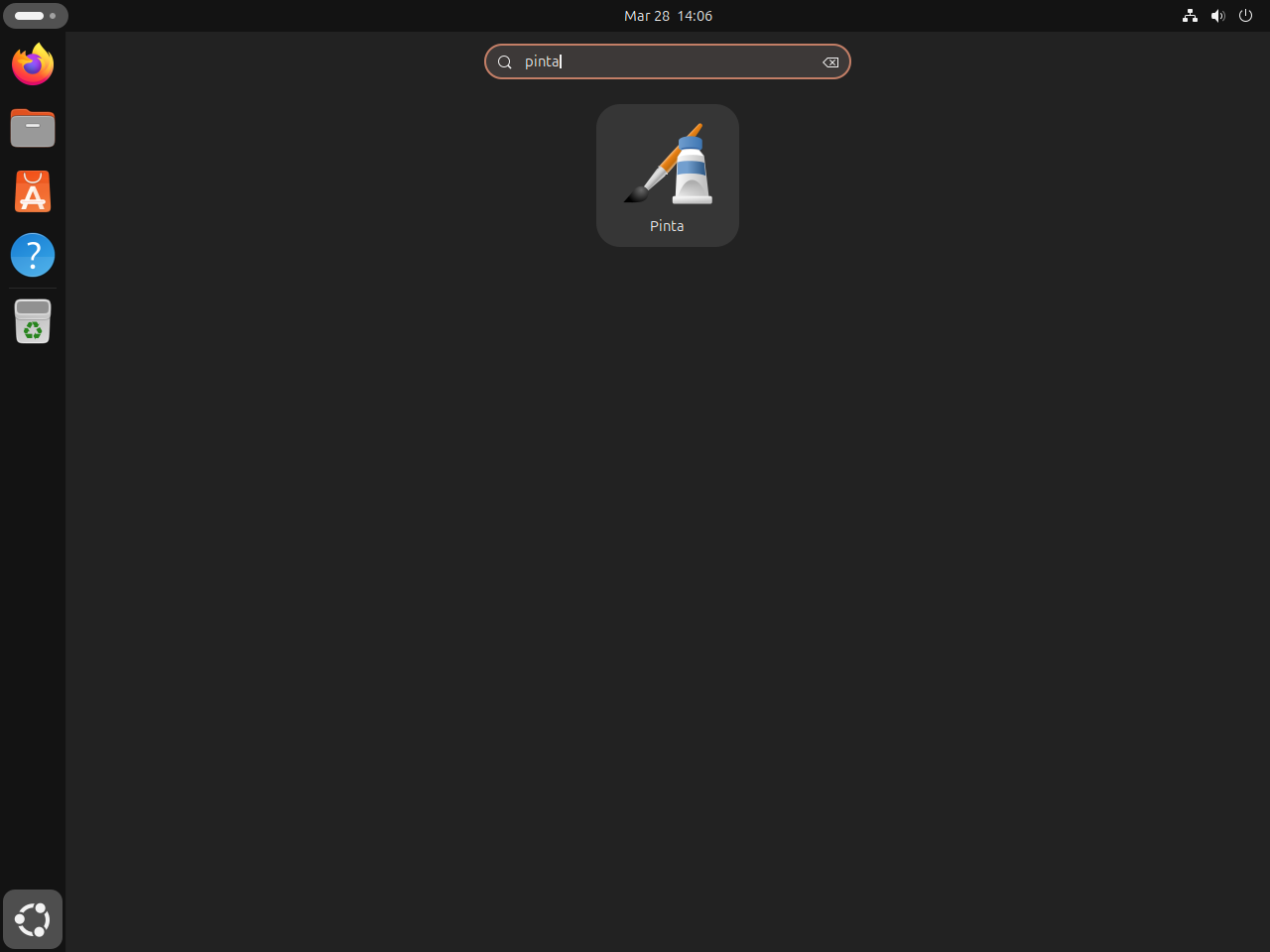
Desktop users can also open Pinta from Show Applications > Pinta. That path is usually more convenient once the application is installed.
First Steps in Pinta on Ubuntu
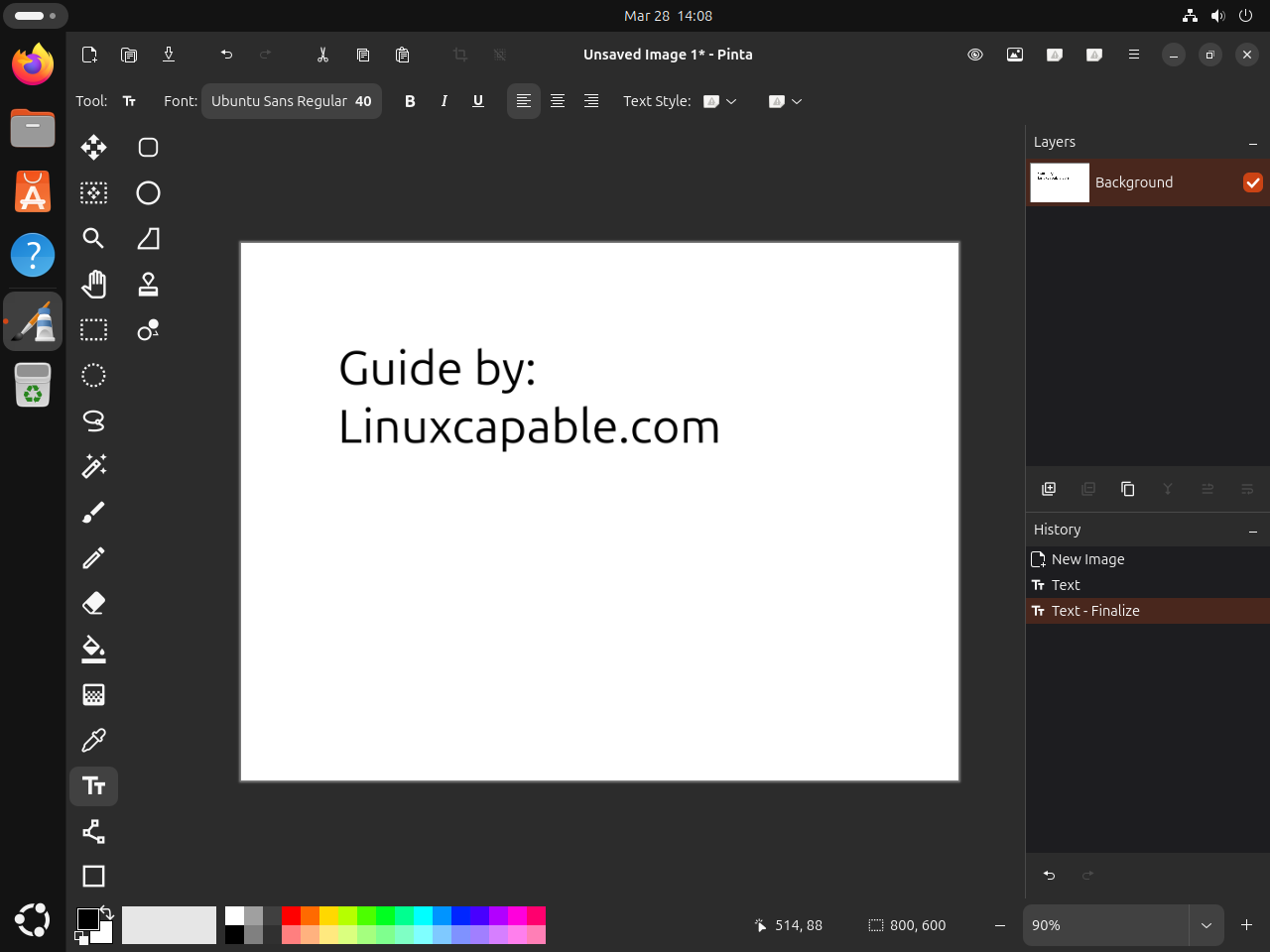
Pinta is intentionally small, so a few habits make the first session smoother without burying you in preferences screens.
- Start with a screenshot or photo and try the text, crop, and line tools first, since those cover most quick annotation jobs.
- Keep the Layers panel visible when you add text or shapes so you can move and edit elements without flattening the whole image too early.
- Use
Ctrl+Shift+Searly if you plan to keep an editable copy, then export a separate PNG or JPEG when the image is finished. - Zoom in before pixel cleanup or small brush work, because Pinta’s simpler interface hides fewer safety rails than larger editors like GIMP.
Update or Remove Pinta on Ubuntu
The update and removal commands depend on the package format you installed. Keep the command matched to the original method so Ubuntu does not leave a second package format behind.
Update the APT Pinta Package on Ubuntu 22.04
The Jammy package uses Ubuntu’s normal APT workflow, so a single-package upgrade is enough when a newer repository build appears.
sudo apt install --only-upgrade pintaUpdate the Pinta Snap on Ubuntu
Snap refreshes applications in the background by default, but you can still force an immediate check when you want the newest revision right away.
sudo snap refresh pintaUpdate the Pinta Flatpak on Ubuntu
The Flatpak build stays current through Flathub, so update it from the same system scope used for the original install.
sudo flatpak update com.github.PintaProject.Pinta -yUpdate the Source-Built Pinta Installation on Ubuntu 26.04
The source build does not update through APT. Reuse the updater command you created earlier whenever you want to check for a newer release.
update-pintaThe script exits quickly when your installed source build already matches the latest release.
Remove the APT Pinta Package on Ubuntu 22.04
Use the normal APT removal path on Ubuntu 22.04. If you also want to clear unused dependencies afterward, review sudo apt autoremove separately.
sudo apt remove pintaConfirm that the package is no longer installed:
apt-cache policy pintaExpected output on Ubuntu 22.04 after removal:
pinta:
  Installed: (none)
  Candidate: 1.6-2.1
  Version table:
     1.6-2.1 500
        500 http://au.archive.ubuntu.com/ubuntu jammy/universe amd64 Packages
        500 http://au.archive.ubuntu.com/ubuntu jammy/universe i386 Packages
Remove the Pinta Snap on Ubuntu
The Snap removal path deletes the packaged application, then you can confirm that no matching snap remains installed.
sudo snap remove pintaConfirm that the snap is gone:
snap list pintaExpected output after removal:
error: no matching snaps installed
Remove the Pinta Flatpak on Ubuntu
Keep the Flatpak removal at system scope because the install step used sudo. The second command clears leftover runtimes that no other Flatpak app needs.
sudo flatpak remove com.github.PintaProject.Pinta -y
sudo flatpak uninstall --unused -y
Confirm that the Flatpak app entry is gone:
flatpak list --app | grep "com.github.PintaProject.Pinta" || echo NOT_INSTALLEDExpected output after removal:
NOT_INSTALLED
Remove the Source-Built Pinta Installation on Ubuntu 26.04
If you kept the build directory that update-pinta manages under $HOME/pinta-source, make uninstall removes the source-built launcher and the installed desktop metadata cleanly.
cd "$HOME/pinta-source/pinta-3.1.1"
sudo make uninstall
sudo rm -f /usr/local/bin/update-pinta
rm -rf "$HOME/pinta-source"
Confirm that the source-built launcher is gone:
command -v pinta || echo NOT_INSTALLEDExpected output after removal:
NOT_INSTALLED
Headless install and removal checks did not leave matching files under
/usr/local/bin,/usr/local/lib, or/usr/local/shareafter the source uninstall. If you used Pinta in a desktop session and want to clear any personal data too, inspect your own home directory first and delete only the paths that actually exist.
ls -ld ~/.config/Pinta ~/.var/app/com.github.PintaProject.Pinta 2>/dev/null
ls ~/.local/share/applications 2>/dev/null | grep -i pinta
ls ~/.cache 2>/dev/null | grep Pinta
No output means those locations do not currently contain matching Pinta data or launchers.
Pinta on Ubuntu FAQ
On Ubuntu 24.04 and 26.04, Pinta is not packaged in the default repositories, so apt install pinta ends with no installation candidate. On Ubuntu 22.04, the package still exists in universe, so first confirm you are on Jammy and that the universe component is enabled.
Snap is the shortest path on standard Ubuntu installs because snapd is usually already present. Flatpak makes more sense if you already use Flathub or want to keep Pinta inside the Flatpak app sandbox. Both methods currently deliver Pinta 3.1.1.
Ubuntu inherited the old 1.6 package from Debian, and Debian removed that source package from unstable in 2023 as RC-buggy and still depending on GTK2. Ubuntu 24.04 and 26.04 never published a replacement source package, which is why the newer LTS releases no longer offer pinta through APT.
No official Ubuntu .deb is listed on Pinta’s current release page. The project’s official Linux downloads point to Flathub and Snap, while the source tarball is there for manual builds and the AppImage link is explicitly marked as community-maintained.
Yes on Ubuntu 26.04. Resolute ships dotnet-sdk-10.0, libadwaita-1 1.9, and GTK 4.21.6, which satisfy the current 3.1.1 build requirements. The 26.04 source method in this article uses a reusable update-pinta command that resolves the latest official tarball automatically. Ubuntu 24.04 and 22.04 still fail at configure because their libadwaita packages are too old, so Snap or Flatpak remains the practical path there.
Conclusion
Pinta is ready on Ubuntu for quick markup, annotations, and small paint edits, whether you used Jammy’s APT package, the current 3.1.1 builds from Snap or Flathub, or the tested source build on Ubuntu 26.04. If you need a heavier editor next, install GIMP on Ubuntu for deeper photo work or install Inkscape on Ubuntu for vector graphics.

Formatting tips for your comment
You can use basic HTML to format your comment. Useful tags currently allowed in published comments:
<code>command</code>command<strong>bold</strong><em>italic</em><blockquote>quote</blockquote>