
Ubuntu’s default image viewer is fine for quick previews, but it leaves little room for RAW browsing, photo spheres, or a keyboard-driven workflow. That is why many people install PhotoQt on Ubuntu 26.04, 24.04, and 22.04 when they want a viewer that stays fast on large folders and supports 100+ image formats, video files, documents, Motion Photos, Live Photos, and 360-degree panoramas.
PhotoQt is available in Ubuntu’s Universe repository on every supported LTS release. The choice mainly comes down to Ubuntu’s package, a newer APT build on 24.04 and 22.04, or Flatpak when you want the same upstream release across each supported version. The package installs cleanly from a terminal or over SSH, but PhotoQt itself still needs a graphical session to open images.
Install PhotoQt on Ubuntu
Each installation path trades off version freshness, sandboxing, and APT integration a little differently. The right method depends on whether you want Ubuntu’s package, a newer APT build, or a sandboxed upstream release.
| Method | Channel | Version | Updates | Best For |
|---|---|---|---|---|
| APT (Ubuntu Repository) | Ubuntu Repos | Ubuntu package | Automatic via standard APT updates | Ubuntu 26.04 users and anyone who wants the distro package |
| APT (PhotoQt PPA) | Launchpad PPA | Newer APT build | Automatic via standard APT updates | Ubuntu 24.04 and 22.04 users who want a newer APT release |
| Flatpak | Flathub | Latest stable | Manual via sudo flatpak update | Users who want the same upstream release across all supported LTS versions |
| Ubuntu Release | Default PhotoQt | What It Means |
|---|---|---|
| Ubuntu 26.04 | PhotoQt 4.9.x | New enough that many users can stay with Ubuntu’s own package |
| Ubuntu 24.04 | PhotoQt 4.4.x | Stable distro package, but the PPA and Flathub builds are newer |
| Ubuntu 22.04 | PhotoQt 2.5.x | The biggest version gap, so the PPA or Flathub usually makes more sense |
- Use the Ubuntu repository on 26.04 if you want the simplest path and the distro package is already new enough.
- Use the PPA on 24.04 or 22.04 if you want a newer APT build than Ubuntu ships.
- Use Flatpak when you want the same upstream PhotoQt release across every supported Ubuntu LTS version.
PhotoQt comes from Ubuntu’s
universecomponent on all supported LTS releases. Standard desktop installs usually already have Universe enabled, but minimal or customized systems can still miss it. If APT returnsUnable to locate package photoqt, enable Universe on Ubuntu before retrying.
Update Ubuntu Before Installing PhotoQt
Refresh APT once before adding packages so you are working from current repository metadata.
sudo apt updateThese commands use
sudofor package-management tasks that need root privileges. If your account does not have sudo access yet, add a new user to sudoers on Ubuntu before continuing.
Install PhotoQt from Ubuntu’s Repository
Ubuntu’s own package is the lowest-maintenance option and already current enough for many desktops, especially on 26.04.
sudo apt install -y photoqtThe -y flag accepts APT’s confirmation prompt automatically. Once the install finishes, confirm the package state with APT instead of trying to launch the GUI from a headless shell.
apt-cache policy photoqtphotoqt:
Installed: 4.9.2+ds-1
Candidate: 4.9.2+ds-1
Version table:
*** 4.9.2+ds-1 500
500 http://archive.ubuntu.com/ubuntu resolute/universe amd64 Packages
100 /var/lib/dpkg/status
Ubuntu 24.04 installs 4.4+ds-1, while Ubuntu 22.04 installs 2.5-4. Mirror hostnames can differ, but the important lines are the installed version and the source path ending in /universe.
Install PhotoQt from the PhotoQt PPA on Ubuntu 24.04 or 22.04
The developer PPA is the better APT path when Ubuntu 24.04 or 22.04 feels too far behind the current PhotoQt release.
The PhotoQt PPA does not currently publish a
resoluteRelease file, so this method is limited to Ubuntu 24.04 and 22.04. On Ubuntu 26.04, use the default repository or the Flathub build instead.
sudo add-apt-repository ppa:lumas/photoqt -y
sudo apt update
sudo apt install -y photoqt
add-apt-repository adds the Launchpad source and imports its signing key for you. The final install command upgrades an older Ubuntu package automatically if PhotoQt was already present.
apt-cache policy photoqtphotoqt:
Installed: 5.2-1
Candidate: 5.2-1
Version table:
*** 5.2-1 500
500 https://ppa.launchpadcontent.net/lumas/photoqt/ubuntu noble/main amd64 Packages
100 /var/lib/dpkg/status
4.4+ds-1 500
500 http://archive.ubuntu.com/ubuntu noble/universe amd64 Packages
On Ubuntu 22.04, the same PPA path installs 4.6-1. Either way, the Launchpad source line tells you the PPA package won the version comparison.
Install PhotoQt from Flathub on Ubuntu
Flatpak is the cleanest way to keep the same upstream PhotoQt build across Ubuntu 26.04, 24.04, and 22.04.
Flatpak is not pre-installed on Ubuntu. If you have not set it up yet, install it with
sudo apt install flatpakand restart your session before continuing. If you need the full setup flow, install Flatpak on Ubuntu first.
Add Flathub at system scope so the app is available to every local user on the machine.
sudo flatpak remote-add --if-not-exists flathub https://dl.flathub.org/repo/flathub.flatpakrepoThe --if-not-exists flag makes the command safe to rerun. Confirm the remote before you install the app itself.
flatpak remotesflathub system
With Flathub in place, install PhotoQt and let Flatpak pull the required runtimes automatically.
sudo flatpak install flathub org.photoqt.PhotoQt -yUse flatpak info for verification because it works cleanly in headless shells.
flatpak info org.photoqt.PhotoQt ID: org.photoqt.PhotoQt
Ref: app/org.photoqt.PhotoQt/x86_64/stable
Arch: x86_64
Branch: stable
Origin: flathub
Version: 5.2
Flathub currently delivers the same 5.2 build on Ubuntu 26.04, 24.04, and 22.04.
Launch PhotoQt on Ubuntu
PhotoQt launches from the terminal or the Ubuntu app menu, but it still needs a running graphical session. In plain SSH sessions, the launcher fails with Qt display errors such as could not connect to display and Could not load the Qt platform plugin "xcb".
Launch PhotoQt from the Terminal on Ubuntu
APT and PPA installs use the regular desktop launcher name.
photoqtFlatpak installs use the application ID through flatpak run.
flatpak run org.photoqt.PhotoQtIf you only need to confirm the package from a remote shell, stay with apt-cache policy photoqt or flatpak info org.photoqt.PhotoQt instead of trying to launch the GUI.
Open PhotoQt from the Ubuntu App Menu
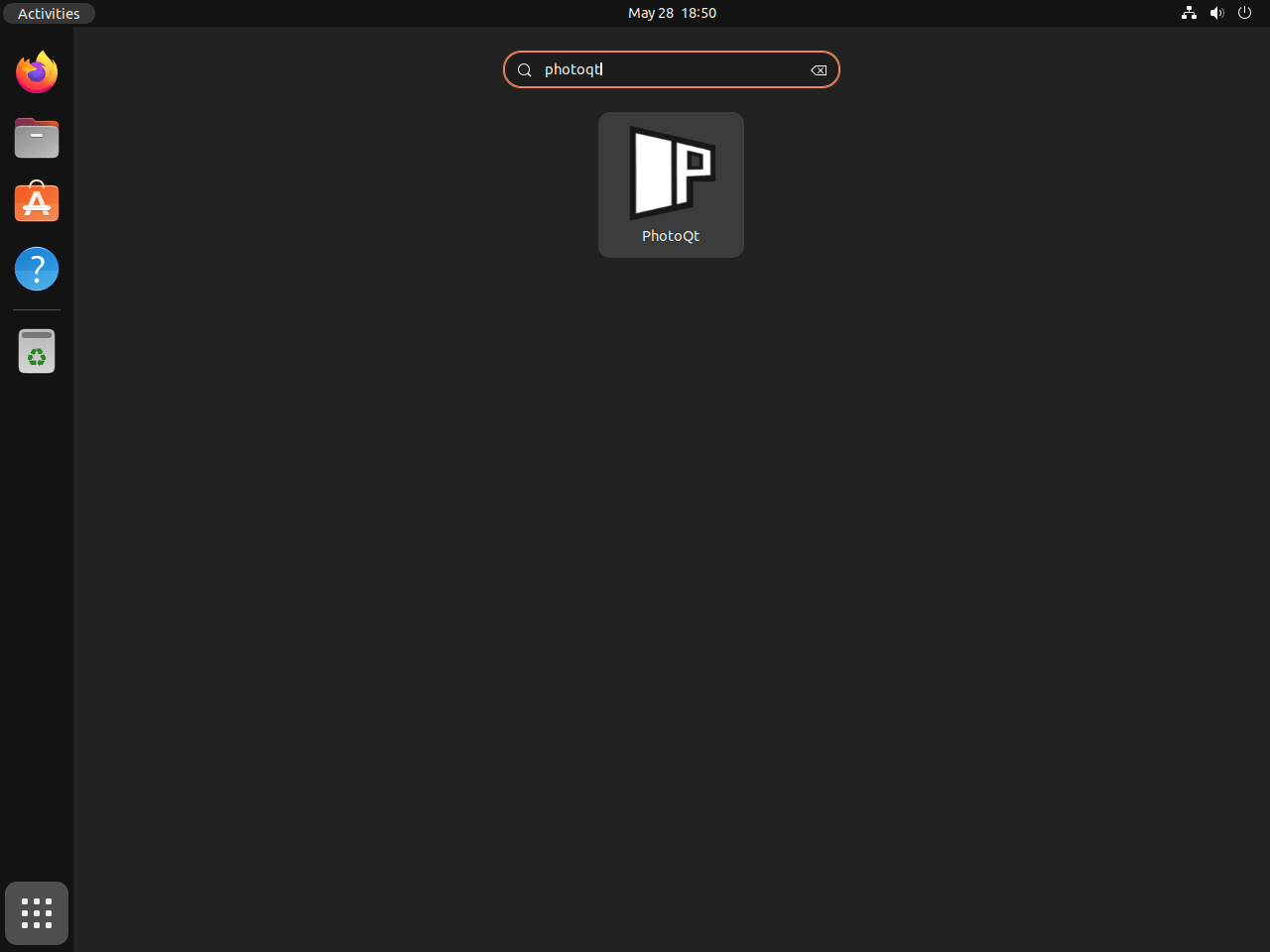
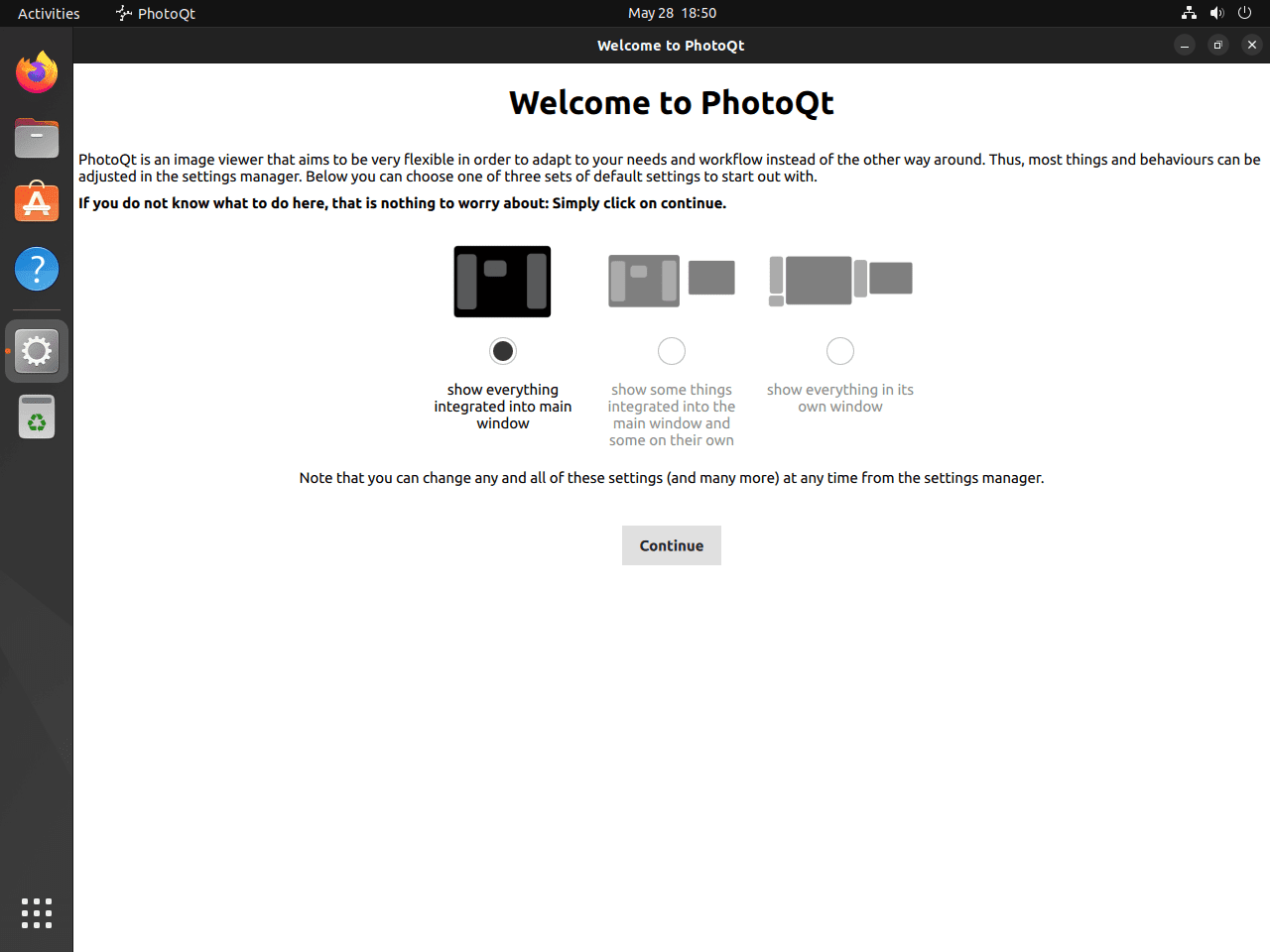
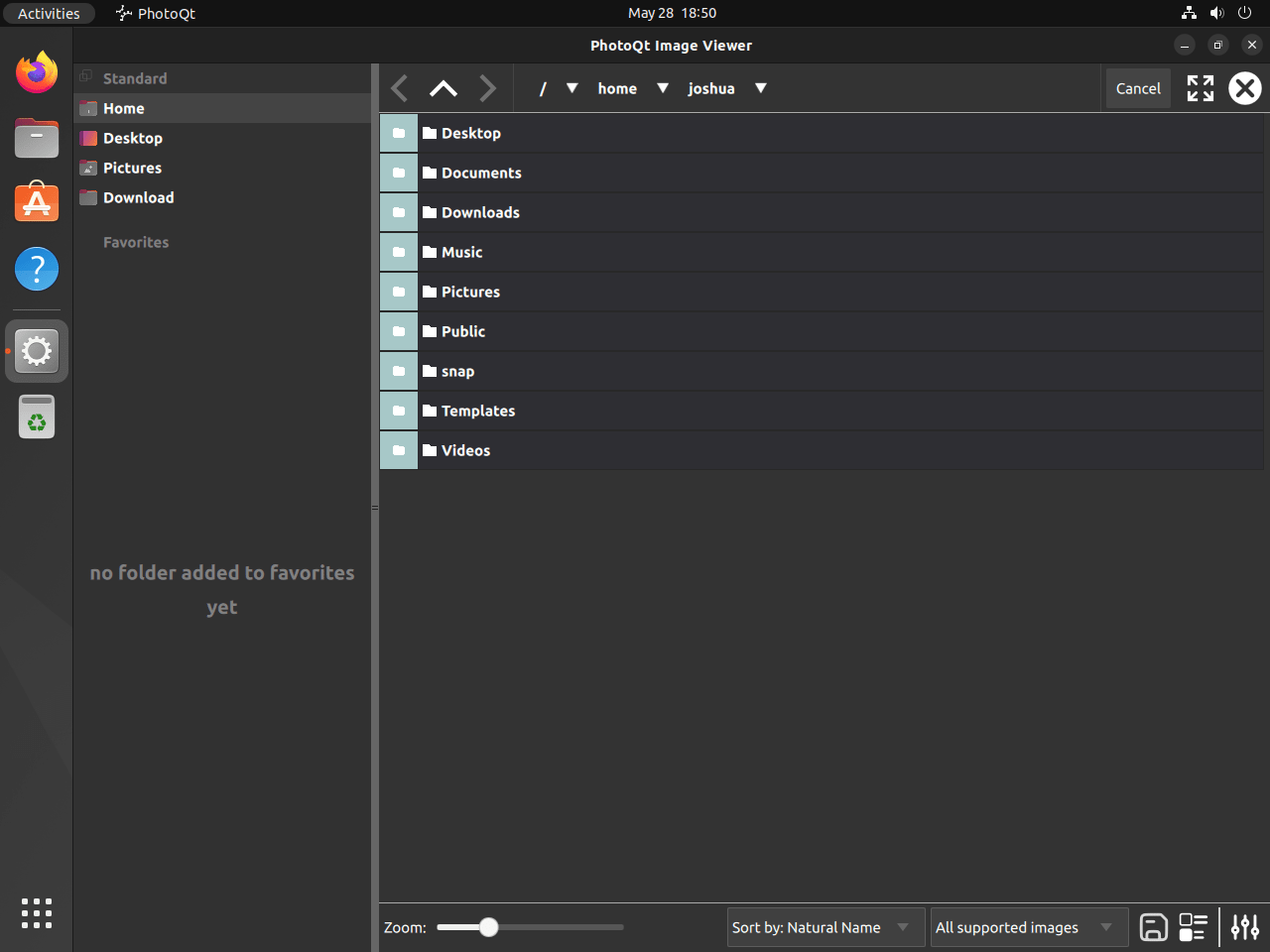
On a regular desktop session, open the launcher from the Activities search just like any other GUI application.
Activities > Show Applications > PhotoQt
Update or Remove PhotoQt on Ubuntu
Keep the update and removal path matched to the installation method you chose. That avoids mixed-package states and makes it easier to verify what is still installed.
Update PhotoQt APT Installations on Ubuntu
APT users can update just PhotoQt without running a full distribution upgrade.
sudo apt install --only-upgrade photoqtIf the PhotoQt PPA is still enabled on Ubuntu 24.04 or 22.04, the same command pulls the newer PPA build instead of the Ubuntu package.
Update PhotoQt Flatpak Installations on Ubuntu
System-scope Flatpak installs should stay on the same system scope for updates.
sudo flatpak update org.photoqt.PhotoQt -yUse sudo flatpak update -y instead if you prefer to update every installed Flatpak app and runtime in one pass.
Remove PhotoQt APT Installations on Ubuntu
Remove the package and its no-longer-needed dependencies first, then decide whether you also need to clean up the optional PPA source.
sudo apt remove --autoremove -y photoqtAPT should now report the package as uninstalled. If you used the PPA, the candidate can still point at Launchpad until you remove that source in the next step.
apt-cache policy photoqtphotoqt:
Installed: (none)
Candidate: 4.9.2+ds-1
Version table:
4.9.2+ds-1 500
500 http://archive.ubuntu.com/ubuntu resolute/universe amd64 Packages
Remove the PhotoQt PPA on Ubuntu
Skip this step if you never added the PhotoQt PPA. Ubuntu-repository users only need the package-removal command above.
sudo add-apt-repository --remove ppa:lumas/photoqt -y
sudo apt update
Run the same policy check again to confirm the Launchpad candidate is gone and APT has fallen back to Ubuntu’s own package metadata.
apt-cache policy photoqtphotoqt:
Installed: (none)
Candidate: 4.4+ds-1
Version table:
4.4+ds-1 500
500 http://archive.ubuntu.com/ubuntu noble/universe amd64 Packages
The tested Ubuntu 24.04 and 22.04 systems did not leave a separate photoqt source file behind after add-apt-repository --remove completed.
Remove PhotoQt Flatpak Installations on Ubuntu
Flatpak can remove the app and any sandboxed data it created in one command.
sudo flatpak remove --delete-data org.photoqt.PhotoQt -yValidate the result with the installed-app list instead of flatpak info, which can be noisy after removal in remote sessions.
flatpak list --app | grep -F org.photoqt.PhotoQt || echo "not installed"not installed
Then remove unused runtimes that no remaining Flatpak app needs.
sudo flatpak uninstall --unused -yFind Leftover PhotoQt User Data on Ubuntu
APT installs can still leave user preferences under your home directory if you have launched PhotoQt before. Search first, then delete only the paths that actually exist on your account.
Deleting these directories permanently removes saved shortcuts, interface preferences, and other local PhotoQt settings for your user account.
find ~/.config -maxdepth 1 -type d -iname '*photoqt*' 2>/dev/null
find ~/.cache -maxdepth 1 -type d -iname '*photoqt*' 2>/dev/null
If those searches return directories you no longer want, remove only the paths shown in your own output.
PhotoQt on Ubuntu FAQ
Ubuntu 26.04 currently ships the newest default branch with photoqt 4.9.2+ds-1. Ubuntu 24.04 ships 4.4+ds-1, and Ubuntu 22.04 ships 2.5-4, which is why the PPA or Flathub becomes more attractive on the older releases.
No. The PPA currently publishes usable metadata for Ubuntu 24.04 and 22.04, but the resolute suite returns no Release file. Ubuntu 26.04 users should stay with the Ubuntu repository or the Flathub build until the maintainer adds 26.04 packages.
Not reliably. In headless SSH sessions, photoqt --version tries to initialize the Qt display stack and fails with display and xcb plugin errors. Use apt-cache policy photoqt for APT installs or flatpak info org.photoqt.PhotoQt for Flatpak installs instead.
Conclusion
PhotoQt is installed on Ubuntu with a package source that matches how much change you want to track. Keep the Ubuntu repo if the distro package is enough, or use Flatpak when you want the same upstream release everywhere. If you need a full editor next, install GIMP on Ubuntu. For RAW development and catalog work, install Darktable on Ubuntu.

Formatting tips for your comment
You can use basic HTML to format your comment. Useful tags currently allowed:
<code>command</code>command<strong>bold</strong><em>italic</em><blockquote>quote</blockquote>