
Some browsers keep moving toward heavier interfaces and tighter service integration, which is why Pale Moon still appeals when you want a traditional browser on a Debian desktop. If you need to install Pale Moon on Debian, the practical path is the upstream Linux tarball because Pale Moon is not in Debian’s default repositories and the current mainline Linux download does not ship a Debian .deb package for this workflow.
The same 64-bit GTK3 tarball layout works on Debian 13, 12, and 11 when the host CPU supports Pale Moon’s current Linux binary requirements. Pale Moon still needs a graphical desktop session to launch, and the current build also needs the libdbus-glib-1-2 runtime library, so the prerequisite step includes it from the start.
Update Debian Before Installing Pale Moon
Refresh APT metadata and install pending package updates before you add a manual browser install under your home directory.
sudo apt update && sudo apt upgrade -yThese commands use
sudofor package-management tasks. If your account does not have sudo access yet, follow the guide on how to add a user to sudoers on Debian or run the commands as root.
Install Pale Moon on Debian
Pale Moon’s official download page publishes current Linux builds as tarballs with detached signatures. This workflow downloads the current 64-bit GTK3 tarball from the official mirror endpoint, verifies the detached signature, extracts it into ~/palemoon, and adds the local system links that make the browser easier to launch.
Pale Moon’s Linux site still links contributed Debian and Ubuntu builds, but those are separate third-party packages. Use the official tarball path here when you want the current mainline Pale Moon release without adding an APT repository that may lag behind or disappear.
The mainline Pale Moon download page currently lists Linux 64-bit tarballs. If you need 32-bit Linux, non-x86_64 hardware, or a build for an older CPU without AVX support, check Pale Moon’s contributed builds instead of reusing the 64-bit GTK3 commands.
Install Pale Moon Prerequisites on Debian
Install the download, archive, signature-verification, and runtime packages before you pull the tarball. The libdbus-glib-1-2 package is the missing library behind the libdbus-glib-1.so.2 startup error that current Pale Moon builds hit on Debian.
sudo apt install curl xz-utils gpg libdbus-glib-1-2 -yThe download commands use curl -fsSLo so HTTP failures stop the command, errors remain visible, redirects are followed, and the saved filename stays predictable. That same download pattern also shows up in the curl command in Linux reference.
Download Pale Moon on Debian
Download the current 64-bit GTK3 tarball and its detached signature from Pale Moon’s official mirror endpoint. The URL redirects to the current release file, so the command stays useful after the next Pale Moon release.
PALMOON_DOWNLOAD_URL='https://www.palemoon.org/download.php?mirror=us&bits=64&type=linuxgtk3'
PALMOON_SIG_URL='https://www.palemoon.org/download.php?mirror=sig&bits=64&type=linuxgtk3'

curl -fsSLo /tmp/palemoon.tar.xz "$PALMOON_DOWNLOAD_URL"
curl -fsSLo /tmp/palemoon.tar.xz.sig "$PALMOON_SIG_URL"
ls -lh /tmp/palemoon.tar.xz /tmp/palemoon.tar.xz.sig
Expected output pattern:
-rw-r--r-- 1 your-user your-user ... /tmp/palemoon.tar.xz
-rw-r--r-- 1 your-user your-user ... /tmp/palemoon.tar.xz.sig
The URL above uses the Americas mirror. Change
mirror=ustomirror=euif the European mirror is closer or faster from your location.
Verify the Pale Moon Download on Debian
Import Pale Moon’s Linux signing key into a temporary GnuPG home, verify the detached signature, then delete the temporary keyring. The warning about an untrusted key is normal for a temporary keyring because you have not certified the key locally.
(
	set -e
	PALMOON_KEY_URL='https://www.palemoon.org/0xC65285EC.asc'
	tmp_gnupg=$(mktemp -d)
	trap 'rm -rf "$tmp_gnupg" /tmp/palemoon-linux-key.asc' EXIT
	export GNUPGHOME="$tmp_gnupg"

	curl -fsSLo /tmp/palemoon-linux-key.asc "$PALMOON_KEY_URL"
	gpg --batch --quiet --import /tmp/palemoon-linux-key.asc
	gpg --verify /tmp/palemoon.tar.xz.sig /tmp/palemoon.tar.xz
)
Relevant verification output includes:
gpg:                using RSA key 439F46F42C6AE3D23CF52E70865E6C87C65285EC
gpg: Good signature from "trava90 <travawine@protonmail.com>" [unknown]
Primary key fingerprint: 439F 46F4 2C6A E3D2 3CF5  2E70 865E 6C87 C652 85EC
Extract Pale Moon on Debian
Extract the verified archive into your home directory. Pale Moon uses a fixed ~/palemoon directory name, which is useful later when you replace it during a manual refresh.
If
~/palemoonalready exists, use the update workflow or move the old directory first. Extracting a new tarball over an old browser directory can leave stale files behind.
tar -xf /tmp/palemoon.tar.xz -C "$HOME"
for item in browser palemoon updater; do
	test -e "$HOME/palemoon/$item"
	printf '%s\n' "$item"
done
Expected output:
browser
palemoon
updater
Create Pale Moon Desktop Integration on Debian
Create the launcher symlink, icon links, and desktop file so Pale Moon behaves like a normal desktop application instead of a bare extracted archive.
if [ -e /usr/local/bin/palemoon ] && [ ! -L /usr/local/bin/palemoon ]; then
	printf '/usr/local/bin/palemoon exists and is not a symlink. Move it before continuing.\n' >&2
else
	sudo ln -sf "$HOME/palemoon/palemoon" /usr/local/bin/palemoon
	sudo ln -sf "$HOME/palemoon/browser/chrome/icons/default/default16.png" /usr/share/icons/hicolor/16x16/apps/palemoon.png
	sudo ln -sf "$HOME/palemoon/browser/chrome/icons/default/default32.png" /usr/share/icons/hicolor/32x32/apps/palemoon.png
	sudo ln -sf "$HOME/palemoon/browser/chrome/icons/default/default48.png" /usr/share/icons/hicolor/48x48/apps/palemoon.png
	sudo ln -sf "$HOME/palemoon/browser/icons/mozicon128.png" /usr/share/icons/hicolor/128x128/apps/palemoon.png
fi
If the command reports an existing non-symlink at /usr/local/bin/palemoon, stop before writing the desktop entry and move that file after you confirm what owns it.
The desktop entry uses sudo tee because a plain > redirection would not write into a root-owned location like /usr/share/applications/ with elevated privileges.
sudo tee /usr/share/applications/palemoon.desktop >/dev/null <<EOF
[Desktop Entry]
Version=1.0
Name=Pale Moon Web Browser
Comment=Browse the World Wide Web
Keywords=Internet;WWW;Browser;Web;Explorer
Exec=palemoon %u
Terminal=false
X-MultipleArgs=false
Type=Application
Icon=palemoon
Categories=Network;WebBrowser;Internet
MimeType=text/html;text/xml;application/xhtml+xml;application/xml;application/rss+xml;application/rdf+xml;image/gif;image/jpeg;image/png;x-scheme-handler/http;x-scheme-handler/https;x-scheme-handler/ftp;x-scheme-handler/chrome;video/webm;application/x-xpinstall;
StartupNotify=true
EOF

sudo gtk-update-icon-cache -f /usr/share/icons/hicolor
Register Pale Moon as a Browser on Debian
Register Pale Moon with Debian’s browser alternatives only if you want it to appear as a selectable default for applications that call x-www-browser or gnome-www-browser.
sudo update-alternatives --install /usr/bin/x-www-browser x-www-browser /usr/local/bin/palemoon 100
sudo update-alternatives --install /usr/bin/gnome-www-browser gnome-www-browser /usr/local/bin/palemoon 100
update-alternatives --query x-www-browser | sed -n '1,8p'
Expected output:
Name: x-www-browser
Link: /usr/bin/x-www-browser
Status: auto
Best: /usr/local/bin/palemoon
Value: /usr/local/bin/palemoon
Verify Pale Moon Installation on Debian
Confirm that the launcher path, desktop entry, icon, and browser binary are all in place before you try to open the graphical app.
command -v palemoon
ls /usr/share/applications/palemoon.desktop /usr/share/icons/hicolor/128x128/apps/palemoon.png
palemoon -v
Expected output:
/usr/local/bin/palemoon
/usr/share/applications/palemoon.desktop
/usr/share/icons/hicolor/128x128/apps/palemoon.png
Moonchild Productions Pale Moon 34.x.x
The exact Pale Moon version changes as new releases land, but the verified output format stays the same.
Launch Pale Moon on Debian
The browser can be downloaded and unpacked over SSH, but it still needs a graphical desktop session when you actually launch it.
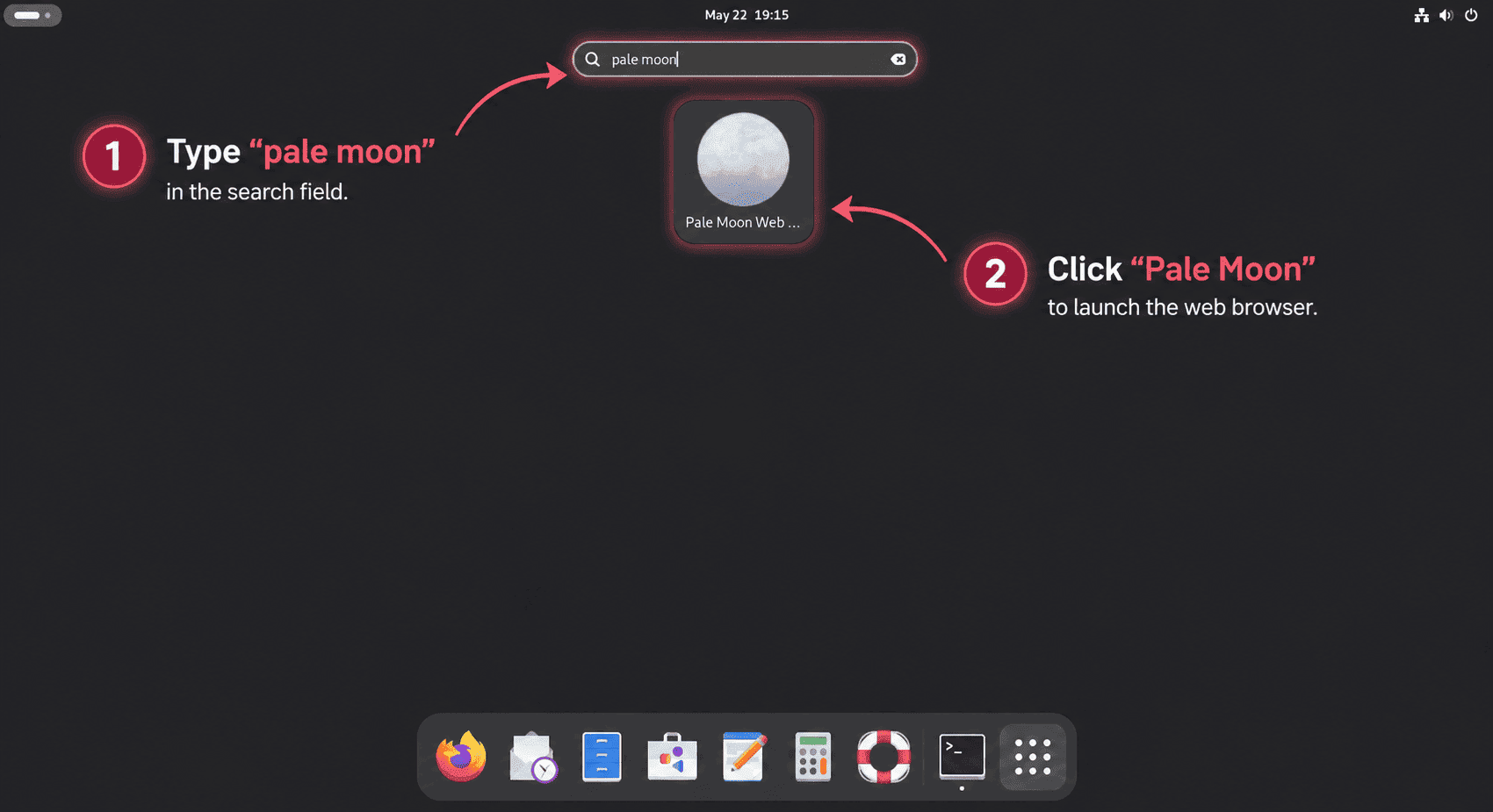
Launch Pale Moon from the Applications Menu on Debian
Search for Pale Moon Web Browser in your desktop application’s menu and open it there. If the icon does not appear immediately, sign out and back in so the desktop session reloads the new launcher metadata.
Launch Pale Moon from Terminal on Debian
Use the launcher command from any graphical terminal after the desktop session is running.
palemoon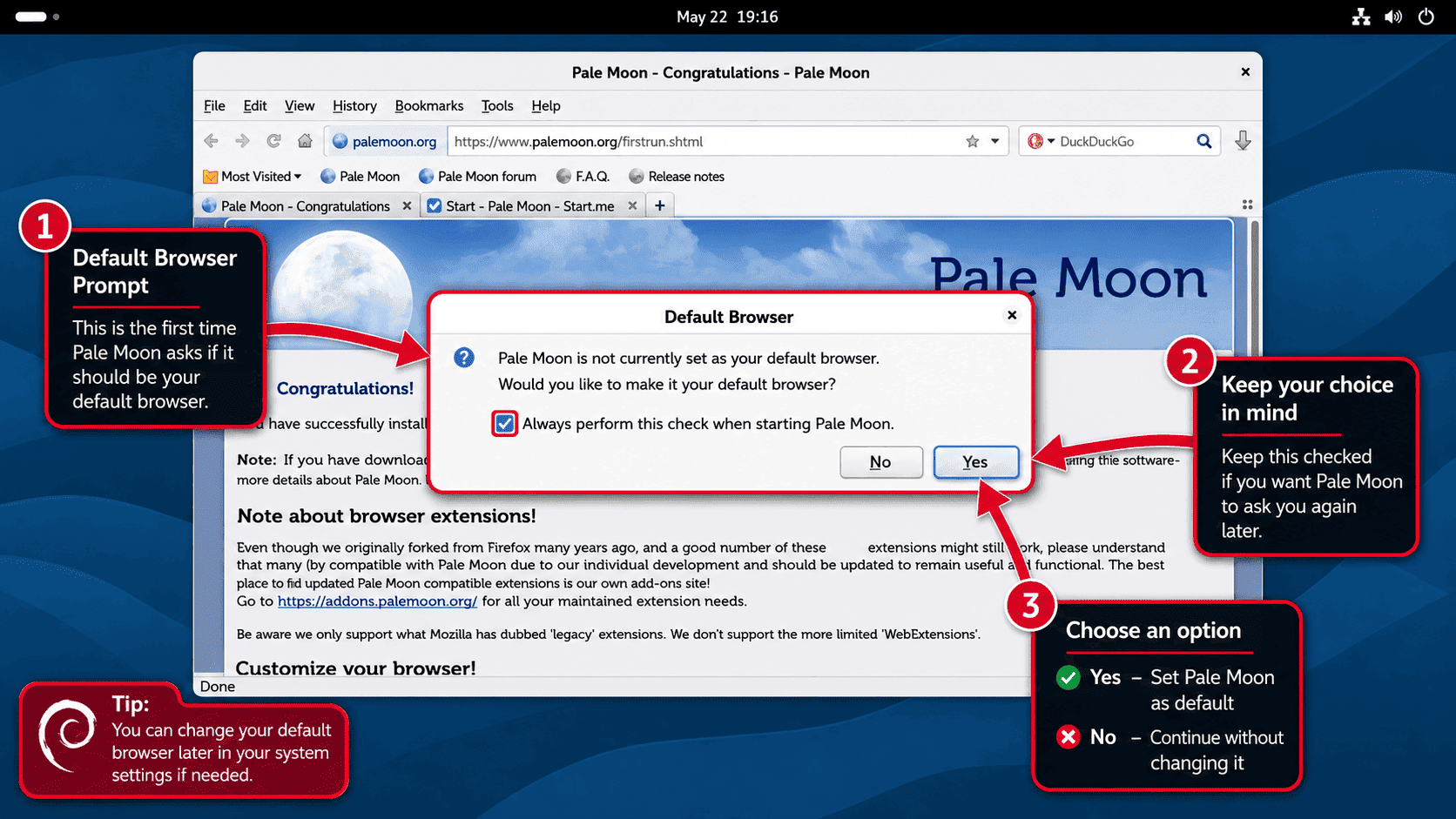
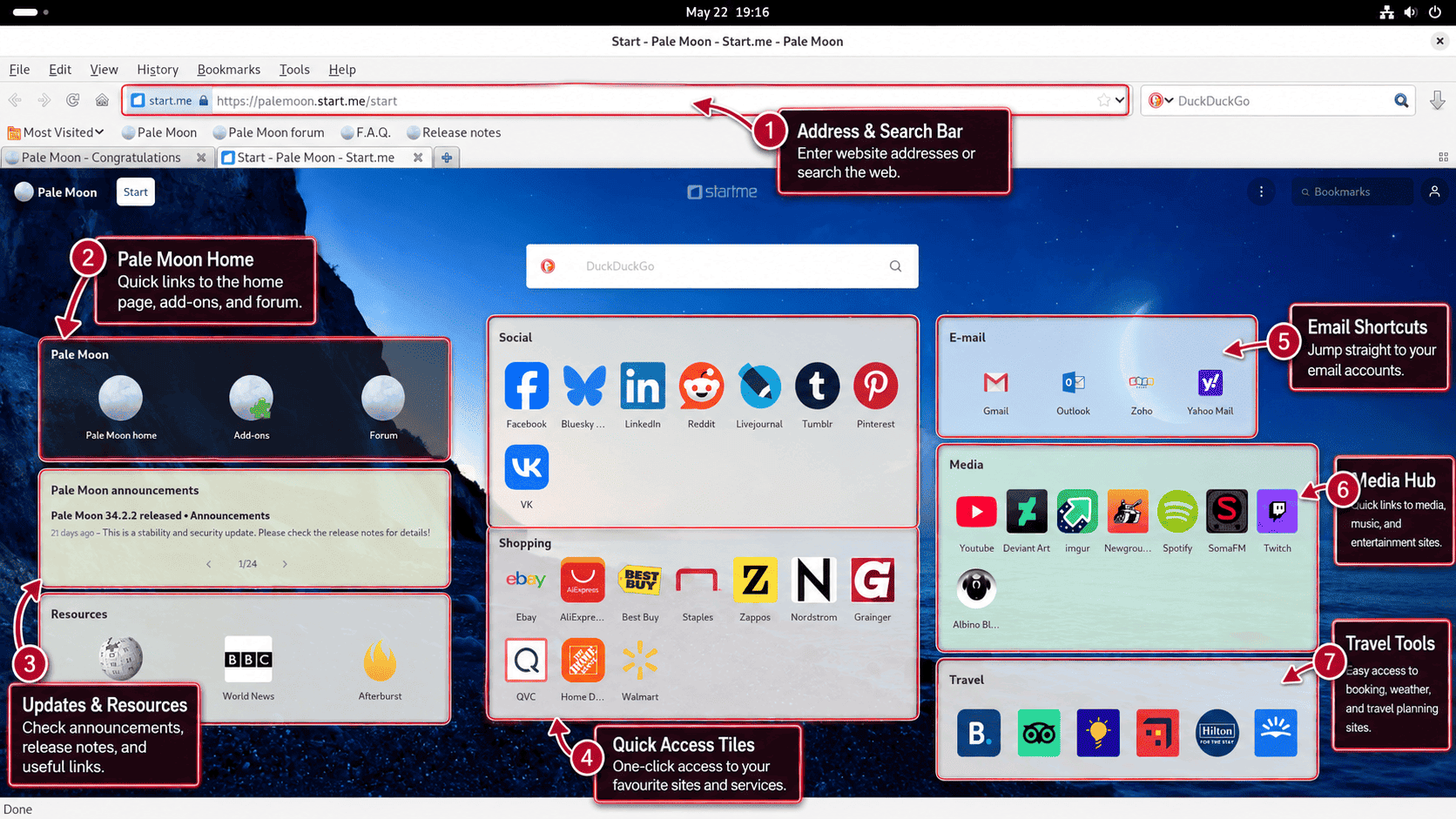
Manage Pale Moon on Debian
Update Pale Moon on Debian
This tarball install does not update through apt upgrade. Pale Moon ships its own updater, so the normal check runs from Help > About Pale Moon inside the browser.
If you prefer terminal-managed updates, create a helper that downloads the current tarball, verifies the detached signature, checks the downloaded version, and replaces ~/palemoon only when a newer release is available.
sudo tee /usr/local/bin/update-palemoon >/dev/null <<'EOF'
#!/usr/bin/env bash
set -euo pipefail

download_url='https://www.palemoon.org/download.php?mirror=us&bits=64&type=linuxgtk3'
sig_url='https://www.palemoon.org/download.php?mirror=sig&bits=64&type=linuxgtk3'
key_url='https://www.palemoon.org/0xC65285EC.asc'
install_dir="$HOME/palemoon"

if [ ! -x "$install_dir/palemoon" ]; then
	printf 'Pale Moon is not installed at %s\n' "$install_dir" >&2
	exit 1
fi

lock_file="${XDG_RUNTIME_DIR:-/tmp}/update-palemoon.lock"
exec 9>"$lock_file"
if ! flock -n 9; then
	printf 'Another update-palemoon run is already active.\n' >&2
	exit 1
fi

work_dir=$(mktemp -d)
gnupg_dir="$work_dir/gnupg"
cleanup() {
	rm -rf "$work_dir"
}
trap cleanup EXIT

mkdir -m 700 "$gnupg_dir"

current_version=$("$install_dir/palemoon" -v | awk '{print $NF}')
curl -fsSLo "$work_dir/palemoon.tar.xz" "$download_url"
curl -fsSLo "$work_dir/palemoon.tar.xz.sig" "$sig_url"
curl -fsSLo "$work_dir/palemoon-linux-key.asc" "$key_url"

GNUPGHOME="$gnupg_dir" gpg --batch --quiet --import "$work_dir/palemoon-linux-key.asc"
if GNUPGHOME="$gnupg_dir" gpg --verify "$work_dir/palemoon.tar.xz.sig" "$work_dir/palemoon.tar.xz" >"$work_dir/gpg-verify.log" 2>&1; then
	printf 'Signature check: passed\n'
else
	cat "$work_dir/gpg-verify.log" >&2
	exit 1
fi

tar -xf "$work_dir/palemoon.tar.xz" -C "$work_dir"
if [ ! -x "$work_dir/palemoon/palemoon" ]; then
	printf 'Downloaded archive did not contain a runnable palemoon binary.\n' >&2
	exit 1
fi

downloaded_version=$("$work_dir/palemoon/palemoon" -v | awk '{print $NF}')
printf 'Current install: %s\n' "$current_version"
printf 'Downloaded release: %s\n' "$downloaded_version"

if [ "$current_version" = "$downloaded_version" ]; then
	printf 'Pale Moon is already current: %s\n' "$current_version"
	exit 0
fi

backup_dir="$HOME/palemoon.backup.$(date +%Y%m%d%H%M%S)"
mv "$install_dir" "$backup_dir"
if ! mv "$work_dir/palemoon" "$install_dir"; then
	mv "$backup_dir" "$install_dir"
	printf 'Update failed; original install restored.\n' >&2
	exit 1
fi

printf 'Pale Moon updated. Backup kept at: %s\n' "$backup_dir"
"$install_dir/palemoon" -v
EOF

sudo chmod 755 /usr/local/bin/update-palemoon
Run the helper whenever you want to check for a new release from the terminal:
command -v update-palemoon
update-palemoon
Current output resembles this when the installed release already matches the latest download:
/usr/local/bin/update-palemoon
Signature check: passed
Current install: 34.x.x
Downloaded release: 34.x.x
Pale Moon is already current: 34.x.x
When the helper installs a newer release, the launcher symlink, icons, and desktop entry remain valid because they still point at the same ~/palemoon directory name. After the updated browser opens normally, remove the timestamped backup directory named in the helper output.
Remove Pale Moon on Debian
Remove the browser alternatives first if you registered them, then delete the launcher, update helper, menu entry, icons, and extracted browser directory.
sudo update-alternatives --remove gnome-www-browser /usr/local/bin/palemoon
sudo update-alternatives --remove x-www-browser /usr/local/bin/palemoon
sudo rm -f /usr/local/bin/palemoon /usr/local/bin/update-palemoon /usr/share/applications/palemoon.desktop
sudo rm -f /usr/share/icons/hicolor/16x16/apps/palemoon.png
sudo rm -f /usr/share/icons/hicolor/32x32/apps/palemoon.png
sudo rm -f /usr/share/icons/hicolor/48x48/apps/palemoon.png
sudo rm -f /usr/share/icons/hicolor/128x128/apps/palemoon.png
sudo gtk-update-icon-cache -f /usr/share/icons/hicolor
rm -f /tmp/palemoon.tar.xz /tmp/palemoon.tar.xz.sig
rm -rf ~/palemoon
Verify that the launcher, update helper, and extracted files are gone:
if [ ! -e /usr/local/bin/palemoon ] && [ ! -e /usr/local/bin/update-palemoon ] && [ ! -e "$HOME/palemoon" ]; then
	echo "Pale Moon files removed"
fi
Expected output:
Pale Moon files removed
Remove Pale Moon User Data on Debian
This permanently deletes Pale Moon bookmarks, saved passwords, browsing history, and extensions. Export anything you want to keep first.
Check for Pale Moon profile directories under your home folder before you delete anything. This is safer than assuming the profile path already exists on every Debian desktop.
find "$HOME" -maxdepth 2 -type d -iname '*moonchild*'If that command returns ~/.moonchild productions, remove it along with any per-user desktop entries Pale Moon created.
rm -rf ~/.moonchild\ productions
rm -f ~/.local/share/applications/userapp-Pale\ Moon-*.desktop
Troubleshoot Pale Moon on Debian
Most Pale Moon issues on Debian come from missing runtime libraries or desktop-menu metadata that has not refreshed yet.
Fix libdbus-glib-1.so.2 Errors for Pale Moon on Debian
If Pale Moon fails immediately from the terminal, check for the missing libdbus-glib-1.so.2 library first. This is the startup failure that reproduced on Debian 13, 12, and 11 before libdbus-glib-1-2 was installed.
~/palemoon/palemoon -vError output looks like this when the runtime library is missing:
XPCOMGlueLoad error for file /home/your-user/palemoon/libxul.so:
libdbus-glib-1.so.2: cannot open shared object file: No such file or directory
Couldn't load XPCOM.
Install the missing package, then rerun the version check:
sudo apt install libdbus-glib-1-2 -y
palemoon -v
Expected output after the fix:
Moonchild Productions Pale Moon 34.x.x
Refresh Pale Moon Menu Icons on Debian
If the browser launches from the terminal but not from the menu, make sure the desktop file and icon were written where the desktop environment expects them.
ls /usr/share/applications/palemoon.desktop /usr/share/icons/hicolor/128x128/apps/palemoon.pngExpected output:
/usr/share/applications/palemoon.desktop
/usr/share/icons/hicolor/128x128/apps/palemoon.png
Refresh the icon cache if those files exist but the menu entry still has not appeared:
sudo gtk-update-icon-cache -f /usr/share/icons/hicolorAfter that, sign out and back in so the desktop session reloads the launcher metadata.
Compare Pale Moon Alternatives on Debian
Pale Moon fits best when you want a classic interface and a locally managed tarball install, but Debian has other strong browser choices when APT or Flathub integration matters more. Install Firefox on Debian when you want Mozilla’s current release, Install Chromium on Debian when you prefer a fully open-source Chromium base, Install Waterfox on Debian when you want another Firefox-family browser, and Install Brave Browser on Debian when built-in tracker blocking is a bigger priority.
Conclusion
Pale Moon is running on Debian from a verified upstream tarball, with desktop integration, a terminal launcher, and the extra runtime library it needs on Debian 13, 12, and 11. If you decide you want a browser that stays closer to package-manager updates, compare Install Firefox on Debian or Install Waterfox on Debian next.


Debian 13.5 (Trixie) Installation: Flawless. Works perfectly, every step. Console confirmations with minor variation.
Thank you for this excellent crib.
-lc
It is March 2025 and Debian 12 rejects the repository entry saying:
The repository ‘http://download.opensuse.org/repositories/home:/stevenpusser/xUbuntu_16.04 Release’ does not have a Release file.
N: Updating from such a repository can’t be done securely, and is therefore disabled by default.
N: See apt-secure(8) manpage for repository creation and user configuration details.
Thanks for reporting this, dhm. You were right. The repository from Steven Pusser’s openSUSE Build Service was no longer maintained when you commented in March. The xUbuntu_16.04 reference in the error confirms the repository was outdated and missing proper package metadata.
The article has been rewritten with a new installation method. Instead of using a third-party APT repository, it now uses Pale Moon’s official current-download endpoint and verifies the matching detached signature:
This method downloads directly from Pale Moon’s official mirror, includes full desktop integration with symlinks and menu entries, and was rechecked on Debian 11, 12, and 13. Thanks for catching the broken repository issue.
Strange. I installed it (relatively) recently on Debian 11, went to Debian 12, and it was missing. Installed Debian 11 again, followed the above, and it looks like it’s just pulled. Oh well — I appreciate it Joshua!
Thanks for mentioning this, Matt. You were right that the repository was pulled. Steven Pusser’s openSUSE Build Service repository for Pale Moon was discontinued, which left users who had it configured without a working package source after system upgrades.
The article has been rewritten to use the official Pale Moon tarball method instead. This approach downloads directly from Pale Moon’s current mirror endpoint, verifies the detached signature, and includes full desktop integration with symlinks, icons, and menu entries. The installation was rechecked across Debian 11, 12, and 13 without depending on any third-party repositories.
Hello,
I just tried installing on Debian 12 (32 bit) and nothing appears.
Browsing the directory it almost look like it’s missing entirely nowadays. Any thoughts?
Thanks for reporting this, Matt. You were correct that the repository was missing. Steven Pusser’s openSUSE Build Service repository for Pale Moon was discontinued, which is why nothing appeared when you tried to install it.
The article has been rewritten to use the official Pale Moon tarball method. The current mainline Linux download page lists 64-bit Linux tarballs, so do not replace
x86_64withi686in the current command. For 32-bit Linux or older CPUs, check Pale Moon’s contributed builds page or build from source instead.Note that Debian 12 no longer provides normal i386 installation images, although it still carries i386 packages for compatibility use cases. A 32-bit Pale Moon setup is outside the refreshed article’s mainline 64-bit tarball path.
Following the instruction for Debian Bookworm I get the following error:
sudo apt install palemoon
Reading package lists… Done
Building dependency tree… Done
Reading state information… Done
Package palemoon is not available, but is referred to by another package.
This may mean that the package is missing, has been obsoleted, or
is only available from another source
E: Package ‘palemoon’ has no installation candidate
Thanks for reporting this, Aleg. The “no installation candidate” error confirms that the repository was already broken when you tried it in January 2024. Steven Pusser’s openSUSE Build Service repository for Pale Moon was discontinued, so the package metadata existed but no actual packages were available.
The article has been rewritten with a new installation method. Instead of a third-party APT repository, it now uses Pale Moon’s official current-download endpoint with detached signature verification. This method downloads directly from Pale Moon, includes full desktop integration, and was rechecked on Debian 11, 12, and 13.