
MyPaint is a lightweight, open-source painting application built specifically for digital artists who use graphics tablets. Unlike general-purpose image editors, MyPaint focuses on providing an unlimited canvas and a responsive brush engine that simulates natural media such as pencils, oils, and watercolors. For instance, common use cases include concept sketching, illustration work, digital painting practice, and creating textures for game development or 3D modeling projects.
By the end of this guide, you will have MyPaint installed and ready to use, with your graphics tablet pressure sensitivity working out of the box. Specifically, the instructions cover two installation methods: the default Ubuntu repository for stability, and Flatpak for users who prefer sandboxed applications or want access to the latest upstream releases.
Choose Your MyPaint Installation Method
Ubuntu offers two straightforward ways to install MyPaint. Furthermore, each method has different trade-offs in terms of version freshness, system integration, and update behavior.
| Method | Channel | Version | Updates | Best For |
|---|---|---|---|---|
| APT (Default Repository) | Ubuntu Repos | Stable (2.0.1) | Automatic via apt upgrade | Most users who prefer distro-tested packages |
| Flatpak | Flathub | Stable (2.0.1) | Automatic via flatpak update | Users who want sandboxed apps or cross-distro consistency |
For most users, the APT method is recommended because it integrates seamlessly with Ubuntu’s package management system and receives security updates automatically. However, MyPaint’s release cycle is conservative, so both methods provide essentially the same version. Choose Flatpak if you prefer application sandboxing or already use Flatpak for other applications.
Both installation methods work identically on Ubuntu 22.04 LTS, 24.04 LTS, and 26.04 LTS. MyPaint is available in Ubuntu’s default repositories across all supported releases, and Flatpak packages are distribution-agnostic.
Method 1: Install MyPaint via APT
The APT method installs MyPaint from Ubuntu’s official repositories. Additionally, this approach provides automatic security updates and tight integration with your system’s package management.
Update Package Index
First, refresh your package lists to ensure you install the latest available version:
sudo apt update && sudo apt upgradeInstall MyPaint
Next, install MyPaint and its dependencies:
sudo apt install mypaintAs a result, APT automatically pulls in the required libraries, including the MyPaint brush library and GTK dependencies.
Verify Installation
Finally, confirm that MyPaint installed successfully by checking the package status:
dpkg -l mypaintExpected output showing the installed version:
ii mypaint 2.0.1-10build2 amd64 paint program for use with graphics tablets
Method 2: Install MyPaint via Flatpak
Alternatively, Flatpak provides a sandboxed installation that runs independently of your system libraries. In particular, this method is useful if you want to isolate MyPaint from your system or prefer managing applications through Flathub.
Flatpak is not pre-installed on Ubuntu. If you have not set it up yet, install it with
sudo apt install flatpakand restart your session before continuing. For detailed setup including the Flathub repository, follow our Flatpak installation guide for Ubuntu.
Enable Flathub Repository
First, ensure the Flathub repository is available on your system. The following command adds it if not already present:
sudo flatpak remote-add --if-not-exists flathub https://flathub.org/repo/flathub.flatpakrepoInstall MyPaint from Flathub
Next, install MyPaint from the Flathub repository:
sudo flatpak install flathub org.mypaint.MyPaint -yOnce started, Flatpak downloads the application along with any required runtime libraries. However, the initial installation may take a few minutes depending on your connection speed.
Verify Installation
Finally, confirm that MyPaint installed correctly by checking its Flatpak information:
flatpak info org.mypaint.MyPaintExpected output showing installation details:
MyPaint - Painting program for digital artists

          ID: org.mypaint.MyPaint
         Ref: app/org.mypaint.MyPaint/x86_64/stable
        Arch: x86_64
      Branch: stable
      Origin: flathub
     Version: 2.0.1
Launch MyPaint
After installation, you can launch MyPaint through your desktop environment or from the terminal.
Launch from Applications Menu
The most convenient way to open MyPaint is through your desktop’s application menu. Navigate to your applications grid and search for “MyPaint,” or follow this path in GNOME:
Activities > Show Applications > MyPaint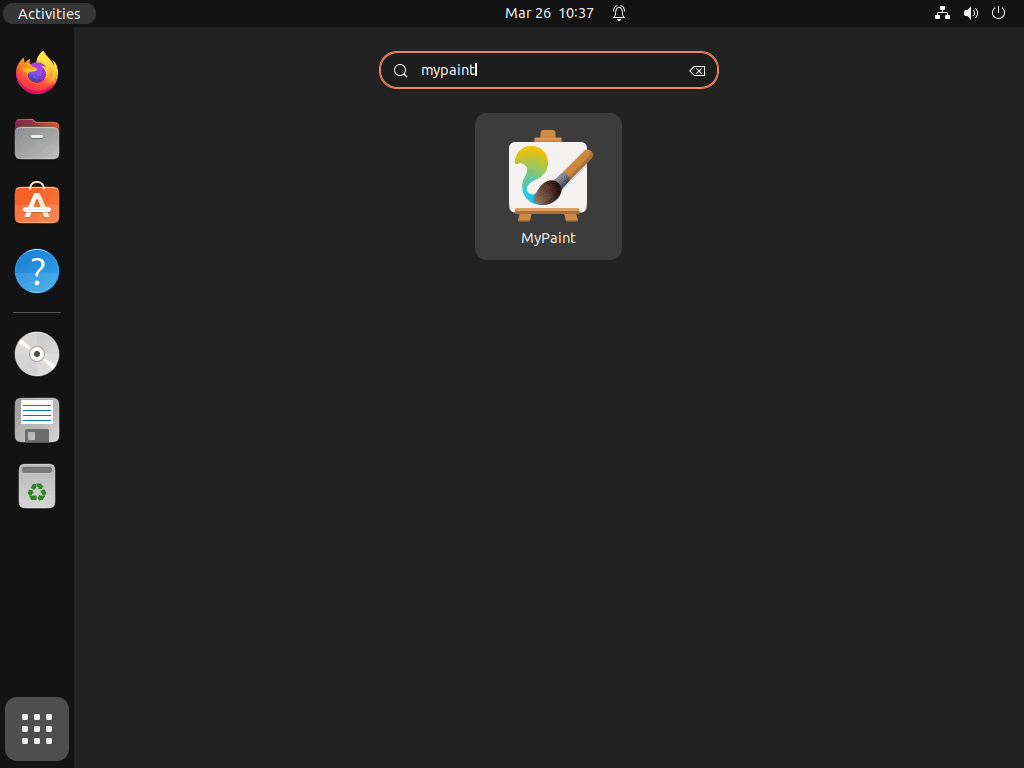
Launch from Terminal
Alternatively, for APT installations, you can launch MyPaint directly from any terminal:
mypaintSimilarly, for Flatpak installations, use the Flatpak run command instead:
flatpak run org.mypaint.MyPaint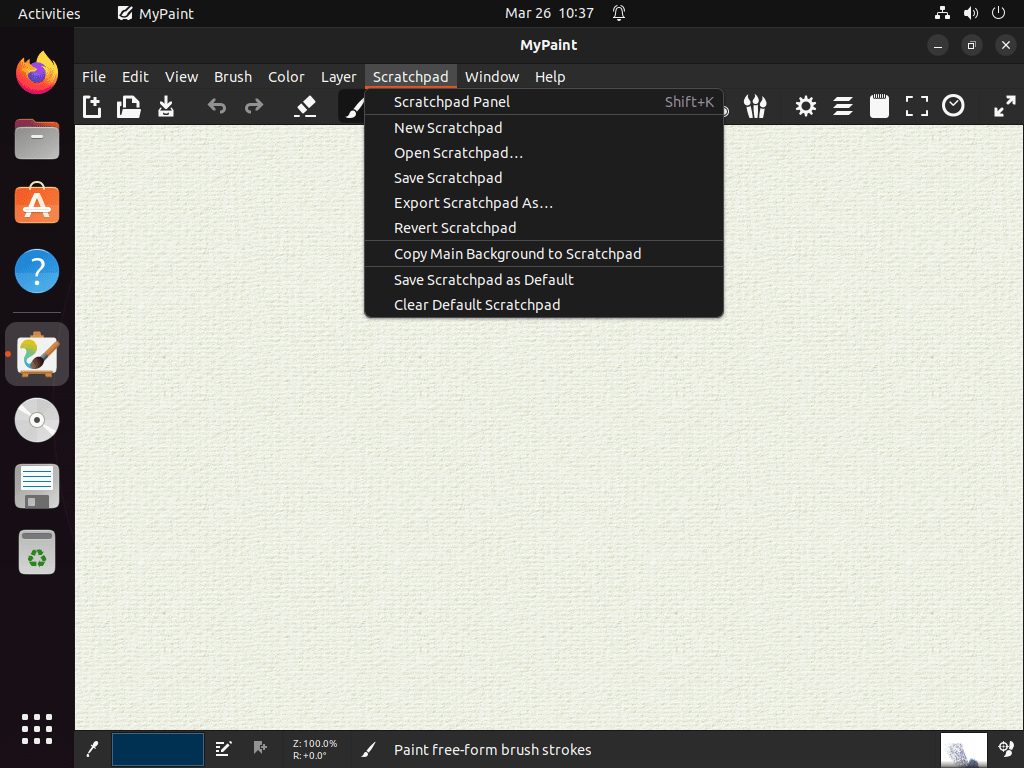
Manage MyPaint
Update MyPaint
Regular updates ensure you have the latest bug fixes and security patches. Therefore, the update process depends on your installation method.
APT Update
MyPaint updates automatically when you run system updates. To check for and apply updates manually:
sudo apt update && sudo apt upgradeFlatpak Update
Similarly, update all Flatpak applications, including MyPaint:
sudo flatpak updateRemove MyPaint
If you no longer need MyPaint, remove it using the appropriate command for your installation method.
Remove APT Installation
Remove MyPaint and clean up unused dependencies:
sudo apt remove mypaint
sudo apt autoremove
In addition, the autoremove command cleans up libraries that were installed as dependencies but are no longer needed by any other package.
Remove Flatpak Installation
Remove MyPaint and delete its application data:
sudo flatpak uninstall --delete-data org.mypaint.MyPaintAdditionally, to remove unused Flatpak runtimes that may have been installed alongside MyPaint:
flatpak uninstall --unusedMyPaint stores user brushes and settings in
~/.local/share/mypaint/for APT installations, or~/.var/app/org.mypaint.MyPaint/for Flatpak. These directories remain after uninstallation if you want to preserve your custom brushes for future reinstallation.
If you work with digital art or graphics on Ubuntu, you may also find these guides helpful:
- Install Krita on Ubuntu for full-featured digital painting with advanced layer management
- Install GIMP on Ubuntu for photo editing and image manipulation
- Install Inkscape on Ubuntu for vector graphics and illustration
Conclusion
You now have MyPaint installed on Ubuntu with either APT or Flatpak, ready for digital painting with pressure-sensitive tablet support. Furthermore, MyPaint’s distraction-free canvas and customizable brush engine make it particularly suited for sketching and painting workflows. Explore the brush settings panel to customize existing presets or create your own brushes tailored to your artistic style.