Fast local playback, direct URL support, and keyboard-first control are where mpv feels lighter than bigger desktop players. You can install mpv media player on Ubuntu with the default repository package or the Flathub build, and both methods work on Ubuntu 26.04, 24.04, and 22.04. Most readers do not need a separate Linux download or installer because Ubuntu already packages mpv and Flathub publishes the io.mpv.Mpv app.
Both install paths work from a terminal or over SSH, but the player window still needs a graphical desktop session. APT is the simplest path for Ubuntu integration, while Flatpak is useful when you want the newer Flathub build and separate app runtime updates.
Install mpv media player on Ubuntu
Ubuntu’s repository package favors system integration, while Flathub favors release freshness and separate app runtime updates.
| Method | Source | Channel | Updates | Best Fit |
|---|---|---|---|---|
| APT | Ubuntu Universe | Ubuntu release package | APT package upgrades | Most users, Ubuntu package integration |
| Flatpak | Flathub | Flathub stable | Flatpak app and runtime updates | Newer Flathub build, app ID io.mpv.Mpv |
Ubuntu’s repository version changes by release, while the Flathub method uses the same stable Flatpak app ref across the supported Ubuntu LTS set.
The package name is mpv, not mvp. If you searched for a separate Linux download, the official mpv installation page does not publish a first-party Ubuntu .deb; it points Linux users toward source builds and third-party package channels. The APT and Flathub paths below are the practical Ubuntu choices when you want normal install, update, and removal commands.
| Ubuntu Release | APT Version | APT Position |
|---|---|---|
| 26.04 LTS (Resolute) | 0.41.x | Newest distro package |
| 24.04 LTS (Noble) | 0.37.x | Current stable native package |
| 22.04 LTS (Jammy) | 0.34.x | Oldest supported LTS package |
Verified APT candidates are 0.41.0-2ubuntu4 on Ubuntu 26.04, 0.37.0-1ubuntu4 on Ubuntu 24.04, and 0.34.1-1ubuntu3 on Ubuntu 22.04.
Install mpv from Ubuntu’s repositories
APT is the cleanest option when you want mpv managed alongside the rest of your Ubuntu packages. The package lives in Universe, so trimmed images may need you to enable Universe on Ubuntu first. Only Universe is required for mpv itself.
Refresh package metadata before installing mpv.
sudo apt updateThese commands use
sudofor package-management tasks. If your account does not have administrator access yet, add a user to sudoers on Ubuntu first.
Install the package with APT. The -y flag accepts APT’s confirmation prompt automatically.
sudo apt install mpv -yConfirm that APT installed mpv from the Ubuntu archive. Your mirror hostname can differ, but the installed and candidate versions should match.
apt-cache policy mpvmpv:
Installed: 0.41.0-2ubuntu4
Candidate: 0.41.0-2ubuntu4
Version table:
*** 0.41.0-2ubuntu4 500
500 http://au.archive.ubuntu.com/ubuntu resolute/universe amd64 Packages
100 /var/lib/dpkg/status
On the other supported LTS releases, the same command installs 0.37.0-1ubuntu4 on Ubuntu 24.04 and 0.34.1-1ubuntu3 on Ubuntu 22.04.
The native binary also answers version checks cleanly from a terminal. The first line should start with mpv v and match the package series installed on your Ubuntu release.
mpv --versionInstall mpv with Flatpak and Flathub
Flatpak is the better fit when you want the current Flathub branch and the same app version across all supported Ubuntu LTS releases.
Flathub currently labels the mpv build as potentially unsafe because it needs device access, network access, legacy windowing access, and read-only host filesystem access for normal media playback workflows. Choose this method for Flathub packaging and update cadence, not as a strict isolation boundary.
Ubuntu does not install Flatpak by default. If the
flatpakcommand is missing, install Flatpak on Ubuntu first, then return here to add Flathub and mpv.
Add Flathub as a system remote. The --if-not-exists flag makes the command safe to rerun.
sudo flatpak remote-add --if-not-exists flathub https://dl.flathub.org/repo/flathub.flatpakrepoConfirm that the remote exists before installing mpv.
flatpak remotesflathub system
Install mpv from Flathub. The -y flag answers Flatpak’s confirmation prompt automatically.
sudo flatpak install flathub io.mpv.Mpv -yVerify the installed app metadata with flatpak info. This filtered check keeps the stable fields and skips long descriptive output.
flatpak info io.mpv.Mpv | grep -E '^[[:space:]]*(ID|Ref|Arch|Branch|Version|Origin|Installation):' ID: io.mpv.Mpv
Ref: app/io.mpv.Mpv/x86_64/stable
Arch: x86_64
Branch: stable
Version: v0.41.0
Origin: flathub
Installation: system
Flathub currently resolves to v0.41.0 on Ubuntu 26.04, 24.04, and 22.04.
Launch and use mpv on Ubuntu
Once mpv is installed, you can start it from Ubuntu’s applications menu or call it directly from the terminal.
Open mpv from Ubuntu’s applications menu
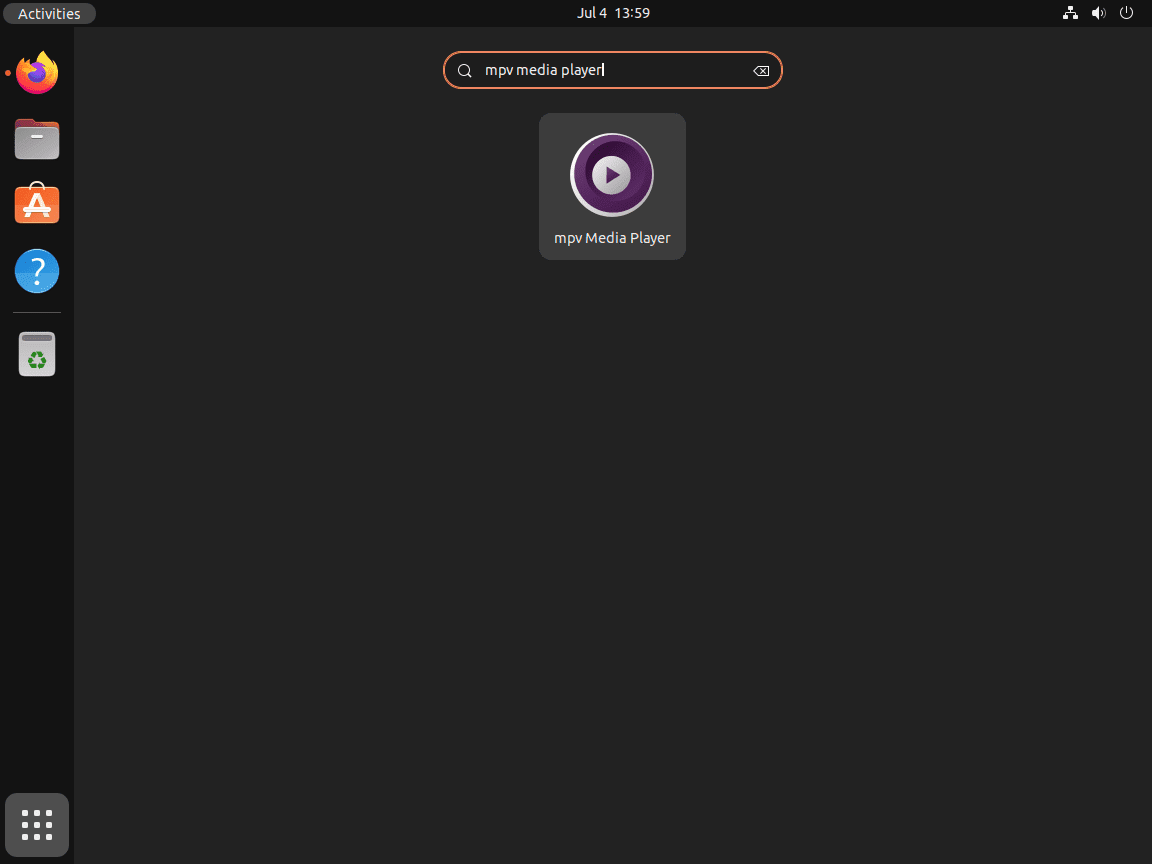
Open Activities > Show Applications > MPV on Ubuntu desktop. If you installed the package from a remote shell, switch back to a local graphical session before launching the player window.
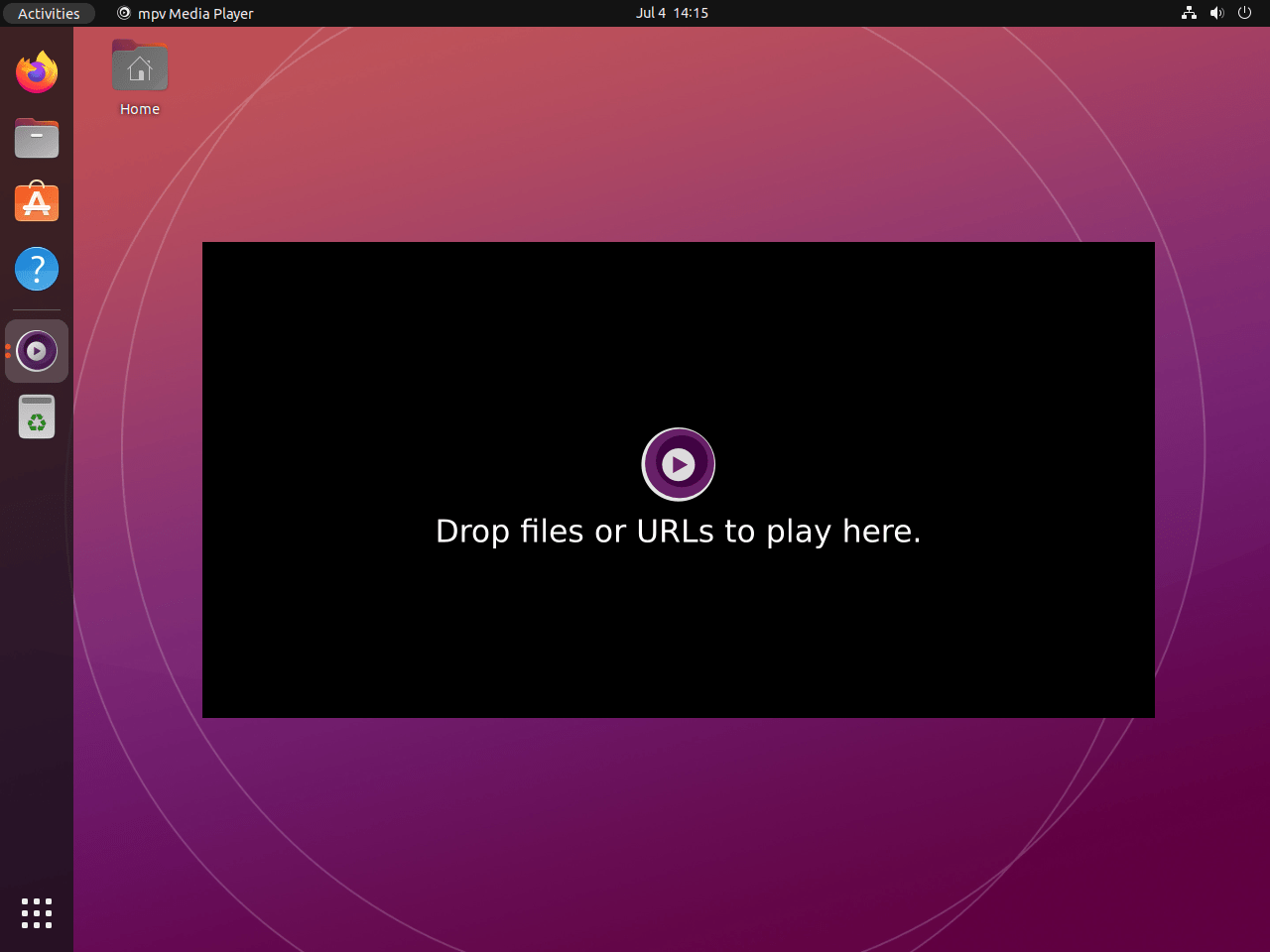
The desktop launcher opens a normal player window even before you pass a file, so it behaves more like a desktop application than a terminal session.
Play files and URLs with mpv from the terminal
The native package installs the mpv command, so local files and supported URLs use the same basic syntax.
mpv ~/Videos/example.mp4For the Flatpak build, launch the app with its application ID instead. Add a file path or supported URL after the app ID when you want to open media directly.
flatpak run io.mpv.Mpv ~/Videos/example.mp4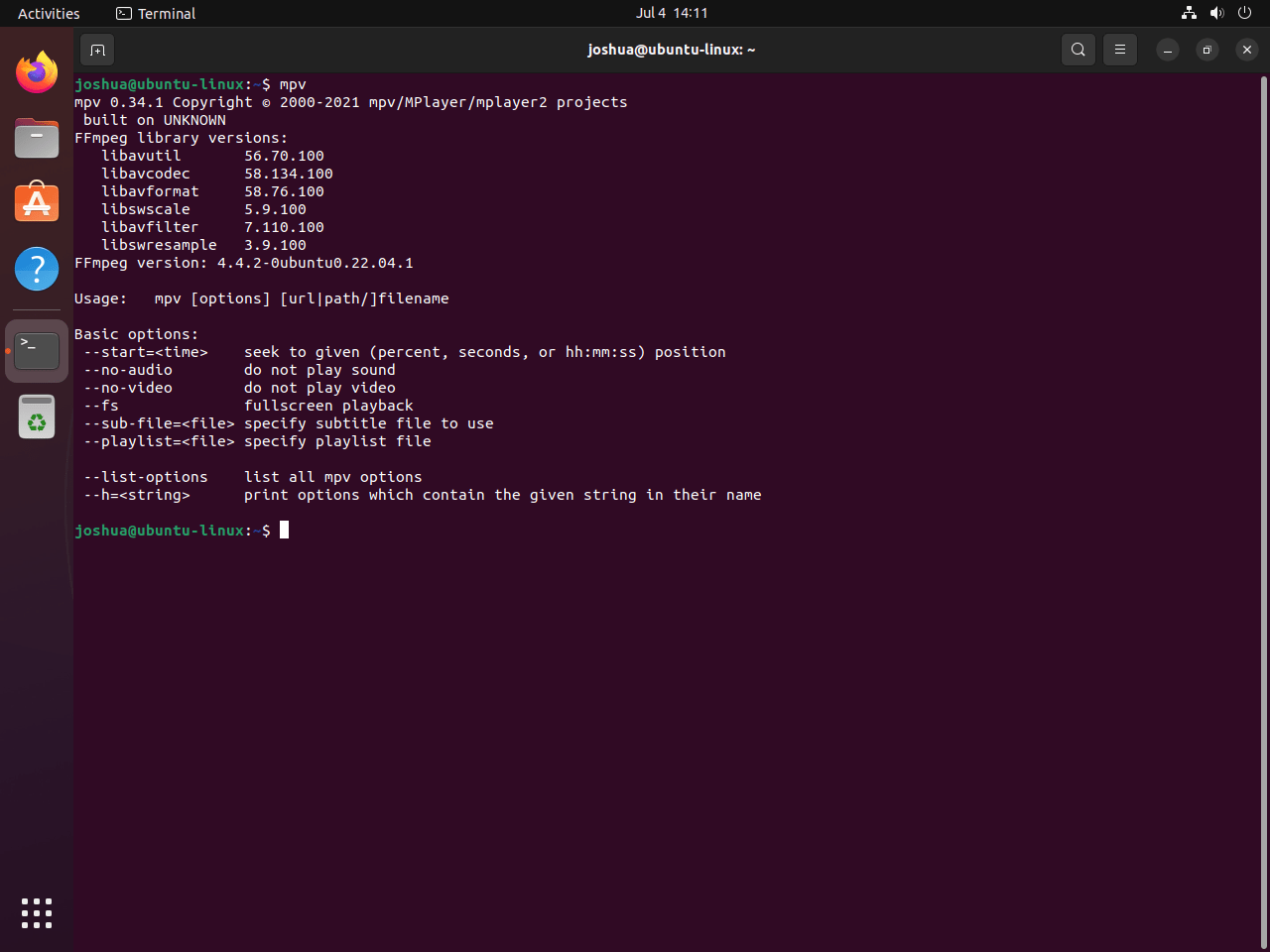
The official mpv manual documents the full option set and default keyboard shortcuts.
Create an mpv.conf file on Ubuntu
Ubuntu’s native package reads user configuration from ~/.config/mpv/mpv.conf. Create the directory before writing your own config file.
mkdir -p ~/.config/mpvThis starter configuration resumes playback positions and enables hardware decoding when your graphics stack supports it.
printf '%s\n' 'save-position-on-quit=yes' 'hwdec=auto' > ~/.config/mpv/mpv.confConfirm the saved file contents.
cat ~/.config/mpv/mpv.confsave-position-on-quit=yes hwdec=auto
Use ~/.config/mpv/mpv.conf for the native package. The Flathub build keeps the equivalent file under ~/.var/app/io.mpv.Mpv/config/mpv/mpv.conf, and Flathub also documents ~/.var/app/io.mpv.Mpv/config/mpv/scripts for mpv scripts.
Update or remove mpv on Ubuntu
Use the same package manager you installed from, then verify the result with APT or Flatpak instead of relying on launch errors.
Update mpv from Ubuntu’s repositories
Use APT’s single-package upgrade path when mpv came from Ubuntu’s repositories.
sudo apt install --only-upgrade mpv -yUpdate mpv from Flathub
Use the app-specific Flatpak update command when you installed io.mpv.Mpv from Flathub.
sudo flatpak update io.mpv.Mpv -yRemove APT-installed mpv
Remove the native package first, then confirm that dpkg no longer shows it as installed.
sudo apt remove mpv -yVerify the post-removal package state. This installed-state filter avoids mistaking an available repository candidate for an installed package.
dpkg-query -W -f='${db:Status-Abbrev} ${binary:Package}\n' mpv 2>/dev/null | grep '^ii' || echo "mpv not installed"mpv not installed
If APT lists orphaned dependencies after removal, preview the cleanup before running it. Continue only when the listed packages are packages you are ready to remove.
sudo apt autoremove --dry-runRun the real cleanup only after reviewing the dry-run list.
sudo apt autoremoveThe repository candidate remains available after removal. Only the installed state changed.
Remove Flatpak-installed mpv
Remove the Flathub build first, then verify that the app ID is absent from the installed application list.
sudo flatpak remove io.mpv.Mpv -yCheck that the app no longer appears in the installed Flatpak list. The application column is enough for removal proof.
flatpak list --app --columns=application | grep -Fx io.mpv.Mpv || echo "io.mpv.Mpv not installed"io.mpv.Mpv not installed
These commands do not touch your media files. User settings can remain in
~/.config/mpv/for the native package and~/.var/app/io.mpv.Mpv/for the Flatpak build, so delete those directories only when you want a full reset.
Conclusion
After installing mpv media player on Ubuntu, keep using the same package manager for updates and removal: APT for the Ubuntu package or Flatpak for the Flathub build. If you want a GTK front end built on the same playback engine, install Celluloid on Ubuntu. If you would rather use a broader all-purpose desktop player, install VLC media player on Ubuntu.


Formatting tips for your comment
You can use basic HTML to format your comment. Useful tags currently allowed in published comments:
<code>command</code>command<strong>bold</strong><em>italic</em><blockquote>quote</blockquote>