

Microsoft Edge brings Chromium-based browsing to Linux Mint with seamless Microsoft 365 integration, cross-device sync, and built-in privacy tools. If you need to access SharePoint sites, test web applications across browser channels, or manage Azure AD-authenticated workflows, Edge provides native support that other browsers require extensions to match. By completing this guide, you will have Edge installed with automatic security updates and verified installations for Stable, Beta, or Dev channels running side-by-side without conflicts.
This guide covers two installation methods: the simplified extrepo approach that handles repository configuration automatically, and the manual DEB822 method for users who need explicit control over repository settings. Additionally, both methods work on Linux Mint 21.x and 22.x with identical results.
Linux Mint uses Ubuntu codenames for package repositories, not Mint codenames. The Microsoft Edge repository uses a universal “stable” suite that works across all Ubuntu-based releases, so no codename mapping is required for this installation.
Choose Your Microsoft Edge Installation Method
Microsoft Edge is available through two installation approaches on Linux Mint. Since both provide the same packages with identical update mechanisms, choose based on your preference for simplicity versus explicit configuration control.
| Method | Channel | Version | Updates | Best For |
|---|---|---|---|---|
| Extrepo | Extrepo Database | Latest stable | Automatic via APT | Most users who want simple setup |
| Manual DEB822 | Microsoft Repository | Latest stable | Automatic via APT | Users needing explicit repository control |
For most users, the extrepo method is recommended because it handles GPG key import and repository configuration automatically with a single command. The manual method provides identical functionality but requires more steps.
Update System Packages
Before installing Microsoft Edge, update your system packages to ensure all dependencies are current and compatible. This step reduces the risk of conflicts with outdated libraries or package manager metadata. Additionally, updating now prevents interruptions during the Edge installation process.
Run the following command to refresh package lists and install available updates:
sudo apt update && sudo apt upgradeMethod 1: Install Microsoft Edge with Extrepo (Recommended)
Extrepo simplifies adding external repositories by handling GPG keys and DEB822 configuration automatically. As a result, this method requires fewer commands and reduces the chance of configuration errors. The extrepo package is available in the Ubuntu Universe repository, which Linux Mint enables by default.
Install Extrepo Package
First, install the extrepo package if it is not already present on your system:
sudo apt install extrepoEnable Non-Free Policy
By default, extrepo only enables repositories containing DFSG-free software. Microsoft Edge is proprietary software, so you must enable the non-free policy before adding the Edge repository. Run the following command to update the extrepo configuration:
sudo sed -i 's/# - non-free/- non-free/' /etc/extrepo/config.yamlAs a result, this command uncomments the non-free policy line in the extrepo configuration file, allowing you to enable proprietary software repositories.
Enable the Microsoft Edge Repository
With the non-free policy enabled, add the Microsoft Edge repository to your system:
sudo extrepo enable edgeDuring this process, extrepo automatically downloads the GPG key, creates a DEB822-formatted repository file at /etc/apt/sources.list.d/extrepo_edge.sources, and places the signing key in /var/lib/extrepo/keys/edge.asc.
Refresh Package Cache and Install Edge
After enabling the repository, update your package cache to fetch the Microsoft Edge package lists:
sudo apt updateNext, install your preferred Microsoft Edge channel. The Stable channel is recommended for most users:
sudo apt install microsoft-edge-stableAlternatively, install the Beta or Dev channels for early access to new features:
sudo apt install microsoft-edge-betasudo apt install microsoft-edge-devOnce the installation completes, verify it by checking the installed version:
microsoft-edge --versionMicrosoft Edge 1xx.x.xxxx.xx
Remove Duplicate Repository Files (Required)
Microsoft Edge’s installer creates a legacy .list repository file during installation, even though extrepo already configured the repository. This duplicate file causes a “Conflicting values set for option Signed-By” error that prevents APT from reading sources and blocks system updates.
Remove the duplicate .list file after installation:
sudo rm -f /etc/apt/sources.list.d/microsoft-edge*.list
sudo apt update
This cleanup step keeps only extrepo’s properly configured .sources file. The -f flag prevents errors if no .list files exist. Once removed, the .list file does not reappear during Edge updates because Microsoft’s installer creates it only on first install. A reinstallation would recreate it.
At this point, continue to the “Launch Microsoft Edge Browser” section to start using the browser.
Method 2: Install Microsoft Edge with Manual DEB822 Configuration
This method provides explicit control over the repository configuration and GPG key placement. Use this approach if you need to customize repository settings, integrate with configuration management tools, or prefer to see exactly what files are created on your system.
Install Required Dependencies
First, install the packages needed for secure repository management and package verification. These tools handle GPG key operations (dirmngr), SSL certificate validation (ca-certificates), repository configuration (software-properties-common), and file downloads (curl). You can run this command even if some packages exist, since APT skips already-installed packages automatically:
sudo apt install dirmngr ca-certificates software-properties-common curl -yImport Microsoft Edge GPG Key
Next, download and import the GPG key that verifies Microsoft Edge package authenticity. This ensures that packages come from Microsoft and have not been tampered with during transmission. The key is stored in a scoped location for better security isolation:
curl -fsSL https://packages.microsoft.com/keys/microsoft.asc | sudo gpg --dearmor -o /usr/share/keyrings/microsoft-edge.gpgAdd the Microsoft Edge APT Repository
With the GPG key imported, add the Microsoft Edge repository using the modern DEB822 format. This configuration enables installation and updates directly from Microsoft’s official package repository with scoped GPG key verification:
cat <<EOF | sudo tee /etc/apt/sources.list.d/microsoft-edge.sources
Types: deb
URIs: https://packages.microsoft.com/repos/edge
Suites: stable
Components: main
Architectures: amd64
Signed-By: /usr/share/keyrings/microsoft-edge.gpg
EOF
Once the file is created, verify it was written correctly:
cat /etc/apt/sources.list.d/microsoft-edge.sourcesTypes: deb URIs: https://packages.microsoft.com/repos/edge Suites: stable Components: main Architectures: amd64 Signed-By: /usr/share/keyrings/microsoft-edge.gpg
Install Microsoft Edge Browser
At this point, refresh your package cache and install Microsoft Edge:
sudo apt updateAs a result, the output confirms APT successfully retrieved package lists from the Microsoft repository:
Get:1 https://packages.microsoft.com/repos/edge stable InRelease [2,755 B] Get:2 https://packages.microsoft.com/repos/edge stable/main amd64 Packages [8,192 B]
Choose Your Microsoft Edge Channel
Microsoft Edge offers three release channels that install side-by-side without conflicts. Specifically, each uses a separate binary and configuration directory, so you can run Stable, Beta, and Dev simultaneously for testing workflows.
Stable
- Production-ready releases tested for reliability
- Updates every 4 weeks with security patches between releases
- Best for daily browsing and production environments
Beta
- Early access to upcoming features with weekly updates
- More stable than Dev but less tested than Stable
- Best for testing compatibility before features reach Stable
Dev
- Daily builds with cutting-edge Chromium changes
- May contain bugs or incomplete features
- Best for developers testing extensions or web applications
For production environments and daily browsing, choose the Stable channel. However, if you test web applications across browser versions, install Beta or Dev alongside Stable to catch compatibility issues early. Developers working on Chromium-based extensions benefit from Dev channel testing to verify functionality against upstream changes.
To install the Stable version:
sudo apt install microsoft-edge-stableNext, verify the installation:
microsoft-edge --versionMicrosoft Edge 1xx.x.xxxx.xx
To install the Beta version:
sudo apt install microsoft-edge-betaSimilarly, verify the installation:
microsoft-edge-beta --versionMicrosoft Edge 1xx.x.xxxx.xx beta
To install the Dev version:
sudo apt install microsoft-edge-devLikewise, verify the installation:
microsoft-edge-dev --versionMicrosoft Edge 1xx.x.xxxx.xx dev
Launch Microsoft Edge Browser
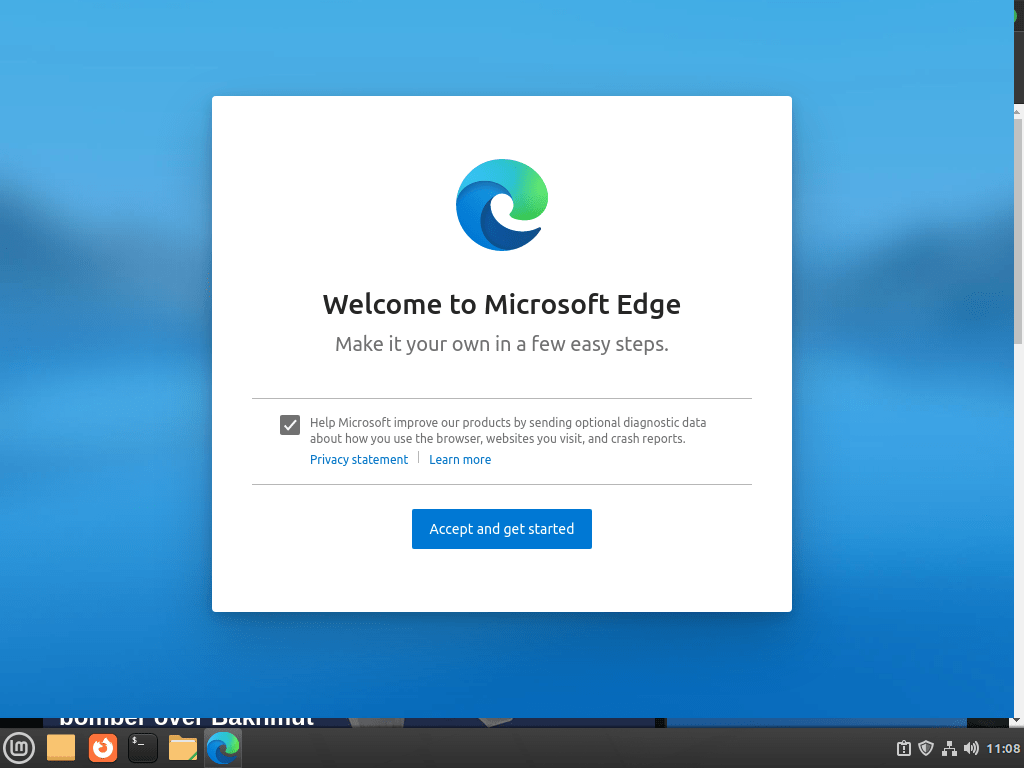
After installing your preferred version of Microsoft Edge, you can launch the browser using either the terminal or the desktop applications menu. Each method suits different workflows, so choose the approach that matches your preference.
Launch Microsoft Edge from Terminal
For quick access or scripting purposes, you can start Microsoft Edge directly from the terminal. Depending on which channel you installed, use the corresponding command:
microsoft-edgemicrosoft-edge-betamicrosoft-edge-devLaunch Microsoft Edge from Applications Menu
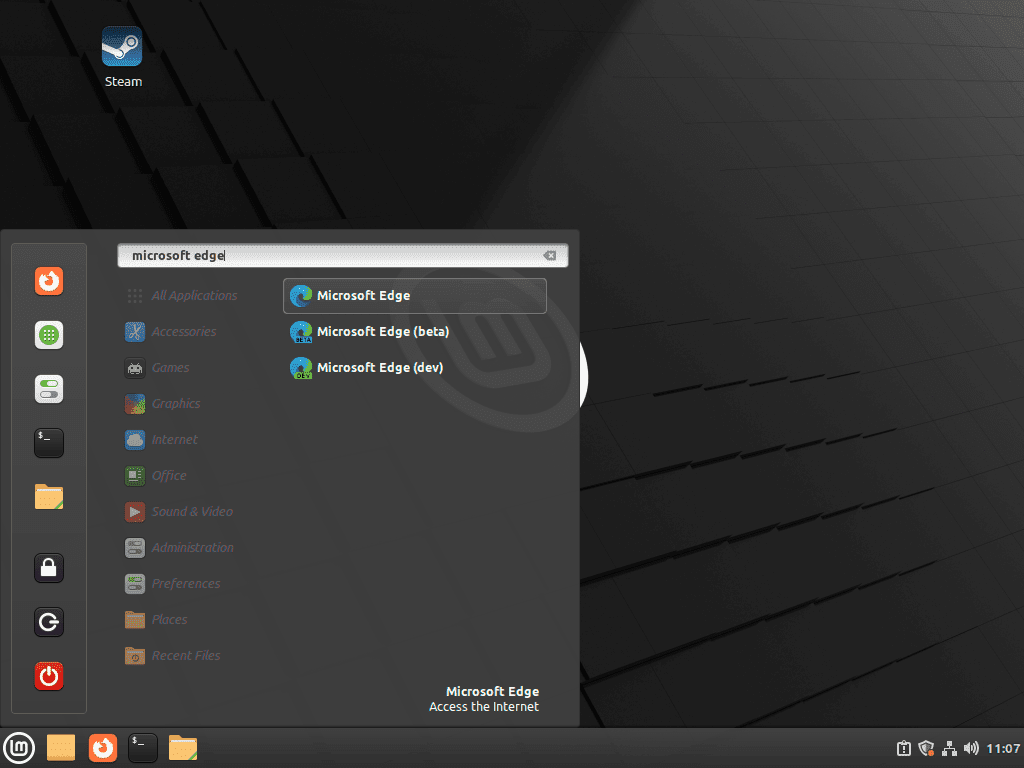
Alternatively, for everyday use, launching Edge from the desktop applications menu is more convenient. Access Microsoft Edge through the Linux Mint menu:
- Open the Mint menu from the taskbar.
- Navigate to the “Internet” category.
- Click “Microsoft Edge” (or “Microsoft Edge Beta” / “Microsoft Edge Dev” depending on your installed channel).
Manage Microsoft Edge Browser
Update Microsoft Edge
Microsoft Edge updates arrive through your regular system update workflow. Consequently, you can use standard APT commands to check for and install browser updates alongside other system packages.
First, refresh your package list to fetch the latest available versions:
sudo apt updateIf updates are available for Microsoft Edge, APT displays them in the upgrade list. Next, proceed with installing available updates:
sudo apt upgradeFor example, when Edge updates are available, you will see output similar to this:
The following packages will be upgraded: microsoft-edge-stable 1 upgraded, 0 newly installed, 0 to remove and 0 not upgraded.
Remove Microsoft Edge
If you need to remove Microsoft Edge from your Linux Mint system, follow these steps based on your installed version. However, note that uninstalling the browser does not automatically back up your data.
Removing Microsoft Edge deletes the browser but preserves your profile data in
~/.config/microsoft-edge/by default. Therefore, your bookmarks, passwords, and settings remain intact for reinstallation. If you want to completely remove all browser data, manually delete the~/.config/microsoft-edge/and~/.cache/microsoft-edge/directories after uninstalling. Synced data remains in your Microsoft account even after local removal.
Uninstall Microsoft Edge Package
To uninstall Microsoft Edge, run the command that matches your installed channel:
sudo apt remove microsoft-edge-stablesudo apt remove microsoft-edge-betasudo apt remove microsoft-edge-devRemove Repository Configuration
After uninstalling the browser, you can optionally remove the repository configuration to clean up your system completely.
If you used the extrepo method, disable the repository:
sudo extrepo disable edgeIf you used the manual DEB822 method, delete the repository configuration file and GPG key:
sudo rm /etc/apt/sources.list.d/microsoft-edge.sources
sudo rm /usr/share/keyrings/microsoft-edge.gpgFinally, refresh your package cache to clear any references to the removed repository:
sudo apt updateTroubleshooting Common Issues
In most cases, Microsoft Edge installation proceeds smoothly, but you may occasionally encounter repository or GPG key issues. The following troubleshooting steps address the most common problems.
Repository or Package Not Found Errors
If APT reports errors when running apt update or cannot find Microsoft Edge packages during installation, verify the repository file exists and contains valid configuration:
cat /etc/apt/sources.list.d/microsoft-edge.sources 2>/dev/null || cat /etc/apt/sources.list.d/extrepo_edge.sources 2>/dev/nullIn a successful configuration, the output should display DEB822 format configuration similar to:
Types: deb
URIs: https://packages.microsoft.com/repos/edge
Suites: stable
Components: main
Architectures: amd64
Signed-By: /usr/share/keyrings/microsoft-edge.gpg
If the file is missing or corrupted, recreate it using the appropriate installation method from this guide. Afterward, refresh your package cache and search for available packages:
sudo apt update
apt-cache search microsoft-edge
As a result, the output should list all available packages:
microsoft-edge-beta - The web browser from Microsoft
microsoft-edge-dev - The web browser from Microsoft
microsoft-edge-stable - The web browser from Microsoft
GPG Key Verification Failures
When APT reports GPG signature verification errors during package installation or updates, the GPG key file may be missing or corrupted. First, verify the key file exists:
ls -lh /usr/share/keyrings/microsoft-edge.gpg 2>/dev/null || ls -lh /var/lib/extrepo/keys/edge.asc 2>/dev/nullIf the key is missing, you can reimport it using the GPG key import command from the manual installation method, or alternatively re-enable the repository with sudo extrepo enable edge if you used the extrepo method.
Duplicate Repository Configuration Warnings
Microsoft Edge installers may automatically create legacy .list files in /etc/apt/sources.list.d/ even though you configured the modern .sources format. When both formats exist simultaneously, APT displays warnings about the repository being configured multiple times:
W: https://packages.microsoft.com/repos/edge InRelease: The repository is configured multiple times in /etc/apt/sources.list.d/microsoft-edge.list and /etc/apt/sources.list.d/microsoft-edge.sources
To resolve this, remove the legacy .list files that conflict with your DEB822 configuration:
sudo rm /etc/apt/sources.list.d/microsoft-edge*.listIf the Edge installer recreates these files during updates, simply remove them again. In any case, the DEB822 .sources file provides all necessary configuration.
Next, verify the repository configuration is now clean:
sudo apt updateAs a result, the duplicate repository warnings should no longer appear.
Conclusion
You now have Microsoft Edge running on Linux Mint with automatic updates through Microsoft’s repository. Consider signing into your Microsoft account for cross-device sync at edge://settings/privacy. For browser comparisons, see our guides on Google Chrome on Linux Mint, Chromium on Linux Mint, and Tor Browser on Linux Mint.

Thks for the very helpful, since clear and concise helpfile!
Thks for the very helpful, since clear and concise helpfile!