

Microsoft Edge brings the Chromium engine to Linux with features that set it apart from Chrome and Firefox. Vertical tabs help manage large browsing sessions, Collections let you organize research across sessions, and the built-in PDF reader handles annotations without extra software. If you use Windows or macOS elsewhere, signing in with a Microsoft account syncs bookmarks, passwords, and open tabs across all your devices.
This guide covers two ways to install Microsoft Edge on Rocky Linux 10, 9, or 8. The RPM method uses Microsoft’s official repository for stable, beta, and dev builds with automatic updates through DNF. The Flatpak method installs Edge in a sandbox from Flathub. Both approaches include verification, update commands, and complete removal instructions.
Choose Your Microsoft Edge Installation Method
Before installing, consider which method best fits your needs. The table below compares the two approaches covered in this guide.
| Method | Channel | Version | Updates | Best For |
|---|---|---|---|---|
| Microsoft RPM Repository | Microsoft Packages | Stable, Beta, Dev | Automatic via DNF upgrades | Most users who want all three release channels |
| Flatpak | Flathub | Stable, Dev | Automatic via Flatpak updates | Users who prefer sandboxed applications |
For most users, the Microsoft RPM method is recommended because it provides access to all three release channels (stable, beta, and dev) and integrates with standard DNF system updates. The Flatpak method works well if you prefer application sandboxing, but note that Flathub does not offer a beta version of Edge.
Method 1: Install Microsoft Edge via Microsoft’s RPM Repository
This method adds Microsoft’s official Edge repository to your system, enabling installation and automatic updates through DNF.
Update Rocky Linux Before Installation
Before adding external repositories, update your existing packages to prevent version conflicts during installation.
sudo dnf upgrade --refreshImport the Microsoft GPG Key
Rocky Linux requires GPG signature verification for packages from external repositories. Import Microsoft’s signing key to allow DNF to verify Edge packages.
sudo rpm --import https://packages.microsoft.com/keys/microsoft.ascThis command downloads the public key from Microsoft’s server and adds it to your RPM keyring. The key is used to cryptographically verify that packages originate from Microsoft.
Add the Microsoft Edge Repository
Next, add the Edge repository to your system. This repository contains all three versions: stable, beta, and dev.
sudo dnf config-manager --add-repo https://packages.microsoft.com/yumrepos/edgeAfter adding the repository, DNF creates a file at /etc/yum.repos.d/packages.microsoft.com_yumrepos_edge.repo that points to Microsoft’s package server.
Install Microsoft Edge Stable
With the repository configured, install the stable version of Microsoft Edge. This version receives regular security updates and is suitable for daily use.
sudo dnf install microsoft-edge-stableDNF will display the package size and ask for confirmation before proceeding. Type y and press Enter to continue.
Verify the Installation
Confirm that Edge installed correctly by checking the version number.
microsoft-edge --versionExpected output showing the installed version:
Microsoft Edge 143.0.3650.96
Optional: Install Beta and Dev Builds
Microsoft also provides beta and dev (nightly) builds through the same repository. These versions run separately from the stable release, so you can install multiple versions side-by-side.
Beta version – receives updates roughly every four weeks with newer features before they reach stable:
sudo dnf install microsoft-edge-betaDev version – updated weekly with the latest features and fixes, intended for developers and testers:
sudo dnf install microsoft-edge-devEach version installs to a separate binary (microsoft-edge-stable, microsoft-edge-beta, microsoft-edge-dev) and uses its own profile directory, allowing you to run them simultaneously without conflicts.
Method 2: Install Microsoft Edge via Flatpak
Flatpak provides sandboxed application installation that isolates Edge from your system libraries. This method works across distributions and offers stable and dev versions through Flathub. Note that Flathub does not offer a beta version of Edge; use the RPM method if you need the beta channel.
Enable the Flathub Repository
If Flathub is not already configured on your system, add it with the following command. The --if-not-exists flag prevents errors if Flathub is already configured.
sudo flatpak remote-add --if-not-exists flathub https://flathub.org/repo/flathub.flatpakrepoUsing sudo configures Flathub at the system level, making it available to all users on the machine. The commands below continue using sudo for system-wide installation consistency.
Install Microsoft Edge via Flatpak
Install the stable version of Edge from Flathub:
sudo flatpak install flathub com.microsoft.Edge -yThe -y flag automatically confirms the installation prompt.
To install the dev version instead, use the com.microsoft.EdgeDev application ID:
sudo flatpak install flathub com.microsoft.EdgeDev -yLike the RPM method, both Flatpak versions can be installed side-by-side and run independently.
Launch Microsoft Edge
After installation, you can launch Edge from the terminal or the desktop environment’s application menu.
Launch from Terminal
For RPM installations, use one of these commands depending on the version you installed:
microsoft-edge-stable
microsoft-edge-beta
microsoft-edge-dev
For Flatpak installations, use the flatpak run command:
flatpak run com.microsoft.Edge
flatpak run com.microsoft.EdgeDev
Launch from Applications Menu
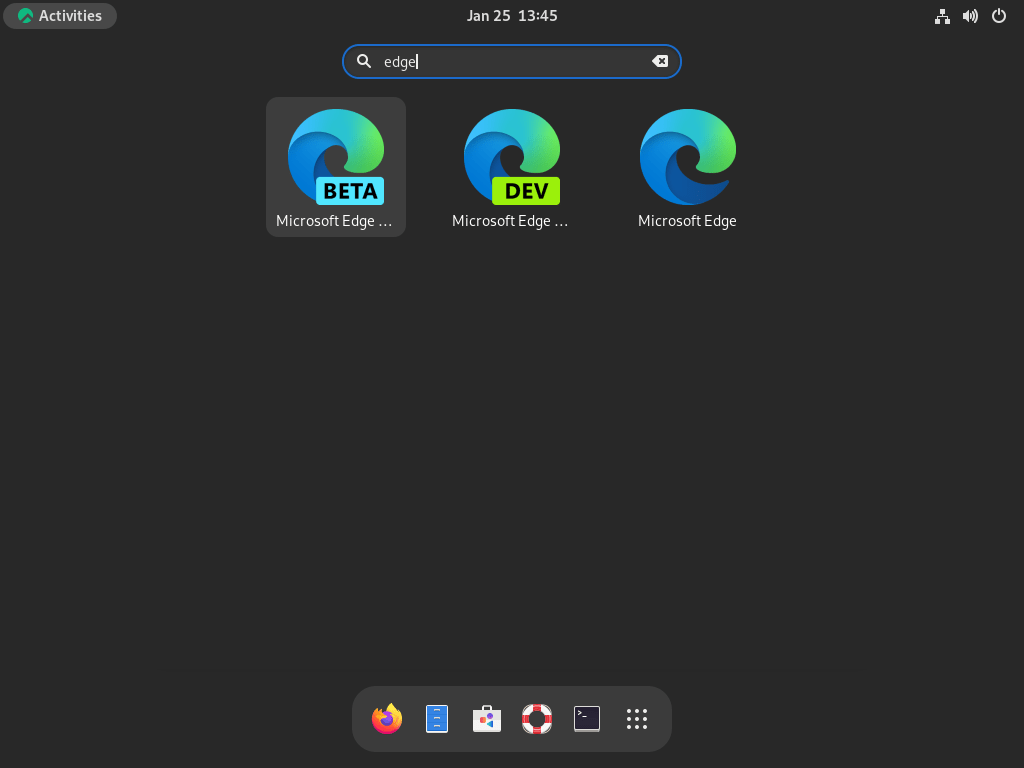
Most users prefer launching Edge from the graphical menu. In GNOME, open the Activities overview and search for “Microsoft Edge,” or navigate to Show Applications and select the Edge icon.
Activities > Show Applications > Microsoft Edge
First-Run Configuration
On first launch, Edge displays a setup wizard. You can configure data collection preferences, choose a new tab page style (Inspiration, Informational, or Focused), and optionally sign in with a Microsoft account to sync bookmarks, passwords, and settings across devices.
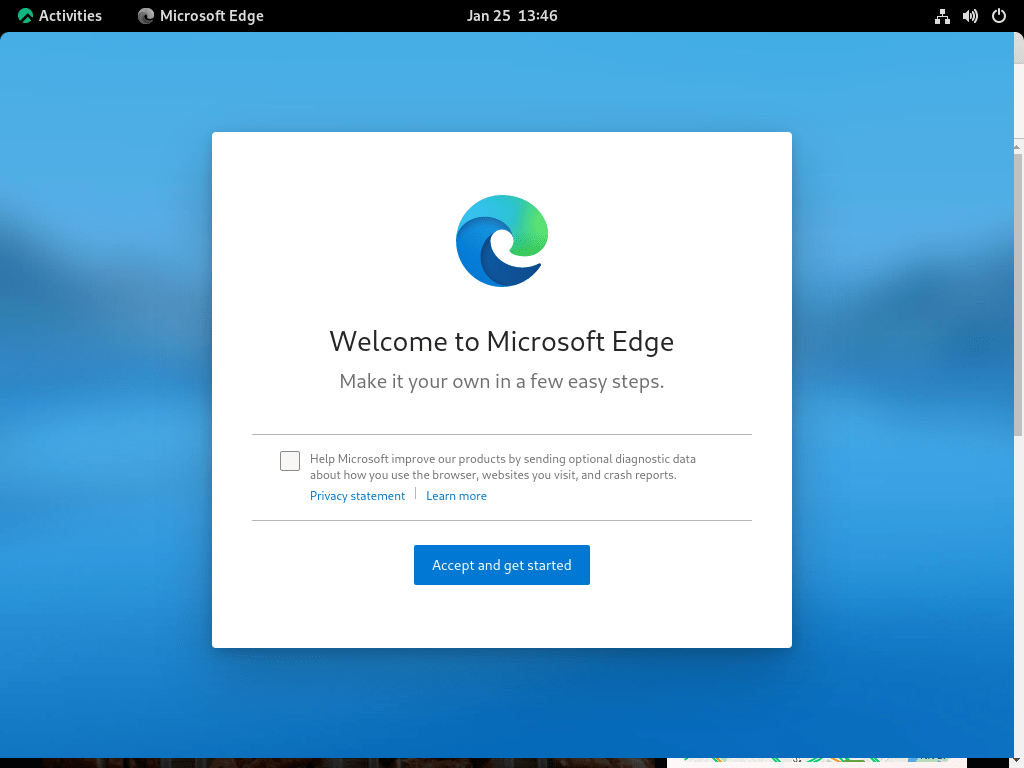
If you prefer not to sign in, click the X button in the corner to skip and proceed to the browser.

Manage Microsoft Edge
Update Microsoft Edge
For RPM installations, Edge updates automatically when you run standard system updates:
sudo dnf upgrade --refreshFor Flatpak installations, update all Flatpak applications including Edge:
sudo flatpak updateRemove Microsoft Edge (DNF Method)
To remove Microsoft Edge installed via DNF, use the dnf remove command. The -y flag skips the confirmation prompt.
Remove the stable version:
sudo dnf remove microsoft-edge-stable -yIf you installed beta or dev versions, remove them separately:
sudo dnf remove microsoft-edge-beta -y
sudo dnf remove microsoft-edge-dev -y
If you do not plan to reinstall Edge, remove the repository file to prevent DNF from checking it during future updates:
sudo rm /etc/yum.repos.d/packages.microsoft.com_yumrepos_edge.repoRemove Microsoft Edge (Flatpak Method)
For Flatpak installations, use the flatpak uninstall command:
sudo flatpak uninstall com.microsoft.Edge -y
sudo flatpak uninstall com.microsoft.EdgeDev -y
Optionally, remove unused Flatpak runtimes that were installed as dependencies:
sudo flatpak uninstall --unusedRemove User Data
Uninstalling Edge does not remove your personal profile data, including bookmarks, saved passwords, browsing history, and cached files. If you want a complete removal, delete these directories manually.
The following command permanently deletes all Edge user data including saved passwords, bookmarks, and browsing history. Export any data you want to keep before proceeding.
For RPM installations:
rm -rf ~/.config/microsoft-edge
rm -rf ~/.cache/microsoft-edge
For Flatpak installations, user data is stored in the Flatpak app data directory:
rm -rf ~/.var/app/com.microsoft.Edge
rm -rf ~/.var/app/com.microsoft.EdgeDev
Troubleshoot Microsoft Edge
Edge Not Found After Installation
If you receive “command not found” when trying to launch Edge after installation, verify the package installed correctly:
rpm -q microsoft-edge-stableExpected output confirming installation:
microsoft-edge-stable-143.0.3650.96-1.x86_64
If the package shows as installed but the command still fails, the binary is likely not in your PATH. Edge installs to /opt/microsoft/msedge/, but the package creates symlinks in /usr/bin/. Check that the symlink exists:
ls -la /usr/bin/microsoft-edge*Fix Missing Edge Icon on Rocky Linux 10
Rocky Linux 10 users may notice Edge appears in the application menu with a generic placeholder icon. This occurs because the default GNOME icon theme on Rocky 10 does not include the Edge icon. To fix this, copy one of the bundled icons to the system icon theme:
sudo cp /opt/microsoft/msedge/product_logo_128.png /usr/share/icons/hicolor/128x128/apps/microsoft-edge.png
sudo gtk-update-icon-cache /usr/share/icons/hicolor
Log out of GNOME and log back in. Edge now appears with its correct icon in the application menu. This issue does not affect Rocky Linux 8 or 9.
Flatpak Permissions Prompts
When launching Edge via Flatpak for the first time, your desktop environment may display permission prompts for file system access, camera, or microphone. These are standard sandbox permissions that Edge requests to function fully. Grant the permissions you are comfortable with; Edge will remember your choices for future sessions.
Conclusion
You now have Microsoft Edge installed on Rocky Linux with your choice of stable, beta, or dev release channels. The RPM method integrates with standard DNF updates, while Flatpak provides sandboxed installation if you prefer that approach. Both methods support side-by-side installation of multiple Edge versions, and the removal steps ensure complete cleanup when the browser is no longer needed. For a similar setup process with another Chromium-based browser, see our guide on installing Google Chrome on Rocky Linux.
