
KTorrent is a full-featured BitTorrent client built for the KDE desktop environment. If you download large files, share content via torrents, or need fine-grained control over your transfers, KTorrent gives you queue management, bandwidth controls, IP filtering, and plugin support in a single application. By the end of this guide, you will have KTorrent installed on Ubuntu and verified working, ready for your first torrent.
Choose Your KTorrent Installation Method
Ubuntu offers two straightforward ways to install KTorrent. To help you decide, the table below compares each method so you can pick the one that fits your workflow.
| Method | Channel | Version | Updates | Best For |
|---|---|---|---|---|
| APT (Default Repository) | Ubuntu Repos | Distribution default | Automatic via apt upgrade | Most users who prefer distro-tested packages |
| Flatpak (Flathub) | Flathub | Latest stable | Automatic via flatpak update | Users who want the newest release with sandboxing |
For most users, the APT method is recommended because it integrates with your system’s package manager, receives security updates automatically, and requires no additional setup. However, choose Flatpak if you specifically need the latest upstream release or prefer application sandboxing.
Method 1: Install KTorrent via APT
The APT method installs KTorrent from Ubuntu’s default repositories. As a result, this approach is the simplest and ensures compatibility with your system libraries.
Update Your Package Index
Before installing any software, refresh your package index and upgrade existing packages. This ensures you install the latest available version and reduces dependency conflicts:
sudo apt update && sudo apt upgradeInstall KTorrent
With your package index updated, install KTorrent using the following command:
sudo apt install ktorrentAPT will then download KTorrent along with any required KDE libraries. The installation typically takes a minute or two depending on your internet connection.
Verify the Installation
After installation completes, confirm that KTorrent is properly installed by checking the package status:
apt-cache policy ktorrentAs a result, you should see output showing the installed version:
ktorrent:
  Installed: 23.08.5-0ubuntu3
  Candidate: 23.08.5-0ubuntu3
  Version table:
 *** 23.08.5-0ubuntu3 500
        500 http://archive.ubuntu.com/ubuntu noble/universe amd64 Packages
        100 /var/lib/dpkg/status
Here, the “Installed” line confirms KTorrent is ready to use. Note that the exact version number depends on your Ubuntu release.
Method 2: Install KTorrent via Flatpak
Alternatively, Flatpak provides a sandboxed installation with the latest upstream release from Flathub. This method is particularly useful if you want newer features than your distribution packages or prefer application isolation.
Flatpak is not pre-installed on Ubuntu. If you have not set it up yet, install it with
sudo apt install flatpakand restart your session before continuing. For detailed setup including the Flathub repository, follow our Flatpak installation guide for Ubuntu.
Add the Flathub Repository
First, ensure the Flathub repository is configured on your system. The --if-not-exists flag prevents errors if you have already added it:
sudo flatpak remote-add --if-not-exists flathub https://flathub.org/repo/flathub.flatpakrepoInstall KTorrent from Flathub
Next, install KTorrent using the Flatpak command. The -y flag automatically confirms the installation prompt:
sudo flatpak install flathub org.kde.ktorrent -yFlatpak will then download the application and any required runtimes. Note that this may take several minutes on the first installation as the KDE runtime is sizeable.
Verify the Flatpak Installation
Finally, confirm the installation succeeded by checking the application details:
flatpak info org.kde.ktorrentIn response, the output displays version information and confirms the application is installed:
KTorrent - BitTorrent Client

          ID: org.kde.ktorrent
         Ref: app/org.kde.ktorrent/x86_64/stable
        Arch: x86_64
      Branch: stable
      Origin: flathub
     Version: 25.12.0
Launch KTorrent
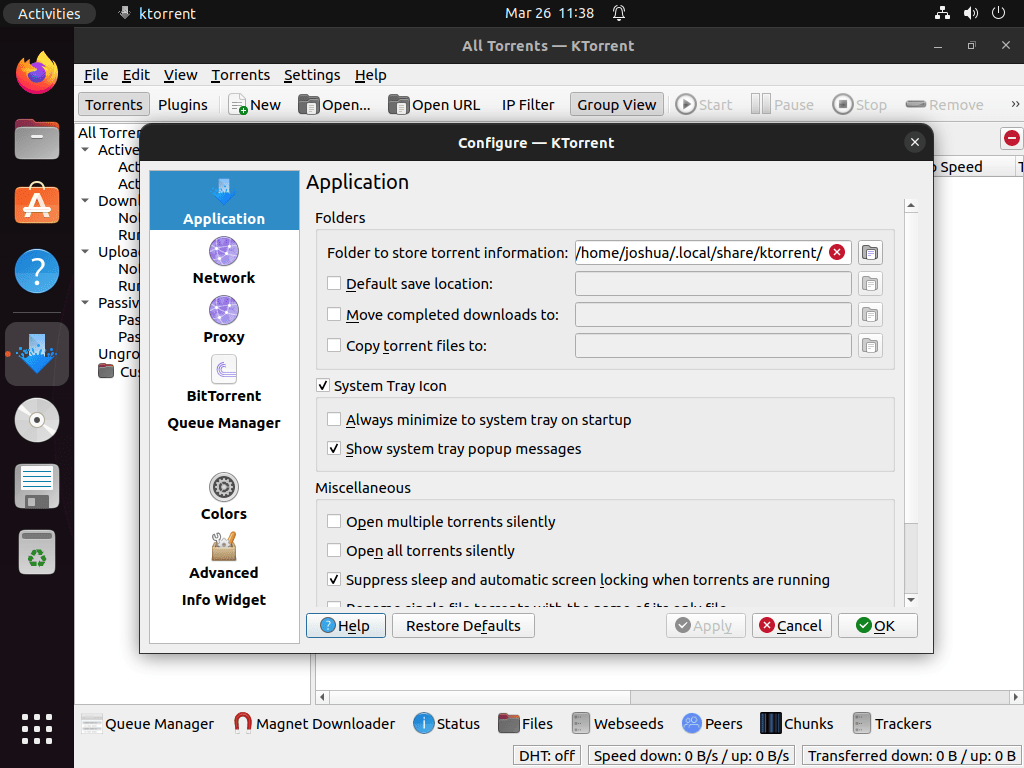
After installation completes, you can open KTorrent using either the graphical menu or command line. Both methods launch the same application.
Launch from the Applications Menu
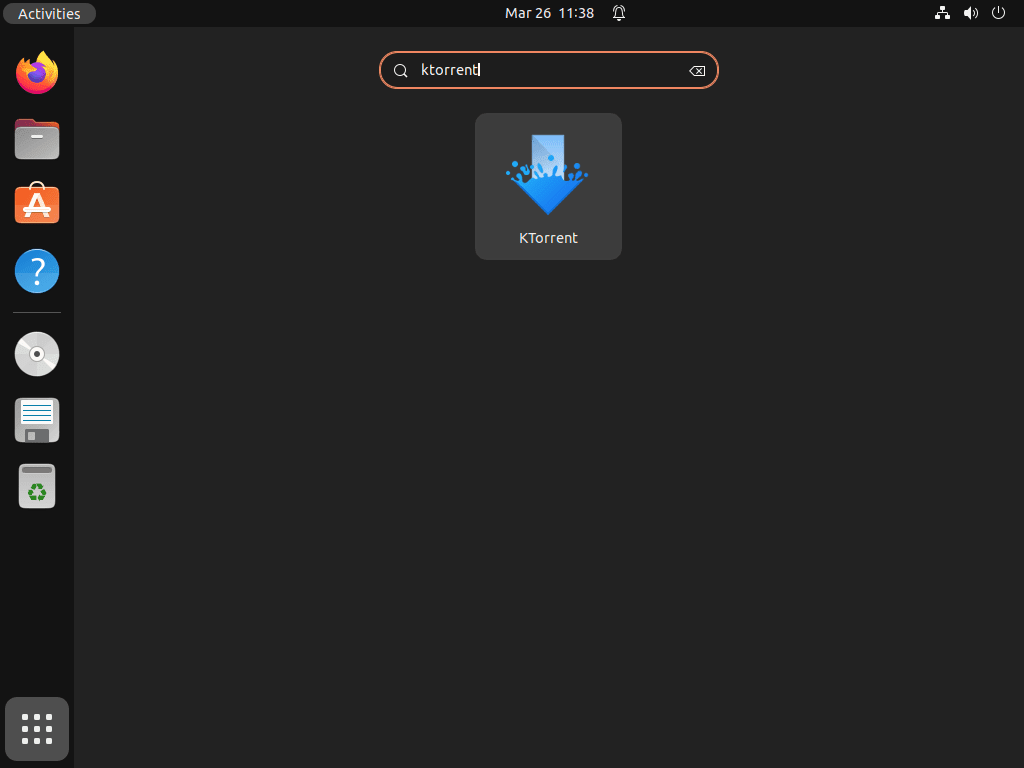
The simplest approach is to use your desktop’s application launcher. To do this, click Activities, then Show Applications, and search for KTorrent. Finally, click the icon to launch the application.
Launch from the Terminal
Alternatively, if you prefer the command line, you can launch KTorrent directly from your terminal. The command differs based on your installation method.
For APT installations:
ktorrentFor Flatpak installations:
flatpak run org.kde.ktorrentManage KTorrent
Once installed, keeping KTorrent updated ensures you have the latest security patches and features. This section covers routine maintenance and removal if you decide to uninstall the application.
Update KTorrent
KTorrent receives updates through your package manager. Therefore, run the appropriate command periodically to ensure you have the latest security patches and features.
Update via APT
sudo apt update && sudo apt upgradeThis command refreshes your package index and then upgrades all installed packages, including KTorrent.
Update via Flatpak
flatpak updateSimilarly, Flatpak updates all installed applications and their runtimes in a single command.
Remove KTorrent
If you no longer need KTorrent, uninstall it using the command matching your original installation method.
Remove via APT
To remove KTorrent and clean up any orphaned dependencies, run:
sudo apt remove ktorrent && sudo apt autoremoveHere, the autoremove command removes KDE libraries that were installed as dependencies but are no longer needed by any other application. Additionally, if you want to delete configuration files, use purge instead:
sudo apt purge ktorrent && sudo apt autoremoveRemove via Flatpak
To remove the application while keeping your torrent settings, run:
sudo flatpak uninstall org.kde.ktorrentAdditionally, to remove unused runtimes that were installed as dependencies, run:
sudo flatpak uninstall --unusedFlatpak stores application data in
~/.var/app/org.kde.ktorrent/. If you want a complete removal including your torrent settings and download history, delete this directory after uninstalling:rm -rf ~/.var/app/org.kde.ktorrent
Conclusion
In summary, you now have KTorrent installed on Ubuntu using either APT or Flatpak. The APT method provides stability with automatic updates through your system package manager, while Flatpak offers the latest features with application sandboxing. Ultimately, both methods give you a full-featured BitTorrent client with queue management, bandwidth controls, and plugin support. If you prefer a different torrent client, consider qBittorrent or Deluge as alternatives.