

Joplin is an open-source note-taking and to-do application that stores notes in Markdown format, making them portable and easy to edit in any text editor. The application supports end-to-end encryption for secure cloud synchronization with services like Dropbox, Nextcloud, OneDrive, and Joplin Cloud. Whether you need to organize research notes, manage daily tasks, or save web pages with the browser clipper extension, Joplin provides a privacy-focused alternative to proprietary note applications.
This guide covers three installation methods for Debian, each with different tradeoffs for updates and system integration. After completing the steps, you will have a fully functional Joplin installation ready for note-taking, task management, and cloud synchronization.
Choose Your Joplin Installation Method
Multiple installation methods exist for Joplin on Debian, each suited to different preferences and system configurations. The following table summarizes your options:
| Method | Channel | Version | Updates | Best For |
|---|---|---|---|---|
| extrepo (Recommended) | Community repository | Latest stable | Automatic via APT | Debian 12/13 users who prefer APT-managed packages |
| Flatpak | Flathub | Latest stable | Automatic via Flatpak | All Debian versions; sandboxed installation with cross-distro portability |
| Official Bash Script | GitHub AppImage | Latest stable | Manual script re-run | Users who want direct upstream releases without package managers |
For most users on Debian 12 or 13, the extrepo method is recommended because it integrates with APT for automatic updates and simple removal. Debian 11 users should use the Flatpak or bash script methods since extrepo does not include Joplin for that release. The Flatpak method provides excellent sandboxing and works across all Debian versions, while the bash script offers direct upstream releases as an AppImage.
Update Your Debian System
To begin, before installing any new software, update your package database and upgrade existing packages to ensure compatibility and security:
sudo apt update && sudo apt upgradeAs a result, this command refreshes the package index and upgrades all installed packages to their latest versions, reducing the likelihood of dependency conflicts during installation.
Method 1: Install Joplin via extrepo (Recommended for Debian 12/13)
Specifically, the extrepo tool is Debian’s official method for managing external repositories. It handles GPG key downloads and repository configuration automatically, making third-party software installation straightforward and maintainable.
Debian 11 users: Unfortunately, Joplin is not available in extrepo for Debian 11 (Bullseye). Therefore, use Method 2 (Flatpak) or Method 3 (Bash Script) instead.
Install extrepo and Enable the Joplin Repository
First, install the extrepo package if it is not already present on your system:
sudo apt install extrepo -yNext, enable the Joplin repository using extrepo:
sudo extrepo enable joplinWith this command, the repository GPG key downloads and creates the appropriate .sources file in /etc/apt/sources.list.d/ automatically.
Install Joplin via APT
After enabling the repository, update your package index and install Joplin:
sudo apt update
sudo apt install joplin -y
Verify the Installation
Once complete, confirm that Joplin was installed successfully by checking the package status:
apt-cache policy joplinExpected output:
joplin:
  Installed: 3.x.x
  Candidate: 3.x.x
  Version table:
 *** 3.x.x 500
        500 https://sourceforge.net/projects/joplin-desktop-linux-package/files/deb-repo packages/main amd64 Packages
The version number shown will reflect the current release available in the repository. Your output confirms Joplin is installed and managed through APT.
Method 2: Install Joplin via Flatpak and Flathub
Alternatively, Flatpak provides a sandboxed environment that isolates applications from the rest of your system, enhancing security and ensuring consistent behavior across different Linux distributions. This method works on all supported Debian versions, including Debian 11.
If Flatpak is not installed on your system, follow our guide to install Flatpak on Debian before proceeding.
Add the Flathub Repository
First, ensure the Flathub repository is configured on your system:
sudo flatpak remote-add --if-not-exists flathub https://flathub.org/repo/flathub.flatpakrepoUsing the --if-not-exists flag prevents errors if Flathub is already configured, making this command safe to run multiple times.
Install Joplin from Flathub
Next, install Joplin using the Flatpak command:
sudo flatpak install flathub net.cozic.joplin_desktop -yCrucially, this application identifier net.cozic.joplin_desktop uniquely identifies Joplin in the Flathub repository.
Verify the Flatpak Installation
Similarly, confirm the installation by checking the application details:
flatpak info net.cozic.joplin_desktopExpected output:
Joplin - open source note taking and to-do application

          ID: net.cozic.joplin_desktop
         Ref: app/net.cozic.joplin_desktop/x86_64/stable
        Arch: x86_64
      Branch: stable
      Origin: flathub
     Version: 3.x.x
Method 3: Install Joplin via Official Bash Script
In addition, the Joplin team provides an official bash script that downloads and installs the latest AppImage release directly from GitHub. This method gives you the most recent upstream version but requires manual script execution for updates.
Security note: This method downloads and executes a remote script. Before running scripts from the internet, review their contents at the Joplin GitHub repository to understand what commands will execute on your system.
Install the libfuse2 Dependency
However, AppImage applications require the FUSE library to run. The package name differs between Debian versions due to the 64-bit time transition in Debian 13.
Debian 11 (Bullseye) and Debian 12 (Bookworm):
sudo apt install libfuse2 -yDebian 13 (Trixie) and newer:
sudo apt install libfuse2t64 -yDownload and Execute the Installation Script
To proceed, run the official installation script to download and set up Joplin:
wget -O - https://raw.githubusercontent.com/laurent22/joplin/dev/Joplin_install_and_update.sh | bashEssentially, this command downloads the script and pipes it directly to bash for execution. Subsequently, the script creates a .joplin directory in your home folder, downloads the AppImage, and configures the desktop entry.
Expected output upon completion:
Downloading Joplin...
Downloaded Joplin 3.x.x
Launch Joplin
After installation, you can launch Joplin using either the graphical interface or the command line, depending on your installation method.
Launch from Applications Menu
To do this, press the Super key and type “Joplin” in the search bar, then click the Joplin icon to open the application. Alternatively, navigate to Activities and search for “Joplin” in the applications grid.
Launch from Terminal
Conversely, the terminal command varies based on your installation method:
extrepo or APT installation:
joplin-desktopFlatpak installation:
flatpak run net.cozic.joplin_desktopBash script (AppImage) installation:
~/.joplin/Joplin.AppImage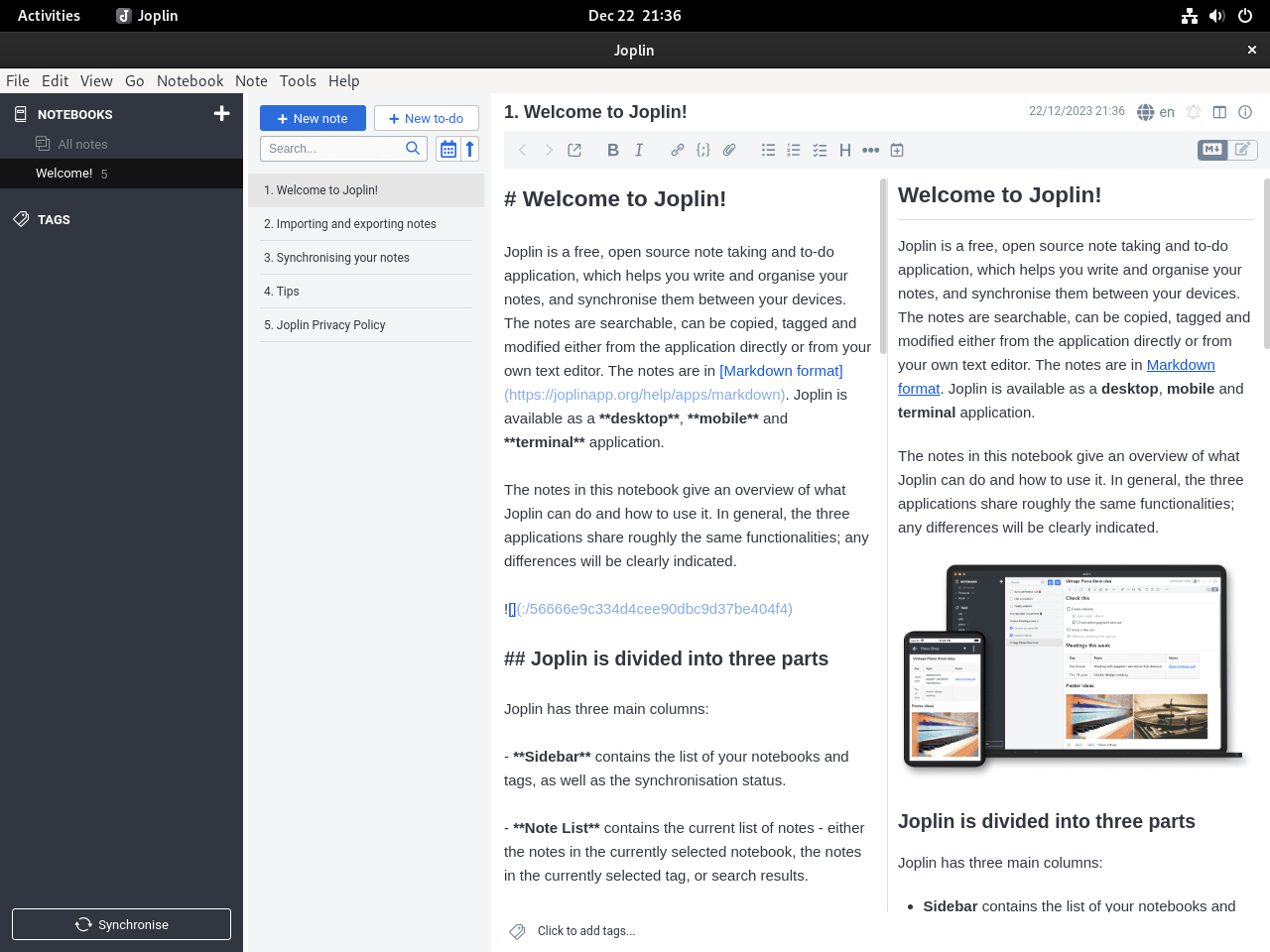
Update Joplin
Regularly keeping Joplin updated ensures you have the latest features and security patches. However, the update process differs by installation method.
Update extrepo Installation
With extrepo installations, Joplin updates automatically with your regular system updates:
sudo apt update
sudo apt install --only-upgrade joplin
Update Flatpak Installation
To update everything, update all Flatpak applications, including Joplin:
sudo flatpak updateAlternatively, to update only Joplin:
sudo flatpak update net.cozic.joplin_desktopUpdate Bash Script Installation
Simply re-run the installation script to download the latest version. The script automatically detects the existing installation and performs an upgrade:
wget -O - https://raw.githubusercontent.com/laurent22/joplin/dev/Joplin_install_and_update.sh | bashTroubleshoot Common Joplin Issues
AppImage Fails to Launch
When the AppImage fails to start with a FUSE-related error, the libfuse2 library may be missing or incorrectly named for your Debian version.
To diagnose the issue, check if libfuse2 is installed:
ldconfig -p | grep libfuse.so.2Should no output appear, install the appropriate package for your Debian version as described in Method 3.
Synchronization Connection Errors
When Joplin cannot connect to your synchronization service, verify your network connection and firewall settings. For Nextcloud users, ensure the WebDAV URL is correct and your credentials are valid. Additionally, the Joplin help documentation provides detailed synchronization troubleshooting steps.
Flatpak Permission Issues
Because Flatpak applications run in a sandbox with limited filesystem access, Joplin may not access certain directories for attachments or exports. To resolve this, grant additional permissions using Flatseal or the flatpak override command.
Remove Joplin
When you no longer need Joplin, follow the removal steps corresponding to your installation method.
Remove extrepo Installation
To begin, remove the Joplin package:
sudo apt remove --purge joplin -y
sudo apt autoremove -y
Then, optionally disable the repository:
sudo extrepo disable joplin
sudo apt update
Remove Flatpak Installation
To uninstall, remove Joplin and clean up unused runtimes:
sudo flatpak uninstall net.cozic.joplin_desktop -y
sudo flatpak uninstall --unused -y
Remove Bash Script Installation
Warning: The following commands permanently delete Joplin and all local note data, including notebooks, tags, attachments, and configuration. If you want to preserve your notes, export them from within Joplin or back up your synchronization service first.
First, delete the Joplin installation directory and configuration files:
rm -rf ~/.joplin
rm -rf ~/.config/joplin-desktop
rm -rf ~/.config/Joplin
Next, remove the desktop entry:
rm -f ~/.local/share/applications/appimagekit-joplin.desktopRemove Flatpak User Data (Optional)
Warning: This permanently deletes all Joplin notes, notebooks, and settings stored in the Flatpak sandbox. Export your notes first if you want to keep them.
rm -rf ~/.var/app/net.cozic.joplin_desktopConclusion
In conclusion, you now have Joplin installed on Debian with your chosen method, ready for note-taking with Markdown support, cloud synchronization, and end-to-end encryption. The extrepo method provides seamless APT integration for Debian 12 and 13 users, while Flatpak offers sandboxed isolation across all versions. For users who sync notes with Git repositories, consider installing Git on Debian to enable version-controlled note backups. Additionally, installing the Firefox browser enables the Joplin Web Clipper extension for saving web pages directly to your notebooks.
Official Resources
For additional information and community support:
- Joplin GitHub Repository: Access the source code, report issues, and contribute to development.
- Joplin Official Website: Overview of features, download options, and Joplin Cloud plans.
- Joplin Community Forum: Discuss Joplin, ask questions, and share tips with other users.
- Joplin Help and Documentation: Detailed guides on synchronization, plugins, and application usage.
- Joplin on Flathub: Flatpak package page with version history and installation instructions.

Formatting tips for your comment
You can use basic HTML to format your comment. Useful tags currently allowed in published comments:
<code>command</code>command<strong>bold</strong><em>italic</em><blockquote>quote</blockquote>