

Install HPLIP on Ubuntu to get reliable HP printing, scanning, and fax support through CUPS, plus tools like HP Device Manager for setup and maintenance. HPLIP ships in every Ubuntu LTS desktop installation by default, though the bundled version varies (3.24.x on 26.04, 3.23.x on 24.04, 3.21.x on 22.04), and newer HP devices may need a more recent build. Three installation methods are covered below, along with compatibility checks, plugin installation, USB and network setup, and troubleshooting. After following this guide, you will have HPLIP installed, your printer added, and a verified print and scan test.
Install HPLIP on Ubuntu
HPLIP can be installed from Ubuntu’s APT repositories, HP’s source code, or the Snap Store. Complete the preparation steps below, then move to the method that fits your device and preferences.
Check HP Device Compatibility with HPLIP
Not every HP device is supported, and newer models can require a newer HPLIP release. The quickest check is the OpenPrinting printer database, which lists supported models and recommended drivers. For detailed version and plugin requirements, the HPLIP source tarball includes a models database that lists the minimum required HPLIP version (support-ver) and whether a proprietary plugin is needed (plugin=1). Use the commands below to download the latest models file and search for your printer model.
Replace the example model string with your exact printer name from the label or device menu.
latest_version=$(curl -fsSL "https://sourceforge.net/projects/hplip/rss?path=/hplip" | grep -oE '/hplip/[0-9]+\.[0-9]+\.[0-9]+/' | sed -e 's|/hplip/||' -e 's|/||' | sort -V | tail -n 1)
curl -fL -o "hplip-${latest_version}.tar.gz" "https://sourceforge.net/projects/hplip/files/hplip/${latest_version}/hplip-${latest_version}.tar.gz/download"
tar -xf "hplip-${latest_version}.tar.gz" "hplip-${latest_version}/data/models/models.dat"
grep -n -i -A 30 -B 2 "OfficeJet All-in-One Printer" "hplip-${latest_version}/data/models/models.dat" | head -n 30
Example output from the models file looks like this:
38-job-storage=0
39-linefeed-cal-type=0
40:model1=HP OfficeJet All-in-One Printer
41-monitor-type=0
42-panel-check-type=0
43-pcard-type=0
44-plugin=0
45-plugin-reason=0
46-power-settings=0
47-pq-diag-type=0
48-r-type=0
49-r0-agent1-kind=3
50-r0-agent1-sku=26(51626A)
51-r0-agent1-type=1
52-scan-src=0
53-scan-type=0
54-status-battery-check=0
55-status-dynamic-counters=0
56-status-type=0
57-support-released=True
58-support-subtype=2de2
59-support-type=2
60-support-ver=0.9.5
61-tech-class=DJ540
62-family-class=PCL4-Class1
63-tech-subclass=GrayscaleOnly
64-tech-type=1
65-usb-pid=0
66-usb-vid=3f0
67-wifi-config=0
Look for the support-ver value in the output. If your installed HPLIP version is lower than that number, choose the manual installer or source build so the required driver files are available.
If your device requires a newer HPLIP version than the Ubuntu packages provide, move to the manual installer or source build sections later in this guide. Use the models database output to confirm the minimum required version before you choose a method.
Choose Your HPLIP Installation Method for Ubuntu
HPLIP offers multiple installation paths depending on your Ubuntu release and how new your device is. Ubuntu’s APT repositories prioritize stability and integrate cleanly with CUPS, while HP’s manual installer and source builds provide newer device support at the cost of manual updates. The Snap-based printer application is a sandboxed alternative that focuses on printing through a web interface.
| Method | Channel | Stability | Best For |
|---|---|---|---|
| APT (Ubuntu Repositories) | Ubuntu Repos | High – stable, updates through Ubuntu repositories | Most users who want full printing and scanning features with minimal maintenance |
| HP Manual Installer or Source Tarball | SourceForge | Medium – newest device support, manual updates | Newer HP devices that need a higher HPLIP version than Ubuntu provides |
| Snap (hplip-printer-app) | Snap Store | High – sandboxed, automatic updates | Printing-only workflows that prefer a web UI and isolated drivers |
Recommended: Use the APT packages unless your device needs a newer HPLIP release than Ubuntu provides. Manual installs deliver newer device support but require manual updates.
The APT packages ship different HPLIP versions depending on the Ubuntu release. If your device needs a higher version than the table below shows, use the manual installer or source build instead.
| Ubuntu Release | APT HPLIP Version | Latest Source Version |
|---|---|---|
| Ubuntu 26.04 LTS | 3.24.x | 3.25.8 |
| Ubuntu 24.04 LTS | 3.23.x | 3.25.8 |
| Ubuntu 22.04 LTS | 3.21.x | 3.25.8 |
Update Ubuntu Before Installing HPLIP
Update your system packages before installing HPLIP to ensure compatibility and reduce potential conflicts:
sudo apt update && sudo apt upgradeThis guide uses
sudofor commands that need root privileges. If your user is not in the sudoers file yet, follow the guide on how to add a sudo user on Ubuntu.
Check for an Existing HPLIP Installation on Ubuntu
Many Ubuntu installations include HPLIP by default. Before proceeding, verify whether HPLIP is already installed and check if the version meets your device requirements:
dpkg -l | grep -E '^ii[[:space:]]+hplip'If HPLIP is installed, you’ll see output similar to:
ii  hplip         3.24.4+dfsg0-0ubuntu5  amd64  HP Linux Printing and Imaging System (HPLIP)
ii  hplip-data    3.24.4+dfsg0-0ubuntu5  all    HP Linux Printing and Imaging - data files
The version number appears in the third column (3.24.4 in this example). Compare it with the support-ver value from the models database in the HPLIP source tarball. If your installed version is older than required, move to the manual installer or source build sections later in this guide. If no packages appear, proceed with the installation steps below.
Install HPLIP via APT on Ubuntu (Recommended)
Install HPLIP from Ubuntu’s repositories for the most stable integration. The installation includes four main packages:
- hplip: Core drivers and command-line utilities
- hplip-data: Device configuration files and printer definitions
- hplip-gui: Graphical interface tools (HP Device Manager, setup wizard)
- hplip-doc: Documentation and help files (optional)
Install all four packages at once:
sudo apt install hplip hplip-data hplip-gui hplip-docAfter installation completes, verify HPLIP installed correctly by checking the package status:
dpkg -l | grep -E '^ii[[:space:]]+hplip' | head -4ii hplip 3.24.4+dfsg0-0ubuntu5 amd64 HP Linux Printing and Imaging System (HPLIP) ii hplip-data 3.24.4+dfsg0-0ubuntu5 all HP Linux Printing and Imaging - data files ii hplip-doc 3.24.4+dfsg0-0ubuntu5 all HP Linux Printing and Imaging - documentation ii hplip-gui 3.24.4+dfsg0-0ubuntu5 all HP Linux Printing and Imaging - GUI utilities (Qt-based)
Server users can skip hplip-gui and hplip-doc if graphical tools and documentation are not needed:
sudo apt install hplip hplip-dataHPLIP Proprietary Plugin Requirements
Some HP devices need a proprietary plugin for full functionality, especially on models that rely on HP-specific print languages. The models database marks this with plugin=1, and the hp-plugin tool downloads the binary after you accept HP’s license agreement.
If the database shows a plugin requirement, install it before running the setup wizard so HPLIP can detect all device features.
Install HPLIP from Source on Ubuntu
Use the manual methods when the Ubuntu packages are too old for your device. HP provides an automatic .run installer that handles dependencies, plus the source tarball for a full manual build. These installs sit outside APT, so you handle updates manually.
Option 1: HPLIP Automatic Installer (.run Script)
HP’s automatic installer script checks system dependencies, configures build options for Ubuntu, and installs the version you downloaded. This method works well for users who need newer versions without manual compilation complexity.
If curl is missing on your system, install it first:
sudo apt install curlDownload and run the automatic installer:
curl -fL -o hplip-3.25.8.run https://sourceforge.net/projects/hplip/files/hplip/3.25.8/hplip-3.25.8.run/download
chmod +x hplip-3.25.8.run
./hplip-3.25.8.run
Replace 3.25.8 with the current version listed on the HPLIP SourceForge download page. The installer script presents an interactive menu that guides you through dependency checks, build configuration, and installation. Follow the on-screen prompts, which will notify you of any missing dependencies and offer to install them automatically.
The automatic installer requires build tools (GCC on Ubuntu, make) and development libraries. If dependency installation fails, the installer displays specific package names. Install them manually with
sudo apt install <package-name>and re-run the installer.
Option 2: Manual HPLIP Tarball Compilation
For complete control over build options and installation paths, compile HPLIP from the source tarball. This method suits advanced users who need to customize features or integrate HPLIP into custom distributions.
If you already installed HPLIP from APT, remove those packages before installing from source to avoid file conflicts.
First, install the build dependencies that every supported Ubuntu release needs:
sudo apt install build-essential curl gawk pkg-config libcups2-dev libdbus-1-dev libavahi-client-dev \
libavahi-core-dev libavahi-common-dev libusb-1.0-0-dev libjpeg-dev libsnmp-dev libssl-dev \
libtool libtool-bin python3-dev python3-pyqt5 python3-dbus python3-gi python3-pil \
python-is-python3 libsane-dev sane-utils avahi-utils cups-ppdc
Create a build directory in your home folder so cleanup is simple later:
mkdir -p ~/hplip-src
cd ~/hplip-src
Download and extract the HPLIP tarball (replace the version with the current release from the HPLIP SourceForge download page):
HPLIP_VERSION="3.25.8"
curl -fL -o "hplip-${HPLIP_VERSION}.tar.gz" "https://sourceforge.net/projects/hplip/files/hplip/${HPLIP_VERSION}/hplip-${HPLIP_VERSION}.tar.gz/download"
tar -xf "hplip-${HPLIP_VERSION}.tar.gz"
cd "hplip-${HPLIP_VERSION}"
Configure the build for modern Ubuntu releases (64-bit systems):
./configure --with-hpppddir=/usr/share/ppd/HP --libdir=/usr/lib/x86_64-linux-gnu --prefix=/usr \
--enable-network-build --enable-scan-build --enable-fax-build --enable-dbus-build \
--disable-qt4 --enable-qt5 --enable-hpcups-install --enable-cups-drv-install
checking for sane_open in -lsane... yes checking for pkg-config... /usr/bin/pkg-config checking pkg-config is at least version 0.9.0... yes checking for DBUS... yes checking for dbus_connection_open in -ldbus-1... yes configure: creating ./config.status config.status: creating Makefile config.status: creating hplip.conf config.status: creating hplip.desktop config.status: creating hp-uiscan.desktop config.status: creating hplip-systray.desktop config.status: creating prnt/drv/hpijs.drv config.status: creating prnt/drv/hpcups.drv config.status: creating hplip.list config.status: creating data/policykit/com.hp.hplip.service config.status: executing depfiles commands config.status: executing libtool commands
For 32-bit systems, use --libdir=/usr/lib instead. The configuration script checks dependencies and reports missing packages. Install any missing items with APT before proceeding.
Compile the source code (run as regular user, not root):
make -j"$(nproc)"The -j"$(nproc)" flag uses all available CPU cores to speed up compilation.
On Ubuntu 22.04 and 24.04, a successful build ends with output similar to:
libtool: link: gcc -shared  -fPIC -DPIC  .libs/libhpmud_la-hpmud.o .libs/libhpmud_la-mlc.o .libs/libhpmud_la-model.o .libs/libhpmud_la-pml.o .libs/libhpmud_la-dot4.o .libs/libhpmud_la-jd.o .libs/libhpmud_la-pp.o .libs/libhpmud_la-utils.o .libs/libhpmud_la-musb.o   -Wl,-rpath -Wl,/tmp/hplip-3.25.8/.libs -lpthread -ldl -lusb-1.0 -lnetsnmp ./.libs/libhpdiscovery.so -lavahi-common -lavahi-client -lcrypto    -Wl,-soname -Wl,libhpmud.so.0 -o .libs/libhpmud.so.0.0.6
libtool: link: (cd ".libs" && rm -f "libhpmud.so.0" && ln -s "libhpmud.so.0.0.6" "libhpmud.so.0")
libtool: link: (cd ".libs" && rm -f "libhpmud.so" && ln -s "libhpmud.so.0.0.6" "libhpmud.so")
/bin/bash ./libtool --tag=CC   --mode=link gcc -DCONFDIR=\"/etc/hp\" -DCONFDIR=\"/etc/hp\" -version-info 0:1:0  -o libhpipp.la -rpath /usr/lib/x86_64-linux-gnu libhpipp_la-hp_ipp.lo libhpmud.la -lavahi-common -lavahi-client -lcrypto
/bin/bash ./libtool --tag=CC   --mode=link gcc -I/usr/include/python3.12 -Iprotocol/discovery -I/usr/include/libusb-1.0  -DCONFDIR=\"/etc/hp\" -module -avoid-version  -o hpmudext.la -rpath /usr/local/lib/python3.12/dist-packages hpmudext_la-hpmudext.lo libhpmud.la libhpdiscovery.la -lavahi-common -lavahi-client -lcrypto
On Ubuntu 26.04, the HPLIP 3.25.8 tarball currently fails to compile in
prnt/cupsext/cupsext.cwith implicit function declaration errors. Use the APT packages or the Snap method until HP updates the source.
prnt/cupsext/cupsext.c:106:5: error: implicit declaration of function '_releaseCupsInstance'; did you mean 'releaseCupsInstance'? [-Wimplicit-function-declaration]
prnt/cupsext/cupsext.c:375:14: error: implicit declaration of function 'addCupsPrinter'; did you mean 'addPrinter'? [-Wimplicit-function-declaration]
prnt/cupsext/cupsext.c:398:14: error: implicit declaration of function 'delCupsPrinter'; did you mean 'getCupsPrinters'? [-Wimplicit-function-declaration]
prnt/cupsext/cupsext.c:423:14: error: implicit declaration of function 'setDefaultCupsPrinter'; did you mean 'setDefaultPrinter'? [-Wimplicit-function-declaration]
make: *** [Makefile:6597: cupsext_la-cupsext.lo] Error 1
Install the compiled binaries:
sudo make installCompilation time varies by system performance. If compilation fails, check the error output for missing dependencies or configuration issues, install the required packages, and run make clean before trying again.
Install HPLIP via Snap on Ubuntu
The HPLIP Printer Application snap (published by OpenPrinting) wraps HPLIP inside a Printer Application and emulates a driverless IPP printer. This approach is aimed at older HP models that still need classic HPLIP drivers while keeping printing managed through a web interface.
If the snap command is missing, install the Snap runtime first:
sudo apt install snapdInstall the HPLIP Printer Application:
sudo snap install hplip-printer-appBecause the Snap runs in strict confinement, connect the interfaces that grant access to USB printers and mDNS discovery (network-only printers may not need raw-usb):
sudo snap connect hplip-printer-app:raw-usb
sudo snap connect hplip-printer-app:avahi-control
After the interfaces are connected, open the web interface at http://localhost:8000 to add and configure printers. If port 8000 is already in use, the application may use http://localhost:8001 instead. A working setup loads the Printer Application page with an Add Printer option and a device list.
OpenPrinting notes that the snap targets around 3,000 HPLIP-supported models, but scanning support is planned for a later release. It also does not include the classic HPLIP command-line utilities or HP Device Manager, so use the APT or source install when you need full HPLIP tooling.
Configure HPLIP After Installation on Ubuntu
After installing HPLIP through any method, complete the steps that apply to your setup so permissions and device discovery work correctly.
Add User to HPLIP Printer Groups
HPLIP requires your user account to belong to the lp (line printer) and lpadmin (printer administration) groups for permission to access printing hardware and manage printer queues. Add your current user to these groups:
sudo usermod -a -G lp,lpadmin $USERAfter running this command, you must log out and log back in (or restart your PC) for group membership changes to take effect. The system only reads group assignments during login, so changes won’t apply to your current session. Verify membership after logging back in with the
groupscommand.
groupsYour output should include lp and lpadmin.
Reconnect USB Printers for HPLIP
If you have a USB printer already connected during HPLIP installation, Ubuntu won’t recognize it properly until you reset the USB connection. This happens because HPLIP’s udev rules (device detection rules) weren’t active when the printer was first plugged in. Reset the connection by doing one of the following:
- Unplug the USB cable from your computer and plug it back in, or
- Restart your computer (which also reloads all USB devices)
After reconnecting, Ubuntu’s device manager will recognize the printer with HPLIP’s drivers and make it available for configuration.
Install HPLIP Proprietary Plugin (If Required)
If the models database shows plugin=1 for your device (or your printer documentation requires it), install the proprietary plugin before configuring your printer:
sudo hp-pluginThe plugin installer downloads the binary plugin from HP’s servers and prompts you to accept HP’s license agreement. Run it with sudo so it can place firmware under /usr/share/hplip. The download requires internet access and may take a few minutes depending on connection speed. If the download fails, check your network connection and firewall settings, then try again.
Corporate or restrictive networks may block access to HP’s plugin servers. If downloads consistently fail after multiple attempts, temporarily connect to a different network (mobile hotspot, home network) to complete plugin installation, or configure proxy settings to allow access to sourceforge.net and HP’s download servers.
Launch HPLIP on Ubuntu
After installation completes, launch HPLIP using either the desktop tools or the terminal. The HP Device Manager requires the hplip-gui package and an active desktop session.
Launch HPLIP from the Applications Menu
Open your application menu and search for “HPLIP” or “HP Device Manager.” Click the HP Device Manager icon to launch the interface. Alternatively, access the setup wizard by searching for “HP Device Setup.”
Launch HPLIP Toolbox from the Terminal
Open the HPLIP toolbox directly from the terminal:
hp-toolboxThis command opens the HP Device Manager where you can configure printers, check ink levels, and perform maintenance tasks. If the command is missing, install hplip-gui.
Set Up Your HP Printer with HPLIP on Ubuntu
After installing HPLIP, you need to configure your HP devices and verify they work correctly. The setup process uses the hp-setup wizard to detect devices, install drivers, and establish connections.
Step 1: Run HPLIP Setup
Run the hp-setup command with administrative privileges so it can create printers under CUPS. Use the graphical flag on desktop systems:
sudo hp-setup -uOn headless or server installs without an X session, switch to the interactive text mode:
sudo hp-setup -i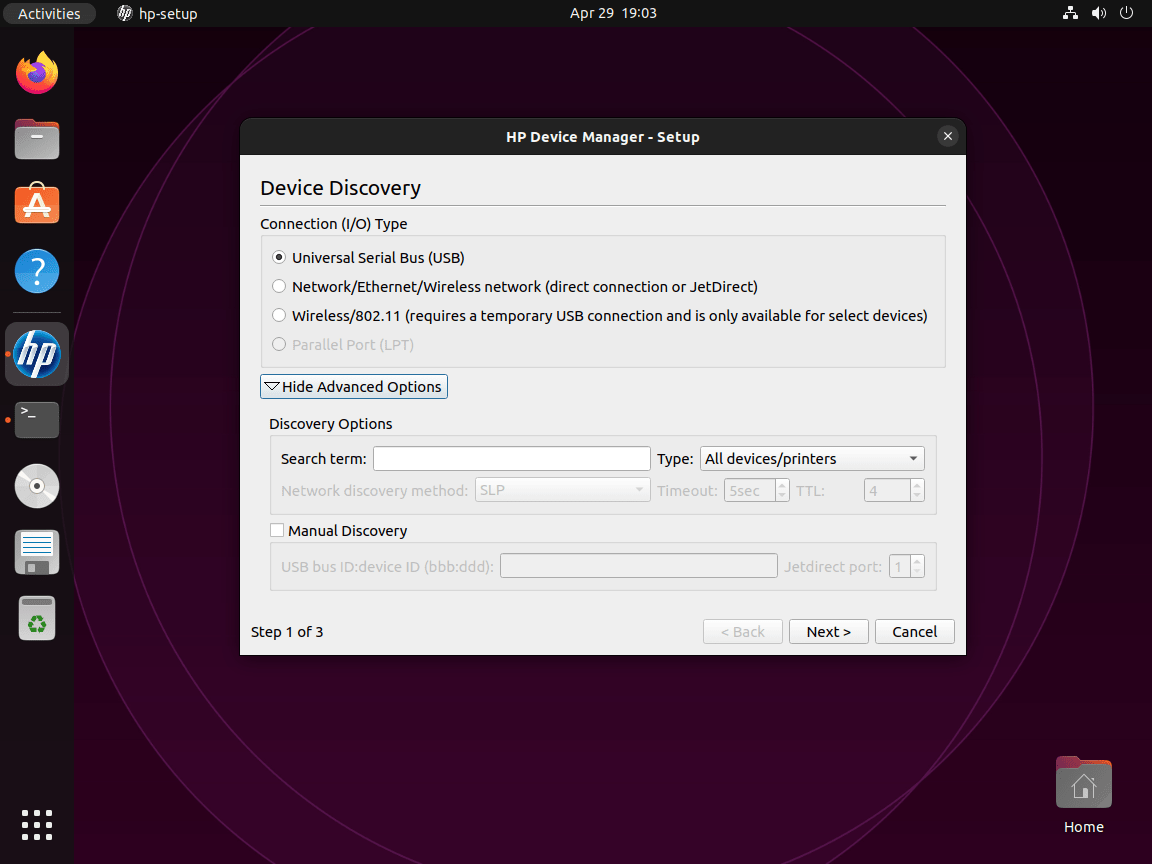
Step 2: Select HPLIP Connection Type
When the HPLIP setup window appears, you will be prompted to choose the connection type for your HP device. Available options include USB, Network/Ethernet/Wireless, and Parallel (legacy printers) based on how your device connects. Choose the appropriate connection type for your device and click “Next.”
Parallel port connections are rare on modern systems but still supported for legacy HP LaserJet and DeskJet printers from the 1990s-early 2000s. Most current HP devices use USB or network connections. If your system lacks a parallel port, USB-to-parallel adapters may work but aren’t officially supported by HPLIP.
Step 3: Discover and Select Your HP Device
HPLIP will now scan for connected HP devices based on the connection type you selected. If your device is not automatically detected, you may need to manually enter its IP address or hostname (for Network/Ethernet/Wireless connections). Once your device appears in the list, select it and click “Next.”
Step 4: Configure HPLIP Printer Settings
Next, configure basic settings for your HP printer, such as the printer name and description. You can also share the printer on your local network if desired. After configuring the settings, click Next to continue.
Step 5: Install the HPLIP Printer Driver
HPLIP will now prompt you to install the appropriate printer driver for your device. It will automatically select the recommended driver, but you can also choose a different driver from the list if needed. Click “Next” to begin the driver installation process.
Test HPLIP Installation on Ubuntu
After configuring your HP devices, test the installation to confirm everything works correctly. This section covers discovering connected devices and testing print and scan functionality.
Discover Connected HP Devices with HPLIP
Before testing, verify HPLIP detects your HP devices correctly. Run hp-probe as your normal user; it warns if you run it with sudo. The command scans for all connected HP printers and scanners regardless of connection type (USB, network, or parallel):
hp-probeThis command outputs device URIs (Uniform Resource Identifiers), connection types, and model information for each detected HP device. USB devices appear with URIs like hp:/usb/DeskJet_2600_series?serial=XXXXX, while network devices show hp:/net/DeskJet_2600_series?ip=192.168.1.100. Use these URIs when manually specifying devices in other HPLIP commands.
Add the -g flag when you need verbose debug output that shows every discovery step and USB query:
hp-probe -gIf you prefer a graphical device list, open HP Device Manager instead of relying on hp-probe:
hp-toolboxVerify CUPS Scheduler Status for HPLIP
Confirm that the CUPS scheduler is running before printing a test page:
lpstat -rscheduler is running
If you see scheduler is not running, start the CUPS service in the troubleshooting section below.
Print an HPLIP Test Page
First, identify your configured printer name. Run this command to list all available printers:
lpstat -p -dThe output shows your printer names and the default printer. The -p flag lists all printers, while -d displays the default printer. Use this information for the test print commands below.
Print HPLIP Test Page via Command Line
Print a test page from the terminal using either the HPLIP-specific command or the standard CUPS command. The HPLIP method automatically selects your default printer and sends HP’s test page:
hp-testpageThis command prints a formatted test page showing your printer model, HPLIP version, and color/alignment patterns. Alternatively, use the standard CUPS test print command to target a specific printer, replacing printer_name with your actual printer name from the previous lpstat command:
lp -d printer_name /usr/share/cups/data/testprintThe hp-testpage command is simpler for quick verification, while lp offers more control when managing multiple printers.
Print an HPLIP Test Page from the Printers App
- Open the Printers application on your Ubuntu system.
- Locate and select your HP printer in the list of available printers.
- Right-click on the printer and choose Properties.
- In the printer properties window, click the Print Test Page button.
A successful test page confirms your HP printer is properly configured with HPLIP.
Test HPLIP Scanning Functionality
For HP all-in-one devices with scanning capabilities, test the scanner using HPLIP’s built-in scan utility. If you have multiple scanners, first list available devices:
hp-scan -iThis command starts interactive mode, lists detected scanners, and prompts you to choose the correct device URI before running a scan.
Test HPLIP Scan via Command Line
Once you’ve identified your scanner, run the scan as your normal user and save the output:
hp-scan --output=my-test-scan.pngThis saves the scan to my-test-scan.png in your current directory. Choose a different filename if you want to keep multiple test scans.
Test HPLIP Scanning from the Applications Menu
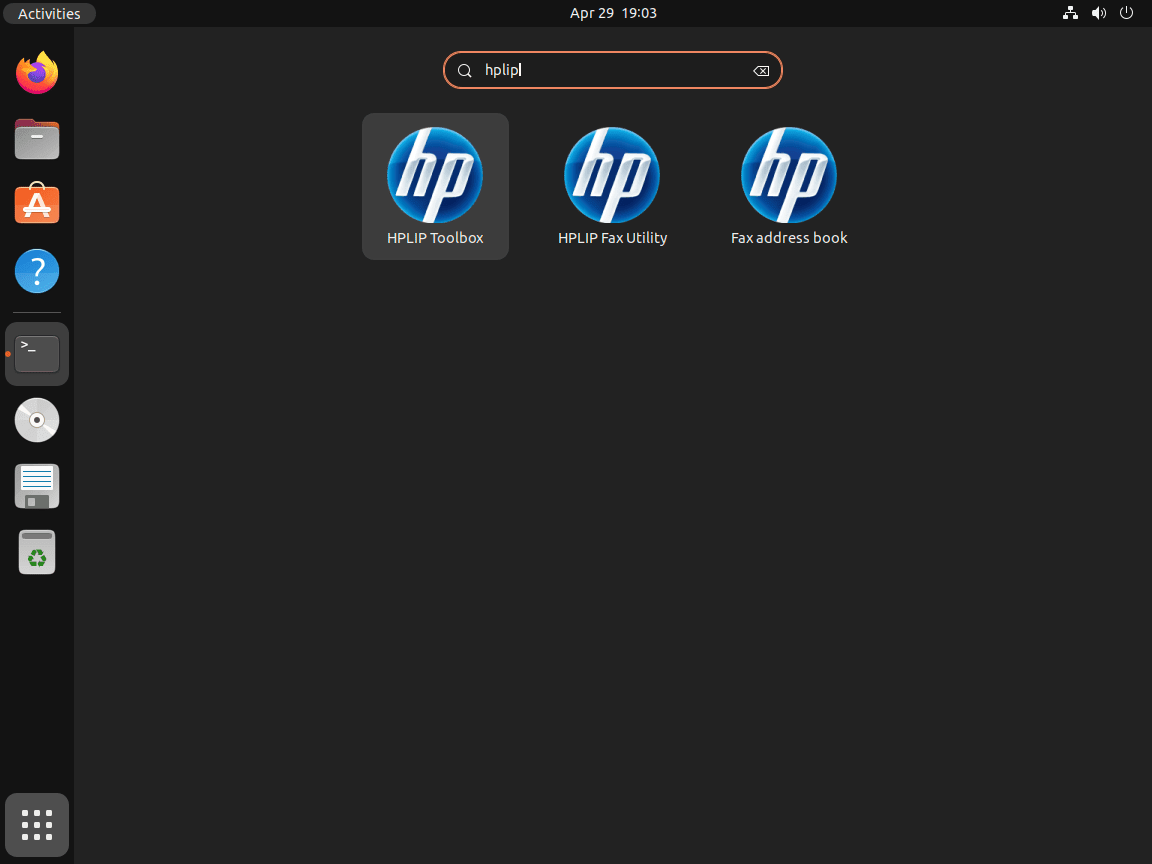
- Launch the HPLIP Toolbox by searching for “HPLIP” in your application menu and clicking the HPLIP Toolbox icon.
- In the HPLIP Toolbox window, locate and select your HP all-in-one device.
- Click the Scan button to open the scanning utility.
- Follow the on-screen instructions to perform a test scan, adjusting the scan settings as needed.
A successful test scan confirms your HP all-in-one device’s scanning functionality works properly with HPLIP.
Manage HPLIP Printers via the CUPS Web Interface on Ubuntu
The CUPS (Common UNIX Printing System) web interface provides advanced printer management capabilities beyond what HPLIP’s tools offer. Through this browser-based interface, you can configure print queues, modify printer options, view detailed job histories, adjust PPD (PostScript Printer Description) settings, and manage printer sharing across your network. This is particularly useful for server environments, troubleshooting complex configuration issues, or when you need fine-grained control over printer behavior.
Access the CUPS administration panel by opening your browser and visiting http://localhost:631.
The CUPS interface organizes functions under several tabs:
- Administration: Add/remove printers, manage server settings, enable printer sharing, configure remote administration
- Printers: View all configured printers, check status, set defaults, access printer-specific options
- Jobs: Monitor active print jobs, view completed jobs, cancel or hold queued jobs
- Classes: Create printer pools (groups of printers that share a queue for load balancing)
When you click administrative functions like “Add Printer” or modify printer settings, CUPS prompts for authentication. Enter your Ubuntu username and password (the same credentials you use with sudo). Your user must belong to the lpadmin group to perform administrative tasks.
By default, CUPS only accepts connections from localhost (127.0.0.1), preventing remote access to the web interface. To enable remote administration from other computers on your network, you must explicitly configure CUPS to listen on network interfaces and allow remote connections. This creates security risks; only enable remote access when necessary and implement firewall rules or VPN tunnels to restrict access to trusted networks.
Common CUPS administrative tasks include:
- Setting default options: Configure paper size, print quality, duplex settings, and color management as defaults for all jobs
- Enabling printer sharing: Allow other Linux, macOS, or Windows computers on your network to print through your Ubuntu system
- Viewing error logs: Access detailed logging information when troubleshooting printer communication or driver issues
- Managing print quotas: Set page limits or implement accounting for shared printers in office environments
The CUPS web interface complements HPLIP’s tools by providing system-level printing configuration, while HPLIP focuses on HP-specific features like ink level monitoring, print head alignment, and scanner access.
Troubleshoot HPLIP Issues on Ubuntu
Common HPLIP issues typically involve device detection, permissions, or network connectivity. Before diving into specific problems, run HPLIP’s built-in diagnostic tool to identify issues automatically:
hp-doctorThis command checks for deprecated configurations, missing plugins, dependency issues, printer queue problems, and permission errors. Run it as your normal user; it will prompt you if elevated privileges are needed. For a more detailed dependency check, use:
hp-check -rThe -r flag performs a runtime check of all HPLIP dependencies, confirming that Python modules, scanning libraries, and CUPS communication are working correctly.
HPLIP Printer Not Detected During Setup
If HPLIP fails to detect your printer during setup, first verify the connection. For USB printers, check the physical connection and run:
lsusb | grep -i hewlettIf you see lsusb: command not found, install the USB utilities package:
sudo apt install usbutilsThis command lists connected HP USB devices. If nothing appears, the issue is hardware-related. Check the cable and try a different USB port. For network printers, verify the printer’s IP address is reachable:
ping -c 4 printer_ip_addressReplace printer_ip_address with your printer’s actual IP address. Network discovery failures often indicate firewall issues, incorrect network settings, or the printer being on a different subnet.
Repository HPLIP Version Too Old
When your HP device requires a newer HPLIP version than Ubuntu’s repositories provide, the device may not appear during setup, or certain features may fail even after successful configuration. This commonly affects recently released HP printers that weren’t supported in the HPLIP version packaged with your Ubuntu release.
First, verify your installed HPLIP version and compare it to the support-ver value in the models database from the HPLIP tarball (see the compatibility section earlier):
dpkg -l | grep -E '^ii[[:space:]]+hplip' | head -1The version number appears in the third column. If the installed version is older than required, install a newer release using HP’s automatic installer or manual compilation method covered earlier in this guide. Newer HPLIP versions add device support that cannot be backported to older repository packages.
CUPS Service Not Running for HPLIP
HPLIP requires the CUPS (Common UNIX Printing System) printing service to function. This service manages all print jobs and printer communication on Linux systems. First, check if the CUPS scheduler is running:
lpstat -rIf the scheduler is not running, start and enable CUPS so it launches on boot:
sudo systemctl enable --now cupsOn Ubuntu, CUPS can be socket-activated; seeing cups.socket active with cups.service inactive is normal until a print job arrives.
Missing HPLIP Printer Driver or Plugin
Some HP printers require proprietary plugins for full functionality, while others may have missing dependencies that prevent proper operation. Run the diagnostic tool to check for missing dependencies:
hp-check -rThis command performs a runtime check and reports missing components like Python libraries, scanning tools, and communication libraries. Review the output for error messages or warnings about missing packages.
If dependencies are missing or broken, fix them automatically:
sudo apt --fix-broken installThe --fix-broken option attempts to correct broken package installations by installing missing dependencies or removing conflicting packages. This is particularly useful after manual installations or when dependency resolution fails during initial HPLIP installation.
If the diagnostic indicates your printer requires a proprietary plugin, install it:
sudo hp-pluginFollow the on-screen instructions to download and install the proprietary plugin. The plugin must be downloaded from HP’s servers, requires accepting their license agreement, and needs root privileges so files can be written into system directories.
If the plugin download fails due to network issues or server unavailability, wait a few minutes and try again. Some corporate or restrictive networks may block access to HP’s plugin servers. Temporarily disable proxy settings or try from a different network if the download consistently fails.
HPLIP Multi-Function Device Partial Failure
When printing works but scanning fails (or vice versa), this typically indicates missing dependencies for one function. Check if the required scanning packages are installed:
dpkg -l | grep -E 'python3-pil|libsane-hpaio'If either package is missing, install the common scanning dependencies:
sudo apt install python3-pil libsane-hpaioAfter installing missing packages, restart the CUPS service and test both functions again:
sudo systemctl restart cupsNetwork Printer Hostname Resolution for HPLIP
If network printer discovery fails despite correct network configuration, mDNS (multicast DNS) may not be functioning properly. First, verify the printer responds to its hostname:
ping -c 4 printer-hostname.localIf the hostname doesn’t resolve, install Avahi (the Linux mDNS implementation):
sudo apt install avahi-daemon avahi-utilsThen enable and start the Avahi service:
sudo systemctl enable --now avahi-daemonAlternatively, use the printer’s IP address directly instead of its hostname during setup. Find the IP address from your router’s admin panel or the printer’s network settings menu.
Network Printer Security with HPLIP
Network printers expose services to your local network and potentially beyond if not properly secured. When configuring network printers, consider these security practices:
- Restrict firewall rules: Only allow printer ports (631/tcp, 5353/udp) from trusted networks, not all interfaces
- Verify plugin authenticity: The
hp-plugintool downloads proprietary code from HP servers; ensure you’re on a trusted network during installation - Disable remote administration: Access the CUPS web interface at
http://localhost:631and disable remote administration unless specifically needed - Use printer authentication: Configure printer passwords or access controls when available to prevent unauthorized print jobs
For public-facing servers, avoid exposing CUPS ports directly to the internet. Use VPN access or SSH tunneling instead.
Network Printer Firewall Configuration for HPLIP
Network printer access requires specific firewall ports. If using UFW firewall on Ubuntu, allow CUPS and IPP (Internet Printing Protocol) traffic:
If you manage this system over SSH, confirm your firewall rules before enabling or reloading UFW to avoid locking yourself out.
sudo ufw allow 631/tcp
sudo ufw allow 5353/udp
Port 631 handles CUPS/IPP printing, while port 5353 enables Bonjour/mDNS (multicast DNS) printer discovery for automatic network printer detection.
Manage HPLIP Installation on Ubuntu
This section covers updating and removing HPLIP for each installation method.
Update HPLIP (APT)
APT updates come from Ubuntu’s repositories. Refresh the package index and upgrade only the HPLIP packages you installed:
sudo apt update
sudo apt install --only-upgrade hplip hplip-data hplip-gui hplip-doc
On server installs where you only installed hplip and hplip-data, limit the upgrade to those packages.
Verify the updated version:
dpkg -l | grep -E '^ii[[:space:]]+hplip' | head -4ii hplip 3.24.4+dfsg0-0ubuntu5 amd64 HP Linux Printing and Imaging System (HPLIP) ii hplip-data 3.24.4+dfsg0-0ubuntu5 all HP Linux Printing and Imaging - data files ii hplip-doc 3.24.4+dfsg0-0ubuntu5 all HP Linux Printing and Imaging - documentation ii hplip-gui 3.24.4+dfsg0-0ubuntu5 all HP Linux Printing and Imaging - GUI utilities (Qt-based)
For production servers, consider configuring unattended upgrades on Ubuntu to keep HPLIP and other system packages current automatically.
Update HPLIP (Snap)
Snaps refresh automatically, but you can trigger an update at any time:
sudo snap refresh hplip-printer-appReopen the web interface to confirm the Printer Application loads after the refresh.
Update HPLIP (Source Build) with a Script
If you compiled HPLIP from source, use a script to track new releases and recompile safely when needed.
Create the update script:
cat <<'EOF' > ~/hplip-src/hplip-update.sh
#!/usr/bin/env bash
set -euo pipefail

# Basic tool checks
for cmd in curl tar make gcc pkg-config; do
  if ! command -v "$cmd" >/dev/null 2>&1; then
    echo "Missing required tool: $cmd"
    echo "Install the build dependencies from the manual build section, then re-run."
    exit 1
  fi
done

# Determine the latest HPLIP version from SourceForge RSS
latest_version=$(curl -fsSL "https://sourceforge.net/projects/hplip/rss?path=/hplip" | \
  grep -oE '/hplip/[0-9]+\.[0-9]+\.[0-9]+/' | \
  sed -e 's|/hplip/||' -e 's|/||' | sort -V | tail -n 1)

if [[ -z "$latest_version" ]]; then
  echo "Could not determine the latest HPLIP version."
  exit 1
fi

version_file="$HOME/.local/share/hplip-source-version"
installed_version=""
if [[ -f "$version_file" ]]; then
  installed_version=$(cat "$version_file")
fi

if [[ -n "$installed_version" && "$installed_version" == "$latest_version" ]]; then
  echo "HPLIP is already up to date ($installed_version)."
  exit 0
fi

echo "Latest HPLIP version: $latest_version"
if [[ -n "$installed_version" ]]; then
  echo "Installed version: $installed_version"
fi

build_root="$HOME/hplip-src"
mkdir -p "$build_root"
cd "$build_root"

echo "Downloading HPLIP $latest_version..."
curl -fL -o "hplip-${latest_version}.tar.gz" "https://sourceforge.net/projects/hplip/files/hplip/${latest_version}/hplip-${latest_version}.tar.gz/download"

echo "Extracting source..."
tar -xf "hplip-${latest_version}.tar.gz"
cd "hplip-${latest_version}"

echo "Configuring build..."
./configure --with-hpppddir=/usr/share/ppd/HP --libdir=/usr/lib/x86_64-linux-gnu --prefix=/usr \
  --enable-network-build --enable-scan-build --enable-fax-build --enable-dbus-build \
  --disable-qt4 --enable-qt5 --enable-hpcups-install --enable-cups-drv-install

echo "Compiling..."
make -j"$(nproc)"

echo "Installing..."
sudo make install

mkdir -p "$(dirname "$version_file")"
echo "$latest_version" > "$version_file"

echo "Update complete."
EOF
Make the script executable:
chmod +x ~/hplip-src/hplip-update.shThe script stores the last installed version in ~/.local/share/hplip-source-version so it can skip rebuilds when you are already up to date.
Run this script manually; do not schedule it via cron. Unattended source builds can break a working printer stack if upstream introduces regressions or changes build requirements.
Run the script when you want to check for updates:
~/hplip-src/hplip-update.shHPLIP is already up to date (3.25.8).
Remove HPLIP (APT)
If you no longer need HPLIP on your system, remove all HPLIP packages along with their configuration files:
sudo apt remove --purge hplip hplip-data hplip-gui hplip-docThe --purge flag removes configuration files in addition to the packages themselves. Next, clean up unused dependencies:
sudo apt autoremoveThe autoremove command removes packages that were installed as dependencies but are no longer needed, including scanning libraries and Python modules that HPLIP required.
Verify the removal completed:
apt-cache policy hpliphplip:
Installed: (none)
Candidate: 3.24.4+dfsg0-0ubuntu5
Version table:
3.24.4+dfsg0-0ubuntu5 500
500 http://archive.ubuntu.com/ubuntu resolute/main amd64 Packages
The Installed: (none) line confirms HPLIP has been removed. The candidate version and suite name vary by Ubuntu release (resolute on 26.04, noble on 24.04, jammy on 22.04). The package remains available in Ubuntu’s repositories for reinstallation.
Remove HPLIP (Snap)
Remove the Printer Application snap:
sudo snap remove hplip-printer-appRemove HPLIP (Source Build)
From the source directory you used for installation, run the uninstall script (replace the version with the one you installed):
cd ~/hplip-src/hplip-3.25.8
sudo ./uninstall.py
Removing the build directory and your HPLIP profile deletes local configuration and cached data. Back up anything you want to keep before running the cleanup commands.
rm -rf ~/hplip-src
rm -f ~/.local/share/hplip-source-version
rm -rf ~/.hplip
Frequently Asked Questions About HPLIP on Ubuntu
Each Ubuntu LTS ships a different HPLIP version: 26.04 includes 3.24.x, 24.04 includes 3.23.x, and 22.04 includes 3.21.x. If your HP device requires a newer release, install HPLIP from source or use HP’s automatic installer.
HP Smart is not available for Linux. HP only provides the HP Smart app for Windows, macOS, iOS, and Android. On Ubuntu, HPLIP replaces HP Smart and provides printing, scanning, fax support, ink level monitoring, and device management through HP Device Manager.
Yes. The APT and source-built versions of HPLIP include full scanning support through SANE and the hp-scan command. The Snap version (hplip-printer-app) currently handles printing only; scanning support is planned for a later release.
The HPLIP proprietary plugin is a binary add-on from HP that provides drivers for certain printer models. Check the models database for your device; if it shows plugin=1, the plugin is required for full functionality. Install it with sudo hp-plugin after accepting HP’s license agreement.
Conclusion
HPLIP is now installed on Ubuntu with a complete HP printing and scanning stack through CUPS, plus tools for setup, maintenance, and troubleshooting. The APT packages handle the majority of devices, the manual installer covers newer models that need a higher HPLIP release, and the Snap Printer Application provides a sandboxed alternative for printing-only workflows. For further hardening, consider configuring UFW firewall on Ubuntu and enabling unattended upgrades on Ubuntu to keep HPLIP current automatically.

Very good description of the process.
Great Job! Thank you so very much for caring far more than HP does.