
Debian does not package Google Antigravity in its default repositories, and the current Google product split matters before you install anything. To install Google Antigravity on Debian, choose between the Antigravity 2.0 desktop app, the separate Antigravity IDE tarball, the user-local agy CLI, or Google’s older APT package when you specifically need the legacy 1.x IDE.
The current desktop and IDE builds are Linux tarballs from Google’s download page. The legacy APT repository still resolves for Debian, but its newest antigravity package currently remains on 1.23.2. Debian’s AppArmor behavior also differs from the current Ubuntu path: AppArmor can be enabled while the Ubuntu-specific unprivileged user namespace sysctl simply prints MISSING, so avoid importing Ubuntu profile workarounds unless Debian logs prove AppArmor is blocking the launch.
Choose a Google Antigravity Install Path on Debian
Google’s Antigravity download page lists Antigravity 2.0, Antigravity CLI, Antigravity SDK, and Antigravity IDE as separate downloads. Debian users should treat those as separate install surfaces because each one has a different launcher, update owner, cleanup path, and troubleshooting branch.
| Install path | Use it when | Update owner |
|---|---|---|
| Antigravity 2.0 desktop app | You want the current standalone agent platform for projects, artifacts, scheduled work, and visual orchestration. | sudo update-antigravity |
| Antigravity IDE tarball | You want the current editor-first Antigravity surface with code editing, the agent manager, and workspace-aware commands. | sudo update-antigravity-ide |
| Antigravity CLI | You want terminal-first work with the agy command in local projects, SSH sessions, and scripts. | agy update or update-antigravity-cli |
| Legacy APT package | You specifically need the older package-managed IDE path currently exposed as antigravity 1.x. | sudo apt install --only-upgrade antigravity if Google publishes a newer APT build |
Use only one
antigravitydesktop owner at a time. The Antigravity 2.0 helper creates/usr/local/bin/antigravityandantigravity.desktop, while the legacy APT package creates/usr/bin/antigravityand its ownantigravity.desktop. Remove the legacy package before installing the current desktop helper on the same Debian system.
Install Antigravity 2.0 Desktop App on Debian
Refresh APT first, then install the small helper toolset used by the desktop tarball workflow. ca-certificates keeps HTTPS downloads working on minimal Debian installs, and the other packages handle download parsing, extraction, and desktop integration:
sudo apt update
sudo apt install ca-certificates curl tar desktop-file-utils python3
These commands use
sudobecause they install packages and write under system paths. If your account is not ready for administrative commands, add a user to sudoers on Debian before continuing.
The helper reads Google’s download bundle, selects the x86_64 or ARM64 Linux tarball, installs the app under /opt/antigravity, creates the friendly antigravity command, extracts the upstream icon, and writes a Debian desktop launcher with the window identity the app expects.
The helper uses Google’s download page instead of the older auto-updater endpoint. If an existing /usr/local/bin/update-antigravity helper still reports 2.0.1 as current, overwrite that saved helper with this version before updating.
sudo tee /usr/local/bin/update-antigravity > /dev/null <<'EOF'
#!/usr/bin/env bash
set -euo pipefail

if [ "$(id -u)" -ne 0 ]; then
	echo "Run with sudo: sudo update-antigravity" >&2
	exit 1
fi

download_page="https://antigravity.google/download"
install_root="/opt/antigravity"
command_link="/usr/local/bin/antigravity"
desktop_file="/usr/share/applications/antigravity.desktop"
icon_file="/usr/share/icons/hicolor/512x512/apps/antigravity.png"
old_icon_file="/usr/share/icons/hicolor/scalable/apps/antigravity.svg"

case "$(uname -m)" in
x86_64 | amd64) platform="linux-x64" ;;
aarch64 | arm64) platform="linux-arm" ;;
*)
	echo "Unsupported architecture: $(uname -m)" >&2
	exit 1
	;;
esac

for required_command in curl tar python3; do
	if ! command -v "$required_command" >/dev/null 2>&1; then
		echo "$required_command is required to install Antigravity." >&2
		exit 1
	fi
done

if [ -L "$command_link" ]; then
	command_target=$(readlink -f "$command_link" || true)
	case "$command_target" in
	"$install_root"/*) ;;
	*)
		echo "$command_link points to $command_target. Move it before rerunning this helper." >&2
		exit 1
		;;
	esac
elif [ -e "$command_link" ]; then
	echo "$command_link exists and is not a symlink. Move it before rerunning this helper." >&2
	exit 1
fi

tmp_parent="${TMPDIR:-/var/tmp}"
mkdir -p "$tmp_parent"
tmpdir=$(mktemp -d "$tmp_parent/antigravity.XXXXXX")
trap 'rm -rf "$tmpdir"' EXIT
download_html="$tmpdir/download.html"
download_js="$tmpdir/download.js"
archive="$tmpdir/Antigravity.tar.gz"
archive_list="$tmpdir/archive-list.txt"
icon_staged="$tmpdir/antigravity.png"

curl -fsSL --compressed --retry 3 -o "$download_html" "$download_page"
main_js_url=$(
	python3 - "$download_html" "$download_page" <<'PY'
import re
import sys
from pathlib import Path
from urllib.parse import urljoin

html = Path(sys.argv[1]).read_text()
page_url = sys.argv[2]
matches = re.findall(r'(?:src|href)="([^"]*main-[^"]+\.js)"', html)
if not matches:
    raise SystemExit("Could not find the Antigravity download bundle")
print(urljoin(page_url, matches[-1]))
PY
)

curl -fsSL --compressed --retry 3 -o "$download_js" "$main_js_url"
download_fields=$(
	python3 - "$download_js" "$platform" <<'PY'
import re
import sys
from pathlib import Path

bundle = Path(sys.argv[1]).read_text(errors="replace")
platform = sys.argv[2]
start = bundle.find('id:"antigravity-2"')
end = bundle.find('},{name:"command",id:"antigravity-cli"', start)
if start == -1 or end == -1:
    raise SystemExit("Could not find Antigravity 2.0 downloads")

section = bundle[start:end]
match = re.search(r'href:"([^"]+/' + re.escape(platform) + r'/Antigravity\.tar\.gz)"', section)
if not match:
    raise SystemExit(f"Could not find a download for {platform}")

url = match.group(1)
version_match = re.search(r'/antigravity-hub/([^/]+)/', url)
if not version_match:
    raise SystemExit("Could not parse Antigravity version from download URL")

print(version_match.group(1).split("-", 1)[0], url)
PY
)
read -r version download_url <<<"$download_fields"

if [ -z "$version" ] || [ -z "$download_url" ]; then
	echo "Could not parse the Antigravity download page." >&2
	exit 1
fi

case "$platform" in
linux-x64) expected_top_dir="Antigravity-x64" ;;
linux-arm) expected_top_dir="Antigravity-arm64" ;;
esac

expected_target="$install_root/$expected_top_dir/antigravity"
sandbox_path="$install_root/$expected_top_dir/chrome-sandbox"
installed_version=$(cat "$install_root/.linuxcapable-version" 2>/dev/null || true)
desktop_matches=no
if [ -f "$desktop_file" ] &&
	grep -q '^Icon=antigravity$' "$desktop_file" &&
	grep -q '^StartupWMClass=Antigravity$' "$desktop_file"; then
	desktop_matches=yes
fi
if [ "$installed_version" = "$version" ] &&
	[ -x "$expected_target" ] &&
	[ -L "$command_link" ] &&
	[ "$(readlink -f "$command_link")" = "$expected_target" ] &&
	[ "$desktop_matches" = yes ] &&
	[ -f "$icon_file" ]; then
	if [ ! -e "$sandbox_path" ] || [ "$(stat -c '%U:%G:%a' "$sandbox_path")" = "root:root:4755" ]; then
		printf 'Antigravity %s is already installed at %s\n' "$version" "$install_root/$expected_top_dir"
		exit 0
	fi
fi

printf 'Downloading Antigravity %s for %s...\n' "$version" "$platform"
curl -fsSL --retry 3 -o "$archive" "$download_url"
tar -tzf "$archive" >"$archive_list"
top_dir=$(sed -n '1{s#/.*##;p;q}' "$archive_list")
case "$top_dir" in
Antigravity-*) ;;
*)
	echo "Unexpected archive layout: $top_dir" >&2
	exit 1
	;;
esac
if [ "$top_dir" != "$expected_top_dir" ]; then
	echo "Unexpected archive directory: $top_dir" >&2
	exit 1
fi

tar -xzf "$archive" -C "$tmpdir"
if [ ! -x "$tmpdir/$top_dir/antigravity" ]; then
	echo "The Antigravity launcher was not found in the archive." >&2
	exit 1
fi

python3 - "$tmpdir/$top_dir/resources/app.asar" "$icon_staged" <<'PY'
import json
import struct
import sys
from pathlib import Path

asar = Path(sys.argv[1])
output = Path(sys.argv[2])
with asar.open("rb") as archive:
    archive.read(4)
    header_size = struct.unpack("<I", archive.read(4))[0]
    archive.read(4)
    json_size = struct.unpack("<I", archive.read(4))[0]
    header = json.loads(archive.read(json_size).decode())

icon = header["files"]["icon.png"]
with asar.open("rb") as archive:
    archive.seek(8 + header_size + int(icon["offset"]))
    output.write_bytes(archive.read(int(icon["size"])))
PY

staging_root=$(mktemp -d "$(dirname "$install_root")/.antigravity-install.XXXXXX")
chmod 0755 "$staging_root"
promoted=no
cleanup_staging() {
	if [ "$promoted" != yes ]; then
		rm -rf "$staging_root"
	fi
}
trap 'rm -rf "$tmpdir"; cleanup_staging' EXIT

cp -a "$tmpdir/$top_dir" "$staging_root/"
printf '%s\n' "$version" >"$staging_root/.linuxcapable-version"
if [ -f "$staging_root/$top_dir/chrome-sandbox" ]; then
	chown root:root "$staging_root/$top_dir/chrome-sandbox"
	chmod 4755 "$staging_root/$top_dir/chrome-sandbox"
fi
if [ -d "$install_root" ]; then
	rm -rf "${install_root}.previous"
	mv "$install_root" "${install_root}.previous"
fi
mv "$staging_root" "$install_root"
promoted=yes
ln -sfn "$install_root/$top_dir/antigravity" "$command_link"

mkdir -p "$(dirname "$icon_file")"
install -m 0644 "$icon_staged" "$icon_file"
rm -f "$old_icon_file"

tee "$desktop_file" >/dev/null <<DESKTOP
[Desktop Entry]
Name=Antigravity
Comment=Google Antigravity 2.0 agent platform
Exec=$command_link %U
Icon=antigravity
Terminal=false
Type=Application
Categories=Development;IDE;
StartupNotify=true
StartupWMClass=Antigravity
DESKTOP

if command -v update-desktop-database >/dev/null 2>&1; then
	update-desktop-database /usr/share/applications >/dev/null 2>&1 || true
fi

if command -v gtk-update-icon-cache >/dev/null 2>&1; then
	gtk-update-icon-cache -q /usr/share/icons/hicolor 2>/dev/null || true
fi

printf 'Installed Antigravity %s at %s\n' "$version" "$install_root/$top_dir"
EOF

sudo chmod +x /usr/local/bin/update-antigravity
Run the helper to install or refresh the Antigravity 2.0 desktop app. The current Linux x64 download prints output in this shape:
sudo update-antigravityDownloading Antigravity 2.0.6 for linux-x64... Installed Antigravity 2.0.6 at /opt/antigravity/Antigravity-x64
Verify the command link, desktop entry, icon, and Chromium sandbox helper before launching the app:
readlink -f /usr/local/bin/antigravity
test -x "$(readlink -f /usr/local/bin/antigravity)" && echo "Antigravity launcher is installed"
grep -E '^(Name|Exec|Icon|Categories|StartupWMClass)=' /usr/share/applications/antigravity.desktop
test -f /usr/share/icons/hicolor/512x512/apps/antigravity.png && echo "Antigravity icon is installed"
stat -c '%U %G %a %n' /opt/antigravity/Antigravity-*/chrome-sandbox
/opt/antigravity/Antigravity-x64/antigravity Antigravity launcher is installed Name=Antigravity Exec=/usr/local/bin/antigravity %U Icon=antigravity Categories=Development;IDE; StartupWMClass=Antigravity Antigravity icon is installed root root 4755 /opt/antigravity/Antigravity-x64/chrome-sandbox
Check Debian AppArmor and sandbox state
Debian can run AppArmor without exposing the Ubuntu kernel.apparmor_restrict_unprivileged_userns knob. A MISSING result for that sysctl is normal on Debian 13, 12, and 11. The important desktop check is that the helper-owned chrome-sandbox file is root-owned with mode 4755 and no Antigravity profile has appeared under /etc/apparmor.d.
cat /sys/module/apparmor/parameters/enabled 2>/dev/null || echo MISSING
systemctl is-active apparmor 2>/dev/null || true
sysctl -n kernel.apparmor_restrict_unprivileged_userns 2>/dev/null || echo MISSING
stat -c '%U %G %a %n' /opt/antigravity/Antigravity-*/chrome-sandbox
sudo find /etc/apparmor.d -maxdepth 1 -iname '*antigravity*' -print
Y active MISSING root root 4755 /opt/antigravity/Antigravity-x64/chrome-sandbox
No output from the final find command means no Antigravity AppArmor profile is installed. Do not create a custom AppArmor profile or disable AppArmor globally unless a fresh Debian log entry names Antigravity as the blocked executable and a retest proves the fix.
Install Antigravity IDE on Debian
The current Antigravity IDE is a separate 2.x editor build from Google’s download page, not the package currently exposed by the legacy APT repository. Keep it under its own prefix and launcher so it can coexist with the Antigravity 2.0 desktop app without taking over the antigravity command.
Install the helper prerequisites if you skipped the desktop app section:
sudo apt update
sudo apt install ca-certificates curl tar desktop-file-utils python3
The IDE helper resolves the Linux x64 or ARM64 IDE tarball, installs it under /opt/antigravity-ide, creates /usr/local/bin/antigravity-ide, installs the upstream IDE icon, and writes a separate desktop launcher.
sudo tee /usr/local/bin/update-antigravity-ide > /dev/null <<'EOF'
#!/usr/bin/env bash
set -euo pipefail

if [ "$(id -u)" -ne 0 ]; then
	echo "Run with sudo: sudo update-antigravity-ide" >&2
	exit 1
fi

download_page="https://antigravity.google/download"
install_root="/opt/antigravity-ide"
command_link="/usr/local/bin/antigravity-ide"
desktop_file="/usr/share/applications/antigravity-ide.desktop"
icon_file="/usr/share/icons/hicolor/512x512/apps/antigravity-ide.png"

case "$(uname -m)" in
x86_64 | amd64) platform="linux-x64" ;;
aarch64 | arm64) platform="linux-arm" ;;
*)
	echo "Unsupported architecture: $(uname -m)" >&2
	exit 1
	;;
esac

for required_command in curl tar python3; do
	if ! command -v "$required_command" >/dev/null 2>&1; then
		echo "$required_command is required to install Antigravity IDE." >&2
		exit 1
	fi
done

if [ -L "$command_link" ]; then
	command_target=$(readlink -f "$command_link" || true)
	case "$command_target" in
	"$install_root"/*) ;;
	*)
		echo "$command_link points to $command_target. Move it before rerunning this helper." >&2
		exit 1
		;;
	esac
elif [ -e "$command_link" ]; then
	echo "$command_link exists and is not a symlink. Move it before rerunning this helper." >&2
	exit 1
fi

tmp_parent="${TMPDIR:-/var/tmp}"
mkdir -p "$tmp_parent"
tmpdir=$(mktemp -d "$tmp_parent/antigravity-ide.XXXXXX")
trap 'rm -rf "$tmpdir"' EXIT
download_html="$tmpdir/download.html"
download_js="$tmpdir/download.js"
archive="$tmpdir/Antigravity-IDE.tar.gz"
archive_list="$tmpdir/archive-list.txt"

curl -fsSL --compressed --retry 3 -o "$download_html" "$download_page"
main_js_url=$(
	python3 - "$download_html" "$download_page" <<'PY'
import re
import sys
from pathlib import Path
from urllib.parse import urljoin

html = Path(sys.argv[1]).read_text()
page_url = sys.argv[2]
matches = re.findall(r'(?:src|href)="([^"]*main-[^"]+\.js)"', html)
if not matches:
    raise SystemExit("Could not find the Antigravity download bundle")
print(urljoin(page_url, matches[-1]))
PY
)

curl -fsSL --compressed --retry 3 -o "$download_js" "$main_js_url"
download_fields=$(
	python3 - "$download_js" "$platform" <<'PY'
import re
import sys
from pathlib import Path

bundle = Path(sys.argv[1]).read_text(errors="replace")
platform = sys.argv[2]
start = bundle.find('id:"antigravity-ide"')
end = bundle.find('},{name:"download",id:"antigravity-sdk"', start)
if start == -1 or end == -1:
    raise SystemExit("Could not find Antigravity IDE downloads")

section = bundle[start:end]
match = re.search(r'href:"([^"]+/' + re.escape(platform) + r'/Antigravity%20IDE\.tar\.gz)"', section)
if not match:
    raise SystemExit(f"Could not find an IDE download for {platform}")

url = match.group(1)
version_match = re.search(r'/stable/([^/]+)/', url)
if not version_match:
    raise SystemExit("Could not parse Antigravity IDE version from download URL")

print(version_match.group(1).split("-", 1)[0], url)
PY
)
read -r version download_url <<<"$download_fields"

if [ -z "$version" ] || [ -z "$download_url" ]; then
	echo "Could not parse the Antigravity IDE download page." >&2
	exit 1
fi

archive_top_dir="Antigravity IDE"
install_top_dir="Antigravity-IDE"
expected_target="$install_root/$install_top_dir/antigravity-ide"
sandbox_path="$install_root/$install_top_dir/chrome-sandbox"
installed_version=$(cat "$install_root/.linuxcapable-version" 2>/dev/null || true)
desktop_matches=no
if [ -f "$desktop_file" ] &&
	grep -q '^Icon=antigravity-ide$' "$desktop_file" &&
	grep -q '^StartupWMClass=antigravity-ide$' "$desktop_file"; then
	desktop_matches=yes
fi
if [ "$installed_version" = "$version" ] &&
	[ -x "$expected_target" ] &&
	[ -L "$command_link" ] &&
	[ "$(readlink -f "$command_link")" = "$expected_target" ] &&
	[ "$desktop_matches" = yes ] &&
	[ -f "$icon_file" ]; then
	if [ ! -e "$sandbox_path" ] || [ "$(stat -c '%U:%G:%a' "$sandbox_path")" = "root:root:4755" ]; then
		printf 'Antigravity IDE %s is already installed at %s\n' "$version" "$install_root/$install_top_dir"
		exit 0
	fi
fi

printf 'Downloading Antigravity IDE %s for %s...\n' "$version" "$platform"
curl -fsSL --retry 3 -o "$archive" "$download_url"
tar -tzf "$archive" >"$archive_list"
top_dir=$(sed -n '1{s#/.*##;p;q}' "$archive_list")
if [ "$top_dir" != "$archive_top_dir" ]; then
	echo "Unexpected archive directory: $top_dir" >&2
	exit 1
fi

tar -xzf "$archive" -C "$tmpdir"
if [ ! -x "$tmpdir/$top_dir/antigravity-ide" ]; then
	echo "The Antigravity IDE launcher was not found in the archive." >&2
	exit 1
fi

icon_source="$tmpdir/$top_dir/resources/app/resources/linux/code.png"
if [ ! -f "$icon_source" ]; then
	echo "The Antigravity IDE icon was not found in the archive." >&2
	exit 1
fi

staging_root=$(mktemp -d "$(dirname "$install_root")/.antigravity-ide-install.XXXXXX")
chmod 0755 "$staging_root"
promoted=no
cleanup_staging() {
	if [ "$promoted" != yes ]; then
		rm -rf "$staging_root"
	fi
}
trap 'rm -rf "$tmpdir"; cleanup_staging' EXIT

cp -a "$tmpdir/$top_dir" "$staging_root/$install_top_dir"
printf '%s\n' "$version" >"$staging_root/.linuxcapable-version"
if [ -f "$staging_root/$install_top_dir/chrome-sandbox" ]; then
	chown root:root "$staging_root/$install_top_dir/chrome-sandbox"
	chmod 4755 "$staging_root/$install_top_dir/chrome-sandbox"
fi
if [ -d "$install_root" ]; then
	rm -rf "${install_root}.previous"
	mv "$install_root" "${install_root}.previous"
fi
mv "$staging_root" "$install_root"
promoted=yes
ln -sfn "$install_root/$install_top_dir/antigravity-ide" "$command_link"

mkdir -p "$(dirname "$icon_file")"
install -m 0644 "$icon_source" "$icon_file"

tee "$desktop_file" >/dev/null <<DESKTOP
[Desktop Entry]
Name=Antigravity IDE
Comment=Google Antigravity IDE
Exec=$command_link %U
Icon=antigravity-ide
Terminal=false
Type=Application
Categories=Development;IDE;
MimeType=x-scheme-handler/antigravity-ide;application/x-antigravity-workspace;
StartupNotify=true
StartupWMClass=antigravity-ide
DESKTOP

if command -v update-desktop-database >/dev/null 2>&1; then
	update-desktop-database /usr/share/applications >/dev/null 2>&1 || true
fi

if command -v gtk-update-icon-cache >/dev/null 2>&1; then
	gtk-update-icon-cache -q /usr/share/icons/hicolor 2>/dev/null || true
fi

printf 'Installed Antigravity IDE %s at %s\n' "$version" "$install_root/$install_top_dir"
EOF

sudo chmod +x /usr/local/bin/update-antigravity-ide
Run the helper and confirm the installed path:
sudo update-antigravity-ideDownloading Antigravity IDE 2.0.3 for linux-x64... Installed Antigravity IDE 2.0.3 at /opt/antigravity-ide/Antigravity-IDE
Verify the IDE command, desktop file, icon, and sandbox helper:
readlink -f /usr/local/bin/antigravity-ide
test -x "$(readlink -f /usr/local/bin/antigravity-ide)" && echo "Antigravity IDE launcher is installed"
grep -E '^(Name|Exec|Icon|Categories|StartupWMClass)=' /usr/share/applications/antigravity-ide.desktop
test -f /usr/share/icons/hicolor/512x512/apps/antigravity-ide.png && echo "Antigravity IDE icon is installed"
stat -c '%U %G %a %n' /opt/antigravity-ide/Antigravity-IDE/chrome-sandbox
/opt/antigravity-ide/Antigravity-IDE/antigravity-ide Antigravity IDE launcher is installed Name=Antigravity IDE Exec=/usr/local/bin/antigravity-ide %U Icon=antigravity-ide Categories=Development;IDE; StartupWMClass=antigravity-ide Antigravity IDE icon is installed root root 4755 /opt/antigravity-ide/Antigravity-IDE/chrome-sandbox
Install Antigravity CLI on Debian
The Antigravity CLI is the terminal surface named agy. Google’s installer is user-local, so run it from the Debian account that will use the CLI. It writes the binary under ~/.local/bin instead of creating a system package.
Install curl and certificate support first if your Debian image does not already have them:
sudo apt update
sudo apt install ca-certificates curl
Run Google’s official CLI installer as your normal user:
curl -fsSL https://antigravity.google/cli/install.sh | bashThe current shell still needs ~/.local/bin on PATH before it can find agy. Export it before verifying the command:
export PATH="$HOME/.local/bin:$PATH"
command -v agy
agy --version
/home/username/.local/bin/agy 1.0.2
The export only affects the current terminal. For Bash sessions, add the same directory to ~/.bashrc once if the installer reports that agy is installed but not on your active PATH:
grep -qxF 'export PATH="$HOME/.local/bin:$PATH"' "$HOME/.bashrc" 2>/dev/null || printf '\nexport PATH="$HOME/.local/bin:$PATH"\n' >>"$HOME/.bashrc"Open a new terminal after adding the line. Zsh and Fish users should add the equivalent ~/.local/bin entry to their own shell startup file instead of editing ~/.bashrc.
Check the core CLI flags and subcommands after installation:
agy --help | sed -n '1,24p'Usage of agy: --add-dir Add a directory to the workspace (repeatable) (default []) -c Short alias for --continue --continue Continue the most recent conversation --conversation Resume a previous conversation by ID --dangerously-skip-permissions Auto-approve all tool permission requests without prompting -i Short alias for --prompt-interactive --log-file Override CLI log file path -p Short alias for --print --print Run a single prompt non-interactively and print the response --print-timeout Timeout for print mode wait (default 5m0s) --prompt Alias for --print --prompt-interactive Run an initial prompt interactively and continue the session --sandbox Run in a sandbox with terminal restrictions enabled Available subcommands: changelog Show changelog and release notes help Show help for subcommands install Configure environment paths and shell settings plugin Manage plugins (install, uninstall, list, enable, disable) plugins Alias for plugin update Update CLI
Create a user-local update helper if you want one repeatable command for first install and later updates:
mkdir -p "$HOME/.local/bin"

tee "$HOME/.local/bin/update-antigravity-cli" > /dev/null <<'EOF'
#!/usr/bin/env bash
set -euo pipefail

export PATH="$HOME/.local/bin:$PATH"

if [ ! -x "$HOME/.local/bin/agy" ]; then
	curl -fsSL https://antigravity.google/cli/install.sh | bash
else
	"$HOME/.local/bin/agy" update
fi

"$HOME/.local/bin/agy" --version
EOF

chmod +x "$HOME/.local/bin/update-antigravity-cli"
Run the helper whenever you want to refresh the CLI. A no-op update ends with the installed version:
update-antigravity-cliChecking for updates... (current version 1.0.2) You are already on the latest version. 1.0.2
Install Legacy Antigravity IDE APT Package on Debian
The APT path is legacy for Debian right now. Google’s APT metadata still exposes
antigravity, but the newest package branch is1.23.2, not the current Antigravity 2.0 desktop app or the current Antigravity IDE tarball.
Install the repository tools only if you need the older package-managed IDE:
sudo apt update
sudo apt install ca-certificates curl gpg
Store Google’s Artifact Registry signing key in a dedicated keyring:
sudo install -d -m 0755 /etc/apt/keyrings
curl -fsSLo antigravity-repo-key.asc https://us-central1-apt.pkg.dev/doc/repo-signing-key.gpg
gpg --dearmor --yes -o antigravity-repo-key.gpg antigravity-repo-key.asc
sudo install -m 0644 antigravity-repo-key.gpg /etc/apt/keyrings/antigravity-repo-key.gpg
rm -f antigravity-repo-key.asc antigravity-repo-key.gpg
Verify the key fingerprint before enabling the repository:
gpg --quiet --show-keys --with-fingerprint /etc/apt/keyrings/antigravity-repo-key.gpg | sed -n '1,4p'pub rsa2048 2021-05-04 [SC]
35BA A0B3 3E9E B396 F59C A838 C0BA 5CE6 DC63 15A3
uid Artifact Registry Repository Signer <artifact-registry-repository-signer@google.com>
Create a DEB822 source file for Google’s fixed antigravity-debian suite:
sudo tee /etc/apt/sources.list.d/google-antigravity.sources > /dev/null <<'EOF'
Types: deb
URIs: https://us-central1-apt.pkg.dev/projects/antigravity-auto-updater-dev/
Suites: antigravity-debian
Components: main
Signed-By: /etc/apt/keyrings/antigravity-repo-key.gpg
EOF
Refresh APT and confirm the package branch before installing. A 1.23.2 candidate means this is the legacy IDE package, not Antigravity 2.0.
sudo apt update
apt-cache policy antigravity | sed -n '1,7p'
antigravity:
Installed: (none)
Candidate: 1.23.2-1776332190
Version table:
1.23.2-1776332190 500
500 https://us-central1-apt.pkg.dev/projects/antigravity-auto-updater-dev antigravity-debian/main amd64 Packages
The build suffix can differ by architecture. The meaningful part is that the branch remains 1.23.2 before you treat this method as the legacy IDE path.
Install the package if you still need that older IDE:
sudo apt install antigravityThe legacy package installs under /usr/share/antigravity, creates /usr/bin/antigravity, and ships a root-owned Chromium sandbox helper. It does not install an Antigravity profile under /etc/apparmor.d.
dpkg-query -W -f='${db:Status-Abbrev} ${binary:Package} ${Version}\n' antigravity
command -v antigravity
readlink -f /usr/bin/antigravity
find /usr/share/antigravity -maxdepth 2 -name chrome-sandbox -exec stat -c '%U %G %a %n' {} \;
sudo find /etc/apparmor.d -maxdepth 1 -iname '*antigravity*' -print
ii antigravity 1.23.2-1776332190 /usr/bin/antigravity /usr/share/antigravity/bin/antigravity root root 4755 /usr/share/antigravity/chrome-sandbox
Launch and Use Google Antigravity on Debian
The graphical Antigravity surfaces need a logged-in Debian desktop session. Debian Server, WSL, and minimal remote shells can hold the files, but the desktop app, current IDE, and legacy IDE are meant to open from GNOME, KDE Plasma, Xfce, or another graphical session. Use agy when you want a terminal-first workflow.
Open Antigravity 2.0 from the Debian app menu
- Open the application overview or app menu.
- Search for Antigravity.
- Select the Antigravity launcher to start the desktop app.
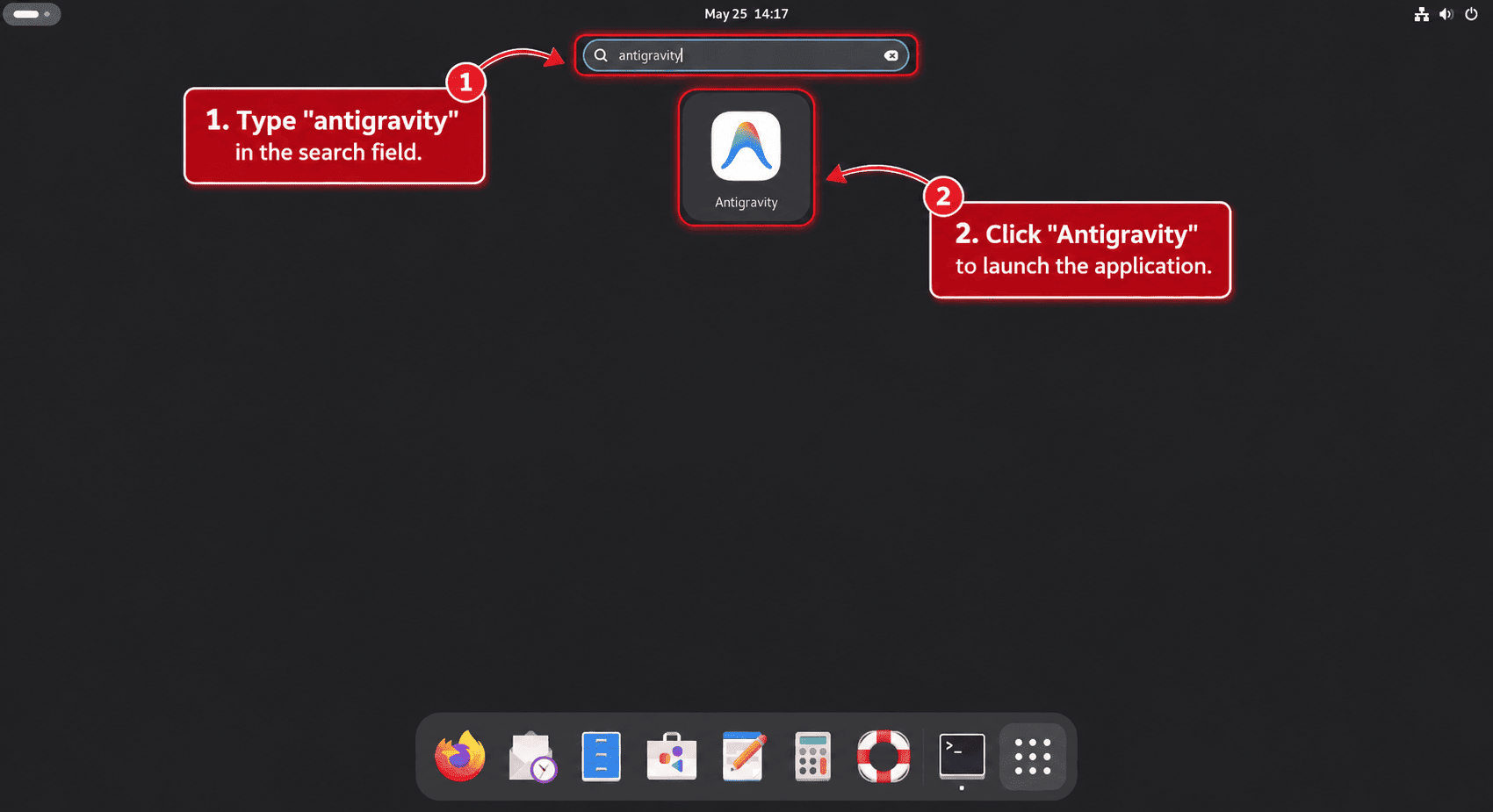
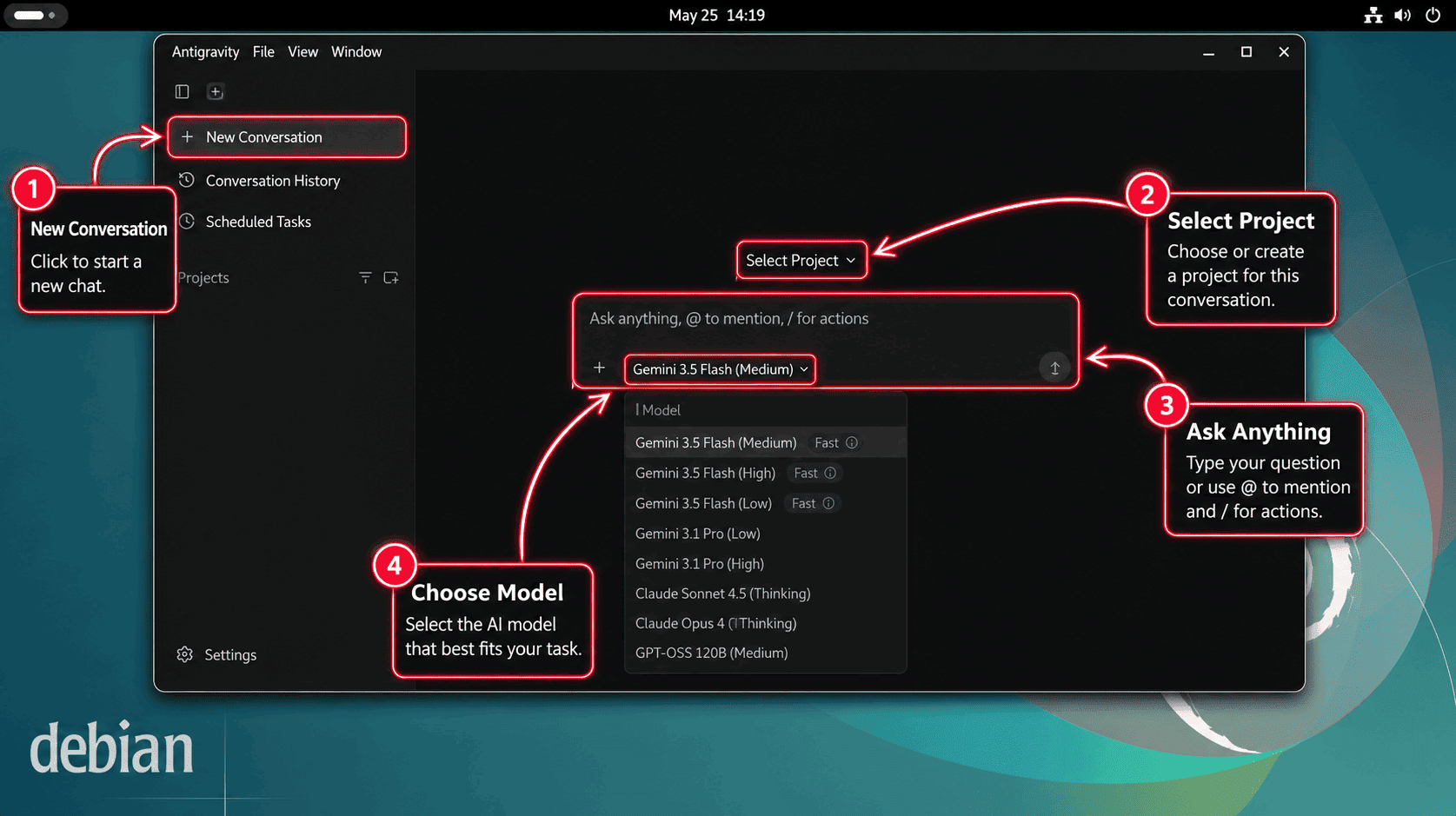
A desktop terminal can launch the same app directly:
antigravityUse the desktop app when you want the standalone project surface, visual task management, artifacts, and scheduled or multi-agent work outside a traditional editor window.
Open Antigravity IDE on Debian
- Open the application overview or app menu.
- Search for Antigravity IDE.
- Select the Antigravity IDE launcher to open the editor.
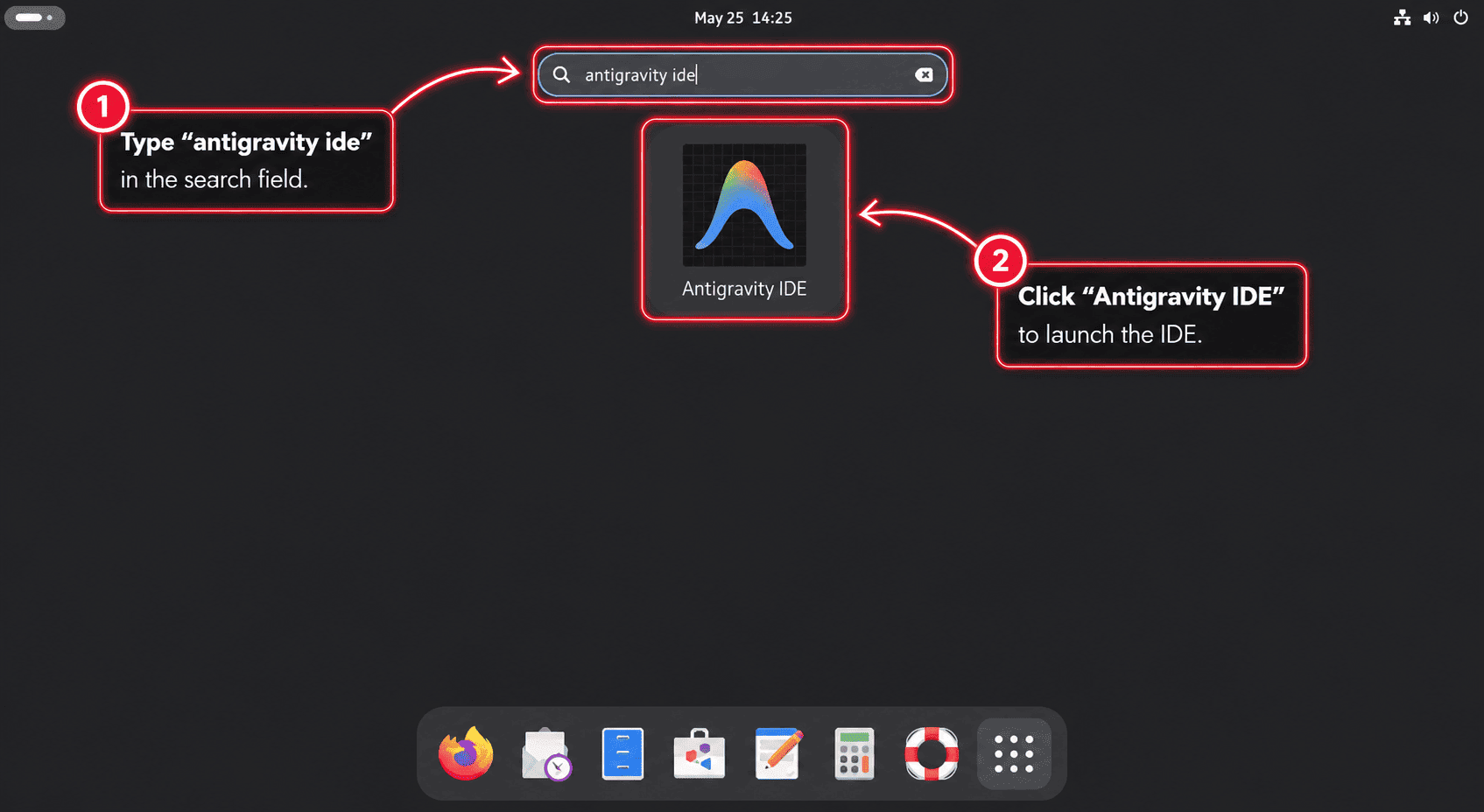
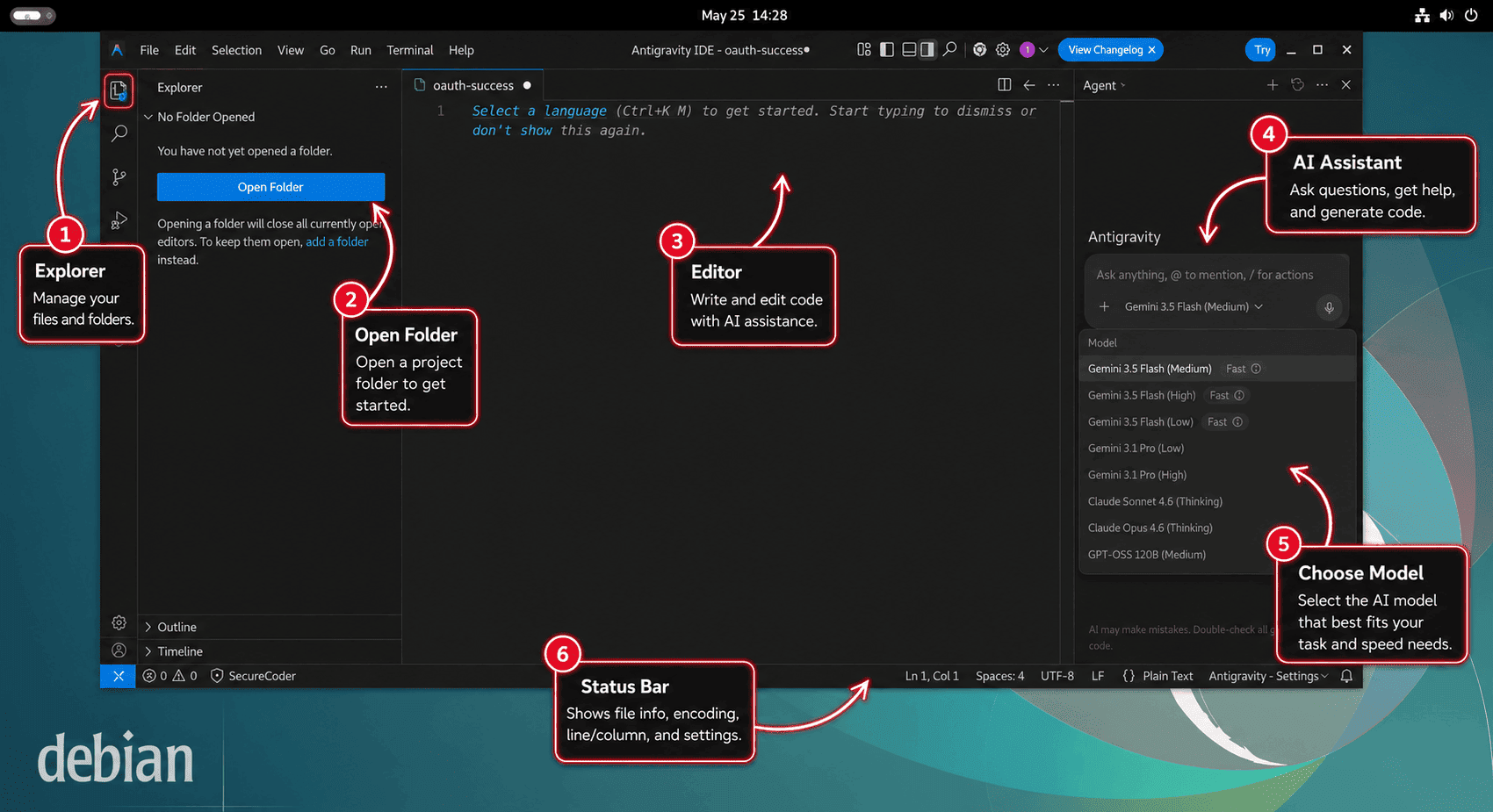
A desktop terminal can start the IDE helper directly:
antigravity-ideUse the IDE when you want normal file editing, tab completion, code commands, an activity bar, and the agent manager in the same editor surface. Use the Antigravity 2.0 desktop app when you want the standalone project and task orchestration surface.
Open the legacy APT IDE when installed
If you chose the legacy APT package instead of the current desktop helper, confirm which owner is active before launching when you have switched methods. The package installs a VS Code-style /usr/bin/antigravity command wrapper, while the graphical desktop entry starts the real IDE binary under /usr/share/antigravity.
command -v antigravity
readlink -f "$(command -v antigravity)"
awk '
  /^\[/ { section = $0 }
  section == "[Desktop Entry]" && /^(Name|Exec|StartupWMClass)=/ { print }
' /usr/share/applications/antigravity.desktop
/usr/bin/antigravity /usr/share/antigravity/bin/antigravity Name=Antigravity Exec=/usr/share/antigravity/antigravity %F StartupWMClass=Antigravity
A /usr/share/antigravity target means the legacy APT package owns the wrapper and menu entry. A /opt/antigravity target means the Antigravity 2.0 helper owns the current desktop app instead. Open the legacy IDE from the app menu, or run the desktop-entry executable from an already logged-in graphical terminal:
/usr/share/antigravity/antigravityDo not use the package’s /usr/bin/antigravity wrapper when checking a launch problem; it is the command wrapper, not the desktop-entry executable.
Start Antigravity CLI from a terminal
Run agy from a project directory when you want the terminal interface. The current directory becomes the main workspace unless you add more paths with --add-dir.
cd ~/projects/example
agy
Authenticate Antigravity CLI on Debian
When no saved session exists, Antigravity CLI uses browser-backed Google sign-in. On a local Debian desktop, agy can open your default browser. In an SSH session, it prints an authorization URL, asks you to open that URL in a local browser, and then prompts for the returned code.
To clear saved CLI credentials later, open agy and run /logout from the prompt.
Run first Antigravity CLI commands
Use print mode for one-shot output from the current directory:
agy --print "Summarize this project and list the safest next setup step."Seed an interactive session with an initial task:
agy --prompt-interactive "Review this repository and ask before changing files."Add another directory when a task spans more than one checkout:
agy --add-dir ../shared-library --prompt-interactive "Use both folders as context for this task."Use sandbox mode when you want stricter terminal restrictions for a read-only review or a cautious first pass:
agy --sandbox --print "Run a read-only project health check and report findings."Use Antigravity CLI prompt controls
Several controls are typed inside the agy prompt after launch:
| Prompt control | Purpose |
|---|---|
? | Show help inside the CLI. |
@ | Reference files or paths from the workspace. |
! | Run a shell command from the CLI context. |
/config or /settings | Open CLI configuration. |
/permissions | Review approval and tool-permission behavior. |
/agents | Open the subagent panel. |
/mcp | Review MCP configuration. |
/resume | Resume an earlier conversation. |
/logout | Clear the current signed-in CLI session. |
If the Debian workstation still needs Git, install Git on Debian first, then configure Git username and email before cloning repositories inside Antigravity.
Official Google Antigravity resources
- Google Antigravity overview explains the agent platform and workflow model.
- Google Antigravity IDE product page explains the editor surface.
- Google Antigravity CLI getting started docs cover CLI installation and sign-in.
- Google Antigravity CLI docs cover settings, prompts, and command use.
- Google Antigravity CLI features cover plugins, subagents, slash commands, and terminal sandboxing.
- Google Antigravity downloads list the current Linux desktop, CLI, SDK, and IDE downloads.
- Google Antigravity releases collect product release notes.
Update Google Antigravity on Debian
Update Antigravity 2.0 desktop app
The desktop helper checks Google’s download page every time it runs. When the helper-managed install is current, it exits before downloading another tarball. When a newer build is available, it keeps the previous copy under /opt/antigravity.previous after a successful replacement.
sudo update-antigravityAntigravity 2.0.6 is already installed at /opt/antigravity/Antigravity-x64
Update Antigravity IDE
The IDE helper follows the same pattern and keeps the older IDE copy under /opt/antigravity-ide.previous after a successful replacement:
sudo update-antigravity-ideAntigravity IDE 2.0.3 is already installed at /opt/antigravity-ide/Antigravity-IDE
Update Antigravity CLI
Use the user-local helper when you want one command for install and later updates:
update-antigravity-cliAfter agy is installed, the direct updater is available too:
agy updateChecking for updates... (current version 1.0.2) You are already on the latest version.
Update the legacy Antigravity IDE APT package
APT can update the legacy package only if Google publishes another build to the APT repository:
sudo apt update
sudo apt install --only-upgrade antigravity
For normal Debian workstation maintenance, update APT-managed packages together:
sudo apt update
sudo apt upgrade
Troubleshoot Google Antigravity on Debian
Antigravity APT still shows version 1.23.2
A 1.23.2 result means APT is reading Google’s legacy repository, not the current desktop or IDE tarball downloads. Use sudo update-antigravity for the Antigravity 2.0 desktop app, use sudo update-antigravity-ide for the current IDE, or rerun apt-cache policy antigravity later if Google starts publishing a 2.x APT package.
Desktop helper reports Antigravity 2.0.1 is already installed
That message usually means the local helper is an older saved copy that still queries Google’s previous auto-updater endpoint. The current desktop helper resolves the Linux tarball from Google’s download page instead.
if [ -f /usr/local/bin/update-antigravity ] && grep -Fq 'antigravity-auto-updater-974169037036' /usr/local/bin/update-antigravity; then
  echo "Old desktop helper detected"
elif [ -f /usr/local/bin/update-antigravity ]; then
  echo "Current download-page helper or a different helper is installed"
else
  echo "No desktop helper is installed"
fi
If the old helper is detected, recreate /usr/local/bin/update-antigravity with the current desktop helper definition and run sudo update-antigravity again.
Desktop or IDE helper fails with a download error
A download 404 or empty resolver result usually means Google’s download page changed or an old helper constructed the wrong URL. Check whether the download page still exposes a JavaScript bundle:
curl -fsSL --compressed https://antigravity.google/download | grep -o 'main-[^"]*\.js' | sed -n '1p'If the command prints a bundle name, replace the affected helper with the current helper definition and rerun the update. If it prints nothing, check Google’s download, release, and support pages before retrying.
Desktop or IDE helper runs out of temporary space
The helpers stage archives under /var/tmp by default because some systems mount /tmp as a smaller temporary filesystem. If you set TMPDIR yourself, check both paths before rerunning the helper:
if [ -n "${TMPDIR:-}" ]; then
  df -h /var/tmp "$TMPDIR"
else
  df -h /var/tmp
fi
Antigravity desktop or IDE version check fails over SSH
The desktop and IDE binaries initialize graphical components. A headless SSH shell can make antigravity --version or antigravity-ide --version fail with display, X server, or GPU messages. Verify the install with the helper output, readlink -f, desktop file fields, icon files, and sandbox mode checks instead.
Check AppArmor before changing sandbox settings
If Antigravity reports a sandbox or permission error, check the sandbox helper and fresh kernel logs before changing AppArmor or kernel settings. A healthy helper install keeps chrome-sandbox root-owned with mode 4755:
stat -c '%U %G %a %n' /opt/antigravity/Antigravity-*/chrome-sandbox
stat -c '%U %G %a %n' /opt/antigravity-ide/Antigravity-IDE/chrome-sandbox
cat /sys/module/apparmor/parameters/enabled 2>/dev/null || echo MISSING
systemctl is-active apparmor 2>/dev/null || true
sysctl -n kernel.apparmor_restrict_unprivileged_userns 2>/dev/null || echo MISSING
sudo journalctl -k --since "10 minutes ago" --no-pager | grep -iE 'apparmor=.*antigravity|operation=.*userns.*antigravity|profile=.*antigravity' || echo "No recent Antigravity AppArmor entries"
If a sandbox helper is not root root 4755, rerun the matching helper: sudo update-antigravity for the desktop app or sudo update-antigravity-ide for the IDE. Do not make --no-sandbox your normal launcher unless Google documents that as a required workaround and you accept the reduced browser-process isolation.
On Debian 13, 12, and 11, the user-namespace sysctl can print MISSING even while AppArmor is active. That is not the same failure mode as Ubuntu’s newer user-namespace restriction, so do not add an Ubuntu-style IDE AppArmor profile unless a fresh Debian denial names antigravity or antigravity-ide.
Fix a black window or GPU process error
VMs and desktops without working 3D acceleration can fail before Antigravity finishes drawing the window. The common log signs are VMware: No 3D enabled, vaInitialize failed, GPU process launch failed, or GPU process isn't usable. Those messages point to graphics acceleration, not an AppArmor denial.
journalctl --user --no-pager -n 300 | grep -iE 'antigravity|gpu|vaapi|swiftshader' || echo "No recent Antigravity graphics messages"Start by enabling 3D acceleration for the VM, updating guest tools, or testing from a normal desktop session with working OpenGL. You can try GPU-disabled launches as diagnostics, but keep them separate from the normal launcher unless they prove stable for your session:
antigravity --disable-gpu
antigravity-ide --disable-gpu
ELECTRON_OZONE_PLATFORM_HINT=x11 antigravity --disable-gpu
ELECTRON_OZONE_PLATFORM_HINT=x11 antigravity-ide --disable-gpu
If a diagnostic command works, create a separate fallback desktop launcher instead of editing the normal launcher. Remove the fallback after a Google, Debian, Mesa, VMware, or GPU-driver update fixes the graphics path.
Fix agy command not found
The CLI installer writes agy under ~/.local/bin. Open a new terminal, or add that directory to the current shell before trying again:
export PATH="$HOME/.local/bin:$PATH"
command -v agy
Fix Antigravity CLI sign-in over SSH
If agy cannot open a browser from an SSH session, use the authorization URL printed in the terminal. Open that URL in a local browser, sign in, then paste the returned code back into the SSH terminal when the CLI asks for it.
Fix Antigravity sign-in opening the wrong app
If a sign-in URL opens in a text editor or another wrong application, check Debian’s user-level URL and HTML handlers first. Debian GNOME normally uses firefox-esr.desktop for these handlers when Firefox ESR is installed.
xdg-mime query default x-scheme-handler/https
gio mime text/html | sed -n '1,6p'
Set Firefox ESR as the default browser and HTML handler when those checks point somewhere else:
for mime in x-scheme-handler/http x-scheme-handler/https text/html application/xhtml+xml application/xml text/xml; do
  gio mime "$mime" firefox-esr.desktop
  xdg-mime default firefox-esr.desktop "$mime"
done

xdg-settings set default-web-browser firefox-esr.desktop
If you use another browser, substitute that browser’s desktop file and confirm it exists under /usr/share/applications or ~/.local/share/applications.
Fix legacy APT source or key conflicts
Older examples or manual experiments can leave duplicate Antigravity source files or keyrings behind. Remove the known legacy paths, recreate the current DEB822 source if you still need the legacy package, then refresh APT:
sudo rm -f /etc/apt/sources.list.d/antigravity.list /usr/share/keyrings/google-antigravity.gpg
sudo apt update
Remove Google Antigravity from Debian
Remove Antigravity 2.0 desktop app
Delete the helper-managed desktop app, command link, update helper, desktop launcher, icon files, and saved previous copy:
This removes the system-wide desktop app files under
/opt/antigravity. Antigravity profiles, IDE settings, and CLI state live under your home directory and are handled separately so you can keep account and workspace data if needed.
if [ -L /usr/local/bin/antigravity ] && readlink /usr/local/bin/antigravity | grep -q '^/opt/antigravity/'; then
  sudo rm -f /usr/local/bin/antigravity
fi

if [ -f /usr/share/applications/antigravity.desktop ] && grep -q '^Exec=/usr/local/bin/antigravity ' /usr/share/applications/antigravity.desktop; then
  sudo rm -f /usr/share/applications/antigravity.desktop
fi

sudo rm -rf /opt/antigravity /opt/antigravity.previous /opt/antigravity.new /opt/.antigravity-install.*
sudo rm -f /usr/local/bin/update-antigravity \
  /usr/share/applications/antigravity-x11.desktop \
  /usr/share/icons/hicolor/512x512/apps/antigravity.png \
  /usr/share/icons/hicolor/scalable/apps/antigravity.svg

if command -v update-desktop-database >/dev/null 2>&1; then
  sudo update-desktop-database /usr/share/applications >/dev/null 2>&1 || true
fi
if command -v gtk-update-icon-cache >/dev/null 2>&1; then
  sudo gtk-update-icon-cache -q /usr/share/icons/hicolor 2>/dev/null || true
fi
hash -r
if [ ! -e /usr/local/bin/antigravity ]; then
  echo "Antigravity 2.0 command link is removed"
fi
Remove Antigravity IDE
Delete the tarball-managed IDE, previous copy, command link, update helper, desktop launcher, and icon file. This Debian workflow does not create an AppArmor profile, so the main removal command leaves any manually created profile for separate review.
sudo rm -rf /opt/antigravity-ide /opt/antigravity-ide.previous /opt/antigravity-ide.new /opt/.antigravity-ide-install.*
sudo rm -f /usr/local/bin/antigravity-ide \
  /usr/local/bin/update-antigravity-ide \
  /usr/share/applications/antigravity-ide.desktop \
  /usr/share/applications/antigravity-ide-x11.desktop \
  /usr/share/icons/hicolor/512x512/apps/antigravity-ide.png

if command -v update-desktop-database >/dev/null 2>&1; then
  sudo update-desktop-database /usr/share/applications >/dev/null 2>&1 || true
fi
if command -v gtk-update-icon-cache >/dev/null 2>&1; then
  sudo gtk-update-icon-cache -q /usr/share/icons/hicolor 2>/dev/null || true
fi
hash -r
test ! -e /usr/local/bin/antigravity-ide && echo "Antigravity IDE command link is removed"
If you manually created an Antigravity IDE AppArmor profile from another workaround, remove it only after confirming no Antigravity install still uses that local profile:
if [ -f /etc/apparmor.d/antigravity-ide ]; then
	sudo apparmor_parser -R /etc/apparmor.d/antigravity-ide 2>/dev/null || true
	sudo rm -f /etc/apparmor.d/antigravity-ide
fi

if [ -f /etc/apparmor.d/local/antigravity-ide ]; then
	sudo rm -f /etc/apparmor.d/local/antigravity-ide
fi
Remove Antigravity CLI
Remove the user-local CLI binary and update helper:
rm -f "$HOME/.local/bin/agy" "$HOME/.local/bin/update-antigravity-cli"
hash -r
command -v agy || echo "agy command is removed"
Leave the general ~/.local/bin Bash PATH line in place if other user-local tools use it. Remove that shell-profile line only when Antigravity CLI was the only command that needed it.
Remove the legacy Antigravity IDE APT package
Purge the legacy package when it is installed or has residual package state, then remove the Google Antigravity source and keyring files:
if dpkg-query -W -f='${db:Status-Abbrev}\n' antigravity 2>/dev/null | grep -Eq '^(ii|rc)'; then
  sudo apt purge antigravity
fi

sudo rm -f /etc/apt/sources.list.d/google-antigravity.sources /etc/apt/sources.list.d/antigravity.list
sudo rm -f /etc/apt/keyrings/antigravity-repo-key.gpg /usr/share/keyrings/google-antigravity.gpg
sudo apt update
Confirm the legacy package and source file are gone:
dpkg-query -W -f='${db:Status-Abbrev} ${binary:Package}\n' antigravity 2>/dev/null | grep -q '^ii' || echo "antigravity APT package is not installed"
test ! -e /etc/apt/sources.list.d/google-antigravity.sources && echo "google-antigravity.sources is removed"
Delete Antigravity user data
User-data cleanup permanently deletes Antigravity desktop settings, IDE settings, CLI state, cached files, and updater data from your home directory. Back up anything you may need before removing these paths.
Review matching Antigravity paths before deleting anything:
find "$HOME/.config" "$HOME/.cache" "$HOME/.gemini" "$HOME/.antigravity" "$HOME/.antigravity-ide" -maxdepth 2 \( -iname '*Antigravity*' -o -iname '*antigravity*' \) -print 2>/dev/nullRemove the known desktop, IDE, CLI, and migrated agent-state paths when you are ready to discard them:
rm -rf "$HOME/.config/Antigravity" \
  "$HOME/.config/Antigravity IDE" \
  "$HOME/.antigravity" \
  "$HOME/.antigravity-ide" \
  "$HOME/.cache/antigravity" \
  "$HOME/.cache/antigravity-updater" \
  "$HOME/.gemini/antigravity" \
  "$HOME/.gemini/antigravity-ide" \
  "$HOME/.gemini/antigravity-backup" \
  "$HOME/.gemini/antigravity-cli"
Conclusion
Google Antigravity on Debian is cleanest when each surface keeps its own owner: tarball helpers for the current desktop app and IDE, agy for terminal work, and APT only for the legacy 1.x IDE package. For a fuller development workstation, install GitHub Desktop on Debian for graphical Git work or install Docker on Debian for disposable project environments.


Formatting tips for your comment
You can use basic HTML to format your comment. Useful tags currently allowed in published comments:
<code>command</code>command<strong>bold</strong><em>italic</em><blockquote>quote</blockquote>