
GitHub Desktop puts a visual interface on Git version control: branch creation, commit staging, pull requests, and merge conflict resolution without memorizing command-line syntax. GitHub does not publish an official Linux build, but the community-maintained shiftkey/desktop fork packages identical builds for Ubuntu and other distributions with regular release tracking. Several installation paths exist for Ubuntu 26.04, 24.04, and 22.04, each with different update and maintenance trade-offs.
A completed installation delivers a working GitHub Desktop client with automatic updates through your chosen package manager and GPG-verified packages for download authenticity.
Install GitHub Desktop on Ubuntu
Each installation channel has distinct trade-offs for update automation, version freshness, and system integration.
| Method | Channel | Version | Updates | Best For |
|---|---|---|---|---|
| Manual .deb | GitHub Releases | Latest stable | Manual download | Users who need version pinning or offline installation |
| APT Repository | Mwt community mirror | Latest stable | Automatic via apt upgrade | Most users who prefer hands-off updates |
| Flatpak | Flathub | Latest stable | Automatic via flatpak update | Users who prefer sandboxed applications |
For most users, the APT repository method is recommended because it integrates with standard system updates and requires no manual intervention. Flatpak provides additional sandboxing if you prefer isolated applications. If you use SSH-based Git workflows, configure SSH authentication alongside GitHub Desktop for seamless credential management.
The community-maintained repositories use a universal package format that works across all current Ubuntu LTS releases, including 26.04, 24.04, and 22.04. Commands shown in this guide work identically regardless of your specific Ubuntu version.
Prepare Your Ubuntu System for GitHub Desktop
Verify your system architecture to ensure you download the correct package variant:
dpkg --print-architectureamd64
Most modern Ubuntu systems report amd64. Raspberry Pi and ARM-based systems show arm64 or armhf. Update your system before adding new software to ensure package dependencies resolve correctly:
sudo apt update && sudo apt upgradeIf your user account does not have
sudoprivileges, see the guide on adding a user to sudoers on Ubuntu before continuing.
Option 1: Install GitHub Desktop via .deb Package
The manual .deb method gives you direct control over which version to install and works well for offline installations or when you need to pin a specific release. This approach queries the GitHub API to automatically detect the latest version, then downloads the matching package for your architecture:
VERSION=$(curl -s https://api.github.com/repos/shiftkey/desktop/releases/latest | grep -oP '"tag_name": "release-\K[^"]+')
ARCH=$(dpkg --print-architecture)
curl -LO "https://github.com/shiftkey/desktop/releases/download/release-${VERSION}/GitHubDesktop-linux-${ARCH}-${VERSION}.deb"
The first curl command queries GitHub’s API to find the latest release tag, then the grep command with
-oPextracts the version number using a Perl-compatible regular expression. The secondcurl -LOdownloads the .deb package, where-Lfollows redirects (required for GitHub release downloads) and-Osaves the file with its original filename. The$(dpkg --print-architecture)expansion automatically detects your system architecture (amd64, arm64, or armhf) to download the correct package variant.
Install the downloaded package using apt, which resolves dependencies automatically:
sudo apt install ./GitHubDesktop-linux-${ARCH}-${VERSION}.debVerify the installation by checking the installed package version:
apt-cache policy github-desktopgithub-desktop:
Installed: 3.4.12-linux1
Candidate: 3.4.12-linux1
Version table:
*** 3.4.12-linux1 100
100 /var/lib/dpkg/status
Your version number will match whichever release was current when you downloaded the package and may differ from this example.
Option 2: Install GitHub Desktop via APT Repository
Two community-maintained APT repositories mirror the shiftkey/desktop project, both hosted in the United States. This method integrates GitHub Desktop into your standard system update workflow, updating automatically through apt upgrade commands.
The Mwt mirror is currently recommended as the primary installation source. The official Shiftkey repository (
https://apt.packages.shiftkey.dev) is experiencing SSL certificate issues where it presents a mismatched*.azureedge.netcertificate instead of a valid certificate for its domain. This Azure CDN configuration error prevents secure HTTPS connections until resolved. Both mirrors ship identical packages and use the same GPG signing key.
Use only one mirror. Adding both the Mwt and Shiftkey sources creates duplicate APT entries for the same package. On Ubuntu 24.04 and later, duplicate sources with different
Signed-Bypaths cause APT to reject updates. Choose one mirror and skip the other.
Add Mwt Mirror on Ubuntu (Recommended)
The Mwt mirror is fully operational with valid SSL certificates and uses the same package signing key as the upstream Shiftkey repository. Download and convert the GPG key to the binary format required by APT:
curl -fsSL https://mirror.mwt.me/shiftkey-desktop/gpgkey | sudo gpg --dearmor -o /usr/share/keyrings/mwt-desktop.gpgThe
gpg --dearmorcommand converts the ASCII-armored GPG key into the binary format that APT requires. Desktop Ubuntu systems include gnupg by default; minimal server installations may need to install it first withsudo apt install gnupg.
Add the repository using modern DEB822 format with shell expansion for automatic architecture detection:
cat <<EOF | sudo tee /etc/apt/sources.list.d/mwt-desktop.sources
Types: deb
URIs: https://mirror.mwt.me/shiftkey-desktop/deb/
Suites: any
Components: main
Architectures: $(dpkg --print-architecture)
Signed-By: /usr/share/keyrings/mwt-desktop.gpg
EOF
Add Shiftkey Mirror (Alternative with SSL Issues)
The official Shiftkey repository is currently presenting an SSL certificate for
*.azureedge.netinstead ofapt.packages.shiftkey.dev, causing certificate validation failures. This is an Azure CDN configuration issue that prevents secure HTTPS connections. Use the Mwt mirror above until this issue is resolved. Only attempt these commands if you have confirmed the SSL certificate has been fixed by runningcurl -I https://apt.packages.shiftkey.dev/gpg.keyand receiving an HTTP 200 response without certificate errors.
If the SSL certificate issue has been resolved, download and convert the GPG key:
curl -fsSL https://apt.packages.shiftkey.dev/gpg.key | sudo gpg --dearmor -o /usr/share/keyrings/shiftkey-packages.gpgAdd the repository using modern DEB822 format with shell expansion for automatic architecture detection:
cat <<EOF | sudo tee /etc/apt/sources.list.d/shiftkey-packages.sources
Types: deb
URIs: https://apt.packages.shiftkey.dev/ubuntu/
Suites: any
Components: main
Architectures: $(dpkg --print-architecture)
Signed-By: /usr/share/keyrings/shiftkey-packages.gpg
EOF
Install GitHub Desktop from Repository
After adding either repository, refresh the package lists to include the new source:
sudo apt updateInstall GitHub Desktop from the repository:
sudo apt install github-desktopVerify the installation:
apt-cache policy github-desktopgithub-desktop:
Installed: 3.4.12-linux1
Candidate: 3.4.12-linux1
Version table:
*** 3.4.12-linux1 500
500 https://mirror.mwt.me/shiftkey-desktop/deb any/main amd64 Packages
100 /var/lib/dpkg/status
Option 3: Install GitHub Desktop via Flatpak
Flatpak delivers GitHub Desktop in a sandboxed container with isolated dependencies. This approach provides consistent behavior across Ubuntu versions and other distributions while maintaining application security through restricted system access.
Flatpak is not pre-installed on Ubuntu. If you have not set up Flatpak yet, follow the Flatpak installation guide for Ubuntu to install the runtime and configure Flathub before proceeding.
Enable Flathub Repository
Add the Flathub repository system-wide to access the GitHub Desktop package:
sudo flatpak remote-add --system --if-not-exists flathub https://flathub.org/repo/flathub.flatpakrepoInstall GitHub Desktop from Flathub
Install GitHub Desktop from Flathub. The --system flag installs the application for all users on the system:
sudo flatpak install --system -y flathub io.github.shiftey.DesktopVerify the Flatpak installation:
flatpak list | grep -i githubGitHub Desktop io.github.shiftey.Desktop 3.4.12 system
Launch GitHub Desktop on Ubuntu
Launch GitHub Desktop from Terminal
For .deb or APT installations, start GitHub Desktop from the terminal:
github-desktopFor Flatpak builds, the runtime requires the full application ID:
flatpak run io.github.shiftey.DesktopLaunch GitHub Desktop from Application Menu
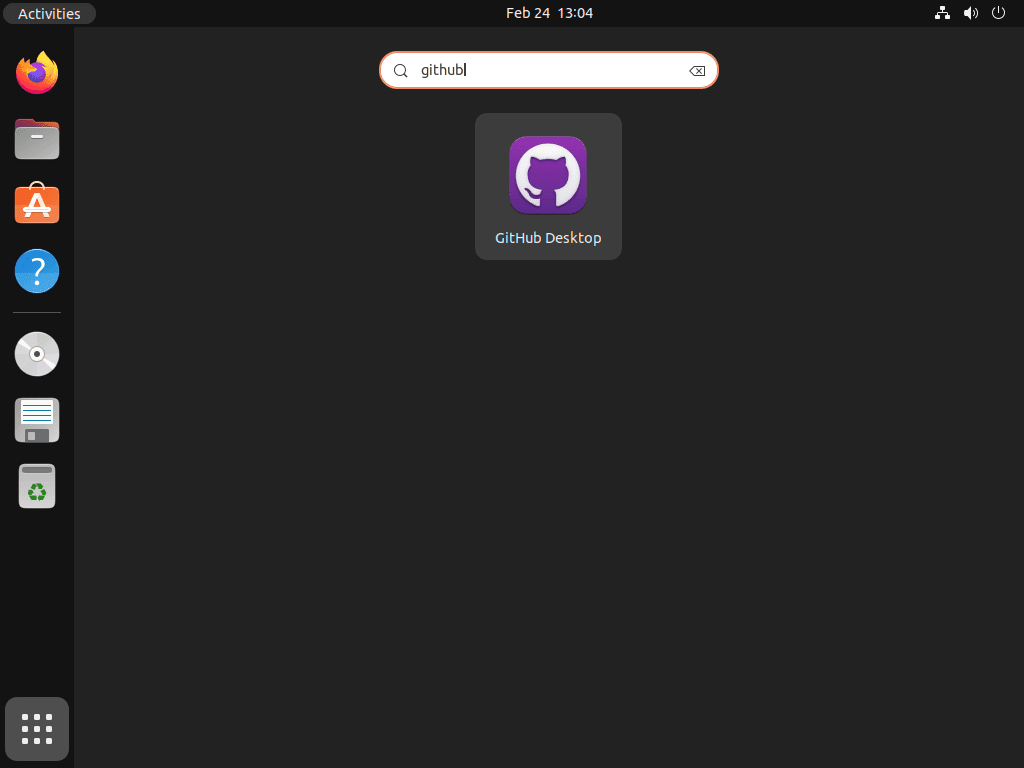
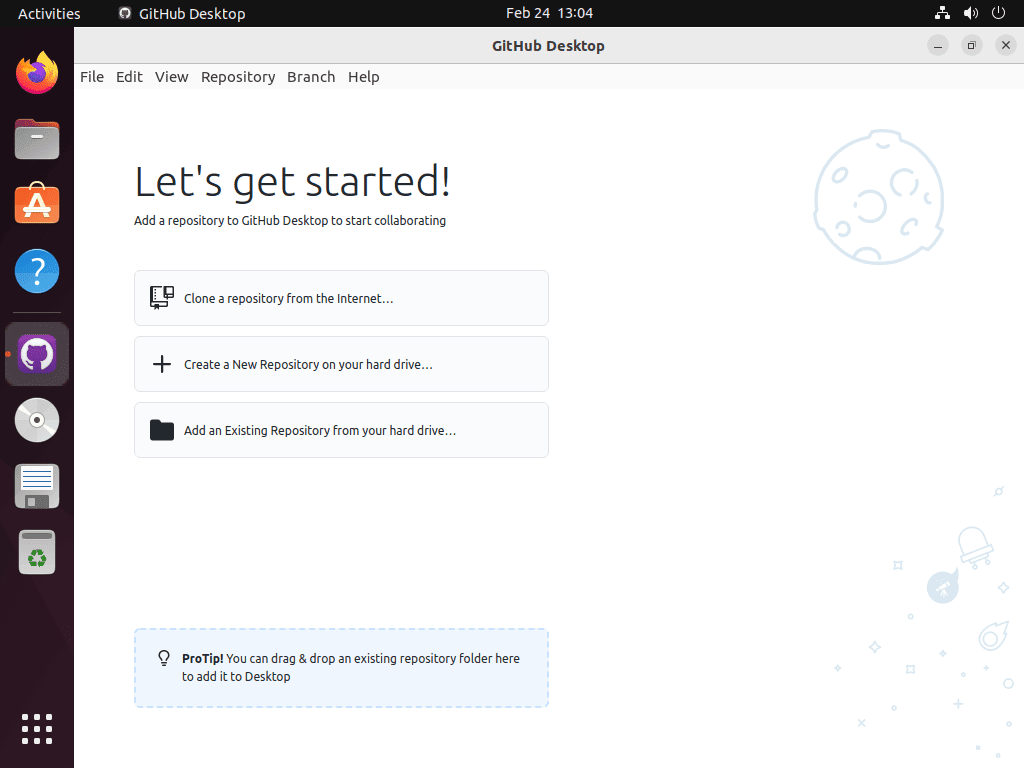
GitHub Desktop also appears in the standard application menu. Search for “GitHub Desktop” in your desktop environment’s application launcher.
Update and Remove GitHub Desktop on Ubuntu
Update GitHub Desktop on Ubuntu
Update procedures vary by installation method. Flatpak and APT repository installations receive updates automatically through their respective package managers, while manual .deb installations require downloading new releases.
Update Flatpak installations system-wide:
sudo flatpak update --systemFor APT repository installations, GitHub Desktop updates alongside other system packages:
sudo apt update && sudo apt upgradeManual .deb installations require downloading the latest package from the shiftkey/desktop releases page and reinstalling with sudo apt install ./GitHubDesktop-*.deb.
Remove GitHub Desktop on Ubuntu
Removal commands match the installation method used. Choose the appropriate command below based on how you originally installed GitHub Desktop.
Remove APT Repository Installation
Remove the GitHub Desktop package and purge its configuration files:
sudo apt purge github-desktop
sudo apt autoremove
If you added the Mwt mirror repository, remove the source file and GPG keyring so APT no longer polls an unused source:
sudo rm /etc/apt/sources.list.d/mwt-desktop.sources
sudo rm /usr/share/keyrings/mwt-desktop.gpg
If you used the Shiftkey mirror instead, remove its files:
sudo rm /etc/apt/sources.list.d/shiftkey-packages.sources
sudo rm /usr/share/keyrings/shiftkey-packages.gpg
Refresh the package lists and verify complete removal:
sudo apt update
apt-cache policy github-desktop
Empty output from apt-cache policy confirms the package and repository have been fully removed.
Remove Flatpak Installation
Remove GitHub Desktop and its associated data from Flatpak:
sudo flatpak remove --system -y --delete-data io.github.shiftey.DesktopRemove Manual .deb Installation
Manual .deb installations use the same package name and can be removed with the same APT commands. No additional repository cleanup is required since manual installations do not add source files:
sudo apt purge github-desktop
sudo apt autoremoveTroubleshoot GitHub Desktop on Ubuntu
Fix "Unable to locate package github-desktop"
If APT cannot find the github-desktop package, first verify that a repository source file exists:
ls /etc/apt/sources.list.d/*shiftkey*.sources /etc/apt/sources.list.d/*mwt*.sources 2>/dev/nullIf no files appear, return to Option 2 and add one of the repository mirrors. After confirming the source file exists, refresh your package lists:
sudo apt updateIf both shiftkey-packages.sources and mwt-desktop.sources exist, remove the duplicate source to avoid conflicts. Since the Mwt mirror is recommended, remove the Shiftkey source:
sudo rm /etc/apt/sources.list.d/shiftkey-packages.sources
sudo rm /usr/share/keyrings/shiftkey-packages.gpg
sudo apt update
Retry the installation:
sudo apt install github-desktopFix Flatpak Remote or App ID Errors
Flatpak errors commonly occur when the Flathub remote is missing or misconfigured. First, list configured remotes to verify whether Flathub is present:
flatpak remotesName Options flathub system
If Flathub does not appear in the output, re-add the system-wide remote:
sudo flatpak remote-add --system --if-not-exists flathub https://flathub.org/repo/flathub.flatpakrepoEnsure the application ID is correct when installing or launching GitHub Desktop:
sudo flatpak install --system -y flathub io.github.shiftey.Desktop
flatpak run io.github.shiftey.Desktop
Fix .deb Installation Dependency Issues
If the .deb package installation fails because of missing dependencies, use APT to resolve them automatically instead of calling dpkg directly. From the directory containing the downloaded .deb file, run:
sudo apt install ./GitHubDesktop-*.debIf you already attempted installation with dpkg and see unresolved dependency errors, repair them with:
sudo apt -f installReading package lists... Done Building dependency tree... Done 0 upgraded, 0 newly installed, 0 to remove and 0 not upgraded.
After dependencies resolve, rerun sudo apt install ./GitHubDesktop-*.deb to complete the installation.
Frequently Asked Questions About GitHub Desktop on Ubuntu
GitHub has not released an official Linux version. The company focuses development resources on Windows and macOS. The shiftkey/desktop fork fills this gap by maintaining community-built packages that track upstream releases and provide full feature parity.
The shiftkey/desktop fork compiles the same source code with Linux-specific patches for Electron and native dependencies. Functionality is identical to the official releases. The fork maintainers publish new packages within days of upstream releases.
Yes. GitHub Desktop detects SSH keys configured in your system. Clone repositories using SSH URLs (git@github.com:user/repo.git) and GitHub Desktop will use your existing SSH authentication. Configure SSH keys separately through ssh-keygen and add the public key to your GitHub account settings.
For APT installations, run sudo apt purge github-desktop && sudo apt autoremove, then delete the repository source file and GPG keyring. For Flatpak installations, run sudo flatpak remove --system -y --delete-data io.github.shiftey.Desktop. After removal, run apt-cache policy github-desktop to confirm empty output.
Conclusion
GitHub Desktop is now installed on Ubuntu with GPG-verified package sources and automatic updates through your chosen package manager. The application manages branch creation, commit staging, pull request workflows, and merge conflict resolution through a visual interface that complements command-line Git tools.
For terminal-based GitHub workflows that complement the visual interface, GitHub CLI on Ubuntu provides automation for issues, pull requests, and releases from the command line. When advanced Git operations are needed, refer to guides on how to undo Git commits, rename Git branches, or clear the Git cache.

Thanks so much for this article. Very helpful.
I did it. Thanks! 🙂
Awesome to know, thanks for the reply Edson.