
Nightly is where Firefox changes land first, which makes it useful when you need to test new web platform features before they move into Beta or stable Firefox. To install Firefox Nightly on Fedora, use Mozilla’s official RPM repository; DNF keeps the package updated and the firefox-nightly build stays separate from Fedora’s stock Firefox package.
Mozilla now publishes signed RPM packages for Firefox Nightly on DNF5-based Fedora systems, with current repository metadata covering x86_64 and aarch64 builds. That official repository replaces the older community COPR approach and includes the desktop launcher, command-line wrapper, language packs, and package signatures without requiring a manual tarball install.
Install Firefox Nightly on Fedora
The Mozilla RPM repository is the cleanest Fedora path because it keeps Firefox Nightly in DNF instead of leaving you to unpack archives by hand. The repository also provides the signing key URL DNF uses during package verification.
The repository URL in the DNF command exposes the RPM metadata to Fedora’s package manager, but DNF should handle the install. Using the repository keeps dependency handling, signature checks, and future updates in one workflow.
Update Fedora Before Installing Firefox Nightly
Refresh Fedora before adding the Mozilla repository so DNF works with current package metadata and dependency data:
sudo dnf upgrade --refreshThe --refresh flag tells DNF to synchronize repository metadata before it checks for upgrades. Review the package list before confirming any system updates.
Add the Mozilla RPM Repository
Mozilla’s Firefox Nightly RPM repository announcement documents the DNF5 repository path for Fedora. Add the repository with dnf config-manager:
sudo dnf config-manager addrepo --id=mozilla --set=baseurl=https://packages.mozilla.org/rpm/firefox --set=gpgkey=https://packages.mozilla.org/rpm/firefox/signing-key.gpg --set=gpgcheck=1 --set=repo_gpgcheck=0 --set=priority=10This creates /etc/yum.repos.d/mozilla.repo. The package signature check remains enabled with gpgcheck=1, while repo_gpgcheck=0 follows Mozilla’s current repository metadata setting.
Refresh metadata from the new source:
sudo dnf makecache --refreshFor broader Fedora package context, the DNF5 install examples guide for Fedora covers package installs, repository checks, and related DNF workflows.
Install Firefox Nightly with DNF
Install the Nightly package from Mozilla’s repository:
sudo dnf install firefox-nightlyDNF prompts before importing Mozilla’s signing key. Check that the fingerprint shown by DNF matches 14F26682D0916CDD81E37B6D61B7B526D98F0353, then confirm the import and package installation.
Verify Firefox Nightly on Fedora
Confirm that RPM registered the installed package:
rpm -q --queryformat '%{NAME}\n' firefox-nightlyA successful installed-state check returns:
firefox-nightly
Check the command path DNF installed:
command -v firefox-nightlyThe command should resolve to:
/usr/bin/firefox-nightly
Finally, print the browser version:
firefox-nightly --versionExample output looks like this, although the version changes frequently because Nightly updates often:
Mozilla Firefox 152.0a1
The a1 suffix identifies the build as Firefox Nightly.
Install Firefox Nightly Language Packs
The RPM repository also provides Nightly language packs. Fedora may pull in a matching language pack automatically based on your locale, but you can list available packages yourself:
dnf search firefox-nightly-l10nInstall a specific language pack by replacing fr with the language code you need:
sudo dnf install firefox-nightly-l10n-frSwitch from Older COPR Firefox Nightly Builds
Older Fedora Firefox Nightly workflows often used community COPR repositories. If your system already has a Firefox Nightly COPR enabled, disable that source before using Mozilla’s official RPM repository so DNF does not mix packages from two maintainers.
Check enabled repositories for old Nightly sources:
dnf repolist --enabled | grep -i firefox-nightlyIf the output shows pointy/firefox-nightly, disable it:
sudo dnf copr disable pointy/firefox-nightlyIf you still have the older proletarius101/firefox-nightly COPR enabled, disable that one instead:
sudo dnf copr disable proletarius101/firefox-nightlyRemove the old COPR package if it is installed before installing the Mozilla package:
sudo dnf remove firefox-nightlyPackage removal does not delete your browser profile. Keep the profile if you want Firefox Nightly to reuse it after reinstalling from Mozilla’s repository.
Compare Firefox Nightly with Other Fedora Firefox Channels
Firefox Nightly is the fastest-moving channel, but it is not the only pre-release browser available on Fedora. Use the channel comparison to avoid installing a build that is more experimental than you need.
| Firefox Channel | Package or Source | Update Cadence | Best Fit |
|---|---|---|---|
| Firefox Nightly | Mozilla RPM package firefox-nightly | One to two builds daily | Testing upcoming browser features, filing bugs, and checking web compatibility early |
| Firefox Developer Edition | Mozilla RPM package firefox-devedition | Beta-channel development cycle | Web developers who want pre-release features with less daily churn than Nightly |
| Firefox Beta | Mozilla RPM package firefox-beta | Beta-channel builds before stable release | Testing upcoming release behavior without using the more volatile Nightly branch |
| Firefox Stable | Fedora package firefox or Mozilla RPM package firefox | Stable release cycle | Daily browsing where reliability matters more than early feature access |
Install only one pre-release channel unless you specifically need side-by-side testing. Nightly uses its own command, desktop entry, and profile, so it can coexist with Fedora’s regular Firefox package.
Launch Firefox Nightly on Fedora
Launch Firefox Nightly from Terminal
Start Firefox Nightly from a terminal with its package-provided command:
firefox-nightlyTo start Nightly and release the terminal prompt, run it in the background:
firefox-nightly &Launch Firefox Nightly from Activities
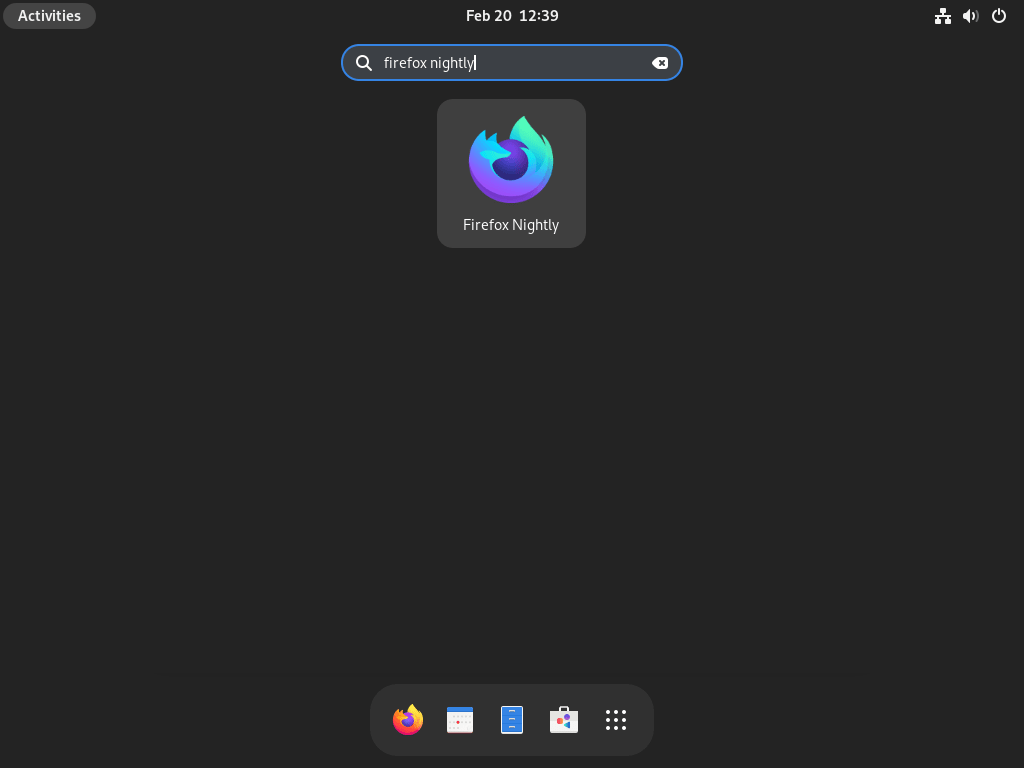
Fedora GNOME users can open Activities and search for “Firefox Nightly.” Other desktop environments such as KDE Plasma, Xfce, Cinnamon, and MATE usually place the launcher under the Internet or Web Browser category.
Open the Firefox Nightly Profile Manager
Nightly creates a separate browser profile from stable Firefox. Use the profile manager when you want to create a clean testing profile, switch profiles, or inspect which profile Nightly is using:
firefox-nightly --ProfileManagerOn first launch, sign in to your Mozilla account only if you want to sync bookmarks, passwords, extensions, or settings into the Nightly profile. Nightly may also ask for extra telemetry because those reports help Mozilla catch bugs before changes move to later release channels.
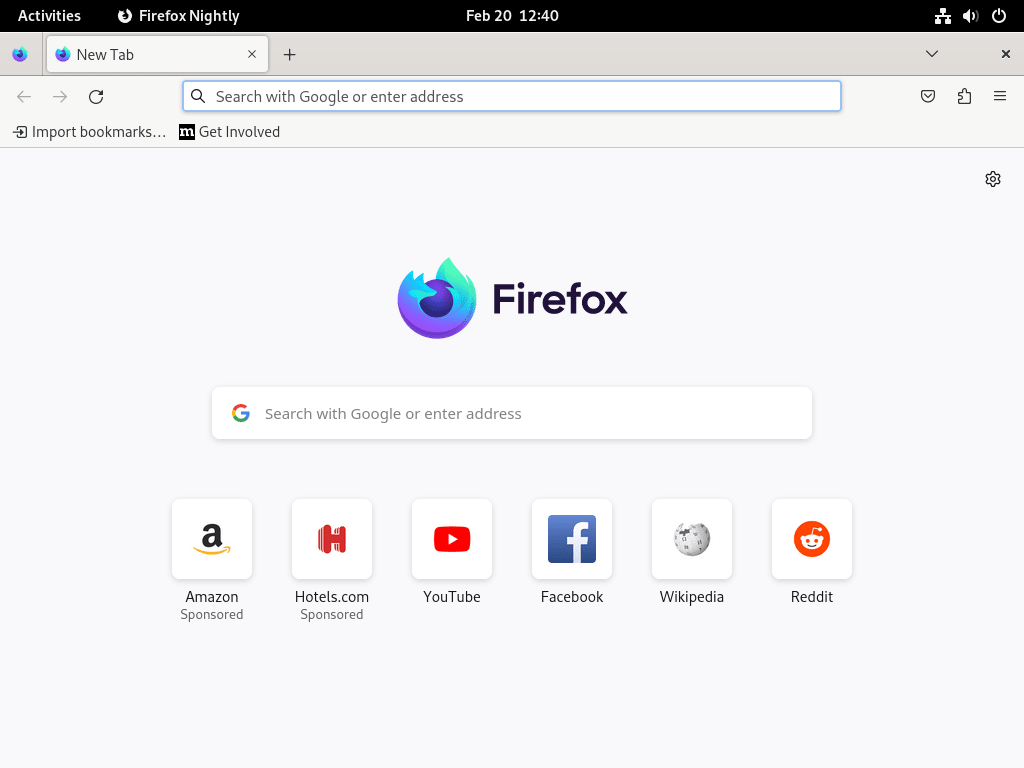
Mozilla publishes build notes on the Firefox Nightly release notes page when you want to check what changed in recent updates.
Manage Firefox Nightly on Fedora
Update Firefox Nightly
Firefox Nightly updates through DNF with the rest of your Fedora packages. Use the normal Fedora upgrade command when you want to check for a new build manually:
sudo dnf upgrade --refreshNightly builds can arrive more than once per day, so frequent package refreshes are normal for this channel. If you prefer unattended updates, configure DNF Automatic on Fedora after deciding how aggressively you want desktop packages updated.
Remove Firefox Nightly and the Mozilla Repository
Remove the browser package first:
sudo dnf remove firefox-nightlyRemove the Mozilla repository file if you no longer use Mozilla RPM packages on this Fedora system:
sudo rm -f /etc/yum.repos.d/mozilla.repoOnly remove Mozilla’s RPM signing key if no other Mozilla RPM packages, such as
firefox,firefox-beta, orfirefox-devedition, still use the same repository on this Fedora installation.
When the key is no longer needed, remove it from the RPM key database:
sudo rpmkeys --delete 14f26682d0916cdd81e37b6d61b7b526d98f0353Verify the package and repository file are gone:
rpm -q firefox-nightly 2>/dev/null || echo "firefox-nightly removed"
test ! -e /etc/yum.repos.d/mozilla.repo && echo "Mozilla repo file removed"
Expected output after removal:
firefox-nightly removed
Mozilla repo file removed
Remove Firefox Nightly Profile Data
Package removal leaves browser profile data in your Linux account. The official Mozilla RPM currently stores Nightly profile data under XDG Mozilla paths, while older packages may have used the legacy Firefox profile path.
List matching Nightly profile and cache directories first:
find "$HOME/.config/mozilla/firefox" "$HOME/.mozilla/firefox" "$HOME/.cache/mozilla/firefox" -maxdepth 1 -type d -name '*.default-nightly*' -print 2>/dev/nullIf the command prints directories you want to delete, export any bookmarks or data you need before continuing.
The cleanup command permanently deletes matching Firefox Nightly profile and cache directories for the current Linux account. It can remove bookmarks, extensions, saved passwords, browsing history, and local settings from those Nightly profiles.
find "$HOME/.config/mozilla/firefox" "$HOME/.mozilla/firefox" "$HOME/.cache/mozilla/firefox" -maxdepth 1 -type d -name '*.default-nightly*' -exec rm -rf {} + 2>/dev/nullThe find exec command guide explains how find passes each matched profile directory to rm.
Troubleshoot Firefox Nightly on Fedora
DNF Config Manager Is Missing
Current Fedora releases usually include the DNF5 plugin that provides dnf config-manager. If the repository command fails because config-manager is unavailable, install the plugin package and retry the Mozilla repository command:
sudo dnf install dnf5-pluginsMozilla Repository Metadata Fails to Refresh
If DNF cannot refresh the Mozilla repository, confirm the repo file exists and then rebuild metadata for that source:
test -f /etc/yum.repos.d/mozilla.repo && echo "Mozilla repo file exists" || echo "Mozilla repo file is missing"
sudo dnf clean metadata
sudo dnf makecache --refresh --repo mozilla
If the first line reports that the repo file is missing, repeat the Mozilla repository command before refreshing metadata again.
If the error mentions the signing key, re-run the install command and compare the DNF key prompt with Mozilla’s fingerprint 14F26682D0916CDD81E37B6D61B7B526D98F0353. Do not bypass package signature checks for this repository.
Firefox Nightly Crashes on Launch
Nightly builds can occasionally ship regressions. Start in safe mode to disable extensions and themes for the current session:
firefox-nightly --safe-modeIf safe mode works, an extension or theme is probably involved. Use the profile manager to create a clean test profile without deleting your existing Nightly profile:
firefox-nightly --ProfileManagerAudio or Video Playback Issues
Fedora’s open codec package can fix some playback gaps, especially on minimal installations that do not have the same desktop package set as Fedora Workstation:
sudo dnf install ffmpeg-freePatent-encumbered formats may require packages from RPM Fusion instead of Fedora’s default repositories. Enable RPM Fusion on Fedora only when you need that broader codec set.
Graphics or Display Problems
Experimental graphics changes can cause rendering problems on some hardware. If you see flickering, blank areas, or GPU-related crashes, disable hardware acceleration inside Firefox Nightly:
- Open Firefox Nightly and type
about:preferencesin the address bar. - Scroll to the Performance section.
- Clear Use recommended performance settings.
- Clear Use hardware acceleration when available.
- Restart Firefox Nightly.
If the issue appears only on NVIDIA systems, make sure your NVIDIA drivers on Fedora are current before treating the browser as the only possible cause.
Conclusion
Firefox Nightly is available on Fedora through Mozilla’s signed RPM repository, with DNF handling frequent updates and a separate profile keeping stable Firefox untouched. For hands-off package maintenance, set up DNF Automatic on Fedora; for a calmer pre-release browser, consider Firefox Developer Edition, which follows the Beta channel rather than Nightly.


Just wanted to stop in and say that the Firefox Nightly build from the Copr repo has not successfully built in over 2 months.
Thanks for reporting this, hammerhead corvette. You were absolutely right. The
proletarius101/firefox-nightlyCOPR repository had failed builds for nearly 10 months, with the last successful build from June 2024 stuck at Firefox version 92.The article has been updated to use a new, actively maintained COPR repository:
This repository receives regular builds and currently provides Firefox Nightly 148.0a1. If you previously enabled the old repository, you can switch by disabling the old one and enabling the new one. Your feedback directly drove this update.