
Cinnamon provides a traditional desktop experience with modern features, including customizable panels, window management, and desktop effects. Originally developed for Linux Mint, Cinnamon works well on Debian for users who prefer a classic layout similar to Windows while maintaining full access to GNOME applications. By the end of this guide, you will have Cinnamon installed alongside your existing desktop, allowing you to switch between environments at the login screen without affecting your current configuration.
This guide covers three installation methods ranging from minimal to full, switching between desktop environments, installing optional Nemo extensions, and removing Cinnamon if needed. Because Cinnamon installs alongside other desktops rather than replacing them, you can test the environment without losing your current setup.
Choose Your Cinnamon Installation Method
Debian offers three meta-packages for installing Cinnamon, each providing different levels of components and bundled applications. Select the method that matches your needs:
| Package | Includes | Display Manager | Best For |
|---|---|---|---|
| task-cinnamon-desktop | Full desktop with office suite, browser, and multimedia apps | Uses existing (GDM3 if GNOME installed) | Fresh installs, complete desktop experience |
| cinnamon-desktop-environment | Core desktop plus productivity apps (image viewer, text editor, calculator) | Uses existing display manager | Adding Cinnamon alongside another desktop |
| cinnamon-core | Essential Cinnamon components only (shell, Nemo, settings) | Installs LightDM/slick-greeter | Minimal installations, advanced users |
For most users, task-cinnamon-desktop is recommended because it provides a complete working environment with all necessary applications. If you already have a fully configured desktop with your preferred applications, cinnamon-desktop-environment adds Cinnamon without duplicating software. The cinnamon-core package suits minimal server installations where you need only the desktop shell without bundled applications.
Update the Debian System
Before installing new packages, update your system to ensure you have the latest package information and security patches. Open a terminal by pressing the Super key and typing “Terminal”, then run the following commands:
sudo apt update
sudo apt upgrade
The first command refreshes your package index, while the second upgrades any outdated packages. Once the upgrade completes, proceed with the Cinnamon installation.
Install Cinnamon Desktop Environment
Install the recommended full desktop package using APT:
sudo apt install task-cinnamon-desktopThis installation downloads several hundred megabytes of packages including the Cinnamon shell, Nemo file manager, supporting libraries, and bundled applications such as Firefox, LibreOffice, and multimedia players. During installation, APT displays the package list and disk space requirements before proceeding.
For a lighter installation without bundled applications, substitute
cinnamon-desktop-environmentorcinnamon-corein the command above. See the comparison table for differences between these packages.
After installation completes, verify that Cinnamon installed correctly by checking its version:
cinnamon --versionExpected output:
Cinnamon 6.x.x
The version number depends on your Debian release: Debian 13 (Trixie) includes Cinnamon 6.4, Debian 12 (Bookworm) includes version 5.6, and Debian 11 (Bullseye) includes version 4.8.
Next, reboot your system to load the Cinnamon session options and apply all changes:
sudo rebootSwitch to Cinnamon at the Login Screen
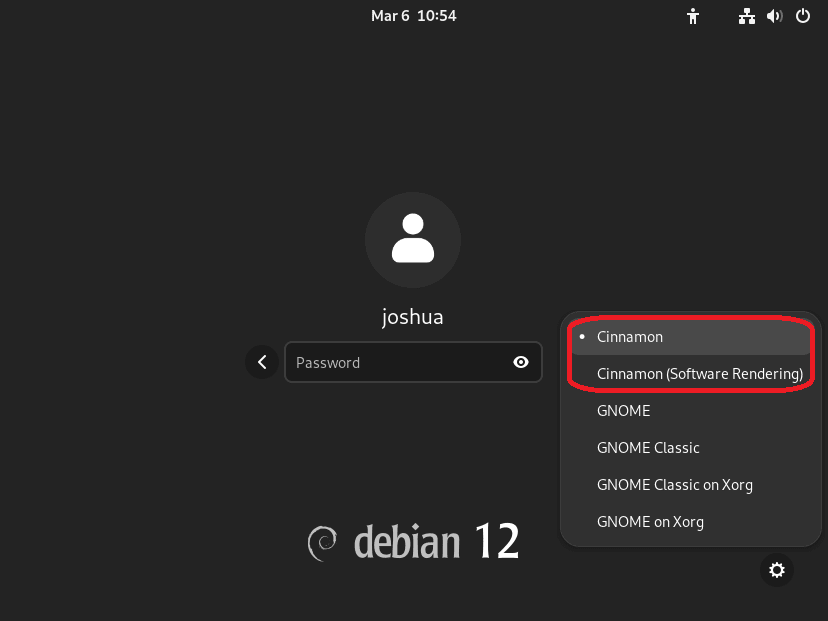
After rebooting, the login screen displays your username as usual. However, you must select the Cinnamon session before entering your password. Follow these steps to switch desktop environments:
- At the login screen, click your username but do not enter your password yet.
- Look for a gear icon or “Session” option near the password field. On GDM3 (the default GNOME display manager), this appears in the bottom-right corner. On LightDM, it may appear as a dropdown next to the username.
- Click the session selector and choose “Cinnamon” from the list. You may also see “Cinnamon (Software Rendering)” which uses CPU-based graphics instead of GPU acceleration.
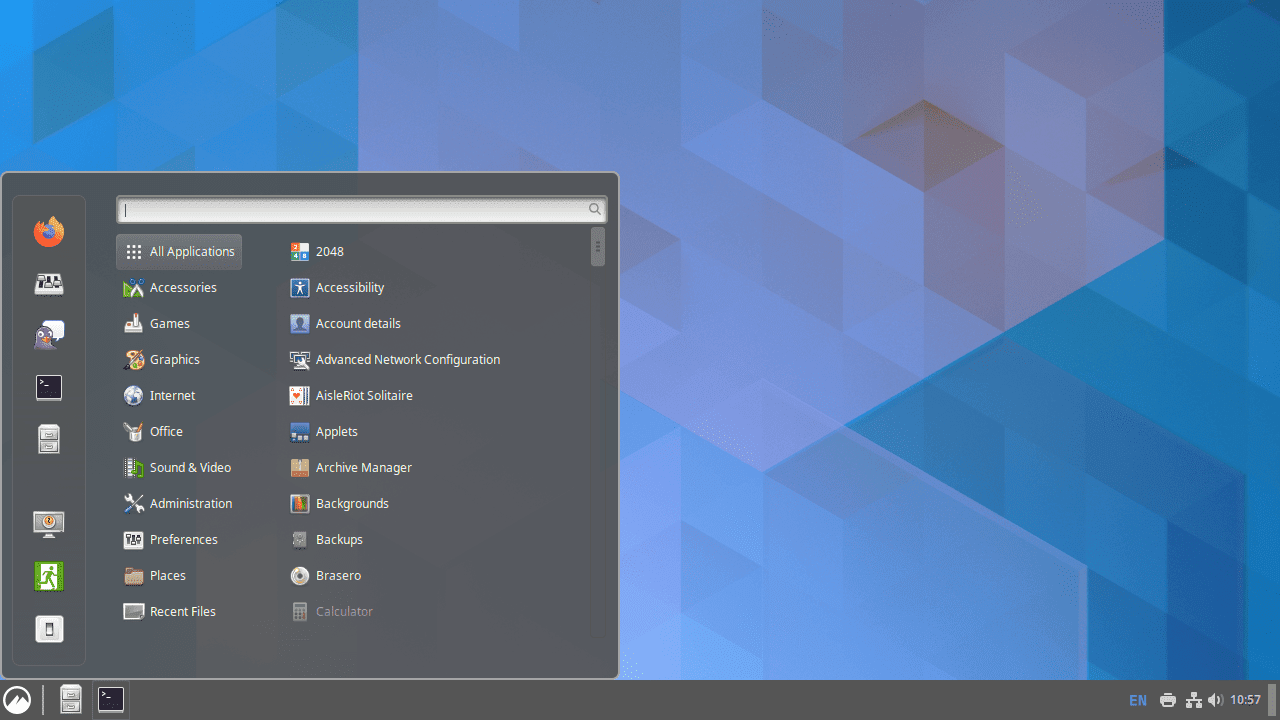
- Enter your password and log in. The system remembers your session choice for future logins until you change it.
Select the standard “Cinnamon” option unless you experience graphics issues such as black screens or visual artifacts. The “Cinnamon (Software Rendering)” mode bypasses GPU acceleration and works reliably on systems with incompatible graphics drivers.
Install Optional Nemo Extensions
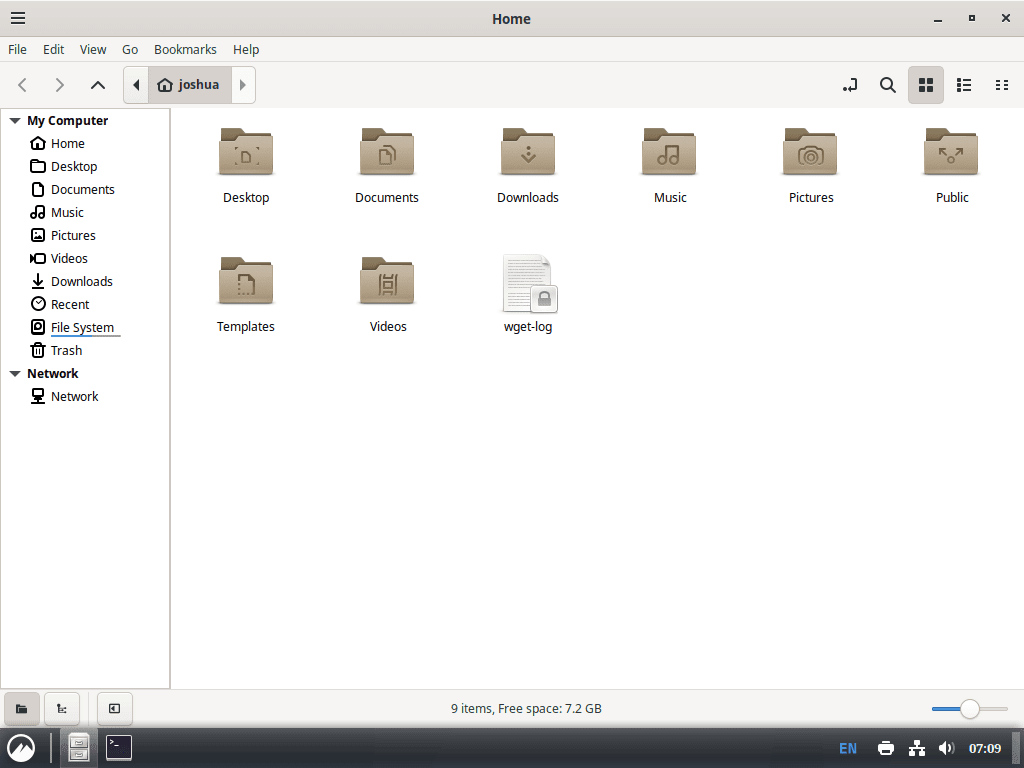
Nemo, the Cinnamon file manager, supports extensions that add functionality to the right-click context menu. These extensions integrate archive handling, file comparison, and cloud storage directly into the file browser:
sudo apt install nemo-fileroller nemo-compareThe nemo-fileroller extension adds “Extract Here” and “Compress” options to the context menu for working with archives. The nemo-compare extension enables file and folder comparison through the context menu. After installation, these features appear automatically when you right-click files in Nemo.
Additional extensions available include:
nemo-nextcloudornemo-owncloudfor cloud storage integrationnemo-gtkhashfor computing file checksumsnemo-font-managerfor font preview integration
Manage Cinnamon Desktop
After using Cinnamon, you may want to customize settings, remove the environment, or restore GNOME if something breaks. The following sections cover common management tasks.
Remove Cinnamon Desktop Environment
If you decide to remove Cinnamon, run the following command to uninstall the desktop environment and its associated packages. The regex pattern '^cinnamon' matches all packages with names starting with “cinnamon”:
sudo apt autoremove '^cinnamon' '^nemo' task-cinnamon-desktop cinnamon-desktop-environment --purgeThis command removes Cinnamon packages, Nemo and its extensions, and automatically cleans up orphaned dependencies. The --purge flag removes configuration files as well as the packages themselves.
Removing Cinnamon does not affect your GNOME installation or personal files in your home directory. After removal and reboot, select “GNOME” or “GNOME on Xorg” at the login screen to return to your original desktop environment.
Reinstall GNOME Desktop
If GNOME components were accidentally removed or the desktop appears broken after changes, reinstall the GNOME meta-packages to repair the installation:
sudo apt update
sudo apt install gnome gdm3 task-gnome-desktop --reinstall
The --reinstall flag forces APT to reinstall packages even if they appear to be present, which repairs any missing or corrupted files. After reinstalling, reboot to apply the changes.
Enable the GNOME Display Manager
If your system boots to a text console instead of a graphical login screen, the display manager may be disabled or misconfigured. Enable and start GDM3 with the following command:
sudo systemctl enable gdm3 --nowThe --now flag starts the service immediately in addition to enabling it for future boots. After running this command, the graphical login screen should appear within a few seconds.
Troubleshoot Common Issues
Desktop environment installations occasionally encounter problems, particularly with display managers and graphics drivers. The following solutions address the most common issues.
Session Selector Not Visible
If no session selector appears at the login screen, the display manager may not be running properly. First, check which display manager is active:
cat /etc/X11/default-display-managerExpected output for GDM3:
/usr/sbin/gdm3
If the display manager is not running, enable and start it:
sudo systemctl enable gdm3 --now
systemctl status gdm3
The status output should show “active (running)” in green text. If GDM3 fails to start, check the logs with journalctl -xeu gdm3 for specific error messages.
Black Screen After Selecting Cinnamon
A black screen when logging into Cinnamon typically indicates a graphics driver issue. This commonly occurs with NVIDIA graphics cards using the nouveau driver. Try these steps:
- Press
Ctrl+Alt+F2to switch to a text console and log in with your username and password. - Check the session log for errors:
cat ~/.xsession-errors | tail -50 - If errors mention graphics, OpenGL, or GPU, log out of the text console and return to the graphical login with
Ctrl+Alt+F1. - Select “Cinnamon (Software Rendering)” at your next login attempt. This bypasses GPU acceleration entirely.
For NVIDIA graphics cards, installing the proprietary drivers typically resolves black screen issues permanently. See our guide on installing NVIDIA drivers on Debian for detailed instructions. After installing proprietary drivers, the standard Cinnamon session with GPU acceleration should work correctly.
Login Loop Returns to Login Screen
If entering your password returns you to the login screen repeatedly instead of loading the desktop, the session may be crashing due to permission issues. Check the ownership of your home directory:
ls -la ~ | head -5Expected output (with your username):
drwxr-xr-x 15 username username 4096 Dec 18 10:00 .
drwxr-xr-x  3 root     root     4096 Dec 18 09:00 ..
...
If the home directory shows root root as the owner instead of your username, fix the permissions by replacing username with your actual username in both places:
sudo chown -R username:username /home/usernameAfter fixing ownership, reboot and attempt login again. The Cinnamon session should now load correctly.
Conclusion
You now have Cinnamon installed alongside your existing desktop on Debian, with the ability to switch between environments at the login screen. Cinnamon’s traditional layout, Nemo file manager, and built-in customization options provide a familiar workflow for users transitioning from Windows or Linux Mint. To personalize your desktop further, open the Cinnamon Settings application to adjust themes, panel layouts, applets, and desktop effects. For related desktop customization, consider using GNOME Tweaks on Debian which works across both environments, or explore Budgie desktop on Debian for another lightweight alternative.

For new users Cinnamon looks ore familiar, so this is very useful.
Nice guide. Thanks.
i use lmde6 and when i reboot on gnome,the bootloader grub think the operating system is debisn,its debian base but this linuxmint bro:3
:3D
Just what I was looking for, thank you.