
Chromium is the open-source browser that powers Google Chrome, Microsoft Edge, and several other popular browsers. It provides a fast, secure browsing experience with full Chrome extension support, making it a strong choice for users who want Chrome’s capabilities without Google’s proprietary tracking and telemetry. This guide demonstrates how to install Chromium on Debian using two methods: APT from Debian’s default repositories and Flatpak via Flathub.
Chromium is available directly in Debian’s default repositories for all supported releases, including Debian 13 (Trixie), 12 (Bookworm), and 11 (Bullseye). By the end, you will have Chromium installed and verified, ready for daily browsing, web development testing, or privacy-focused configurations.
Choose Your Chromium Installation Method on Debian
Both methods provide a fully functional Chromium browser, but they differ in update mechanisms, integration, and isolation. Review the comparison below to select the best approach for your needs.
| Method | Channel | Version | Updates | Best For |
|---|---|---|---|---|
| APT | Debian Repos | Distribution default | Automatic via apt upgrade | Most users who prefer system integration |
| Flatpak | Flathub | Latest stable | Automatic via flatpak update | Users wanting sandboxing or newer versions |
The APT method is recommended for most users because it integrates directly with Debian’s package management, receives security updates through standard system updates, and requires no additional frameworks. Choose Flatpak if you specifically need application sandboxing or a version newer than what Debian’s repositories provide.
Method 1: Install Chromium Browser on Debian via APT
The APT method installs Chromium directly from Debian’s official repositories. This approach uses your system’s package manager for installation and automatic updates.
Update Your System
Refresh your package index and upgrade installed packages before installing new software:
sudo apt update
sudo apt upgrade
This guide uses
sudofor commands that need root privileges. If your user is not in the sudoers file yet, run the commands as root or follow the guide on how to add and manage sudo users on Debian.
Install Chromium via APT
Install Chromium from Debian’s default repositories:
sudo apt install chromiumAfter the installation completes, verify it by checking the version:
chromium --versionExpected output (Debian 13 example):
Chromium 14x.x.xxxx.xxx built on Debian GNU/Linux 13 (trixie)
The version number varies depending on when you install and which Debian release you’re running. Debian 13 and 12 track the latest stable Chromium releases (version 144+), while Debian 11 provides an older version (120.x). If you need the latest Chromium on Debian 11, consider the Flatpak method instead.
Method 2: Install Chromium Browser on Debian via Flatpak and Flathub
Flatpak is a universal package manager that provides application sandboxing and works across different Linux distributions. This section covers installing Chromium from Flathub, the main Flatpak application repository.
You must install Flatpak before using this method. If you haven’t set it up yet, follow our guide on installing Flatpak on Debian before proceeding; the setup typically takes under five minutes.
Enable the Flathub Repository
Add the Flathub repository to your Flatpak configuration:
flatpak remote-add --if-not-exists flathub https://flathub.org/repo/flathub.flatpakrepoThe --if-not-exists flag prevents errors if Flathub was previously added to your system.
Install Chromium Browser via Flatpak Command
Install Chromium from Flathub:
flatpak install flathub org.chromium.Chromium -yThe -y flag automatically confirms prompts, allowing a non-interactive installation.
After the installation completes, confirm the success by checking its details:
flatpak info org.chromium.ChromiumExpected output (truncated):
Chromium Web Browser - The web browser from Chromium project

          ID: org.chromium.Chromium
         Ref: app/org.chromium.Chromium/x86_64/stable
      Origin: flathub
     Version: 14x.x.x
Launching Chromium Browser on Debian
Launch Chromium from Terminal
If you installed Chromium via APT, you can immediately launch it from the terminal with this command:
chromiumFor Flatpak installations, use the flatpak run command instead:
flatpak run org.chromium.ChromiumThe flatpak run command starts applications using their unique Flatpak identifier.
Launch Chromium from Applications Menu
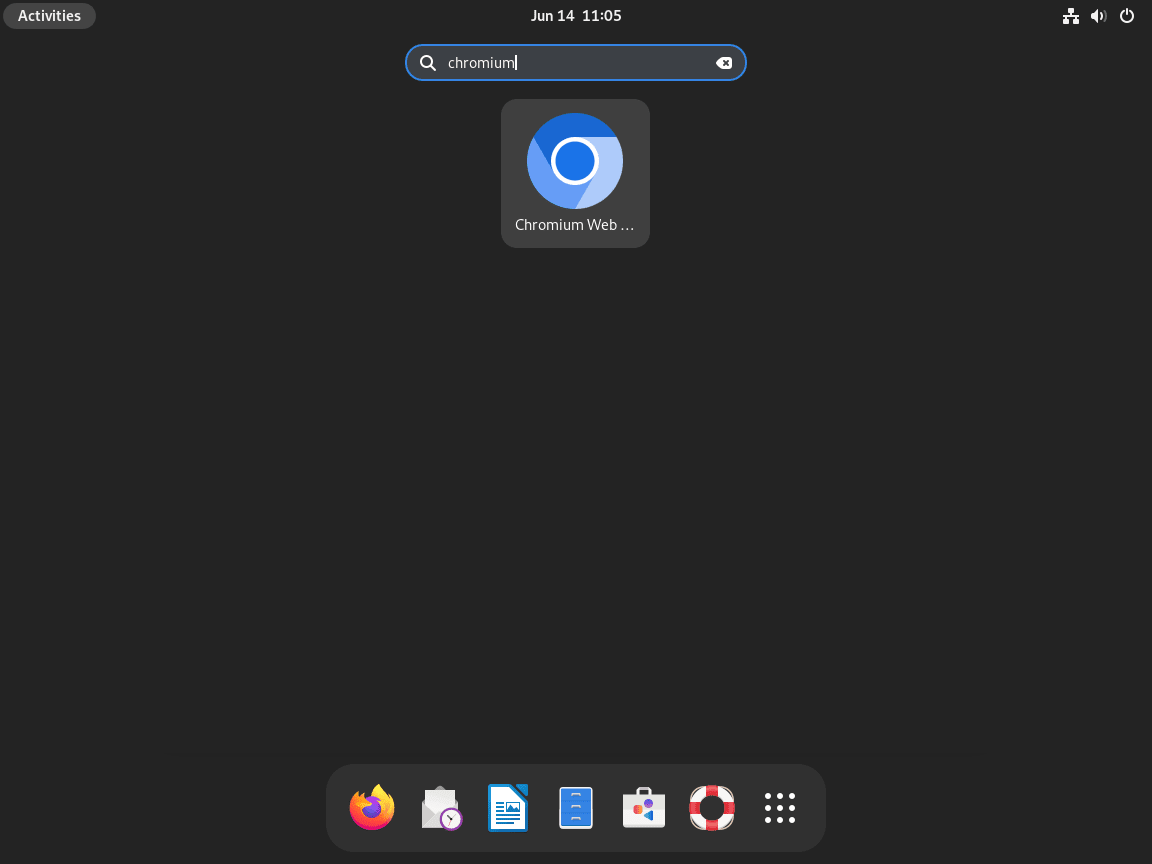
You can also launch Chromium from your desktop environment’s application menu:
- Go to Show Applications.
- Type “Chromium Web Browser” in the search bar.

Manage Chromium Browser on Debian
Update Chromium Browser
Run the update command matching your installation method to update your browser.
Update Chromium via APT
If you installed Chromium using the APT package manager, you can easily update the browser (along with all other software packages) using the following command:
sudo apt update && sudo apt upgradeThe apt update command refreshes your local package index, and apt upgrade installs new versions of all installed packages, including Chromium.
Update Chromium via Flatpak
If you installed Chromium via Flatpak, update it with this command:
flatpak updateThis command checks for updates across all enabled remote repositories, including Flathub, and applies them to your installed Flatpak applications.
Remove Chromium Browser
If Chromium no longer fits your requirements, uninstall it using the method that matches your original installation.
Remove Chromium via APT
If you installed Chromium through APT, remove it with the following command:
sudo apt remove chromiumAfter removing Chromium, clean up any orphaned dependencies that were installed alongside it:
sudo apt autoremoveThe autoremove command removes libraries and packages that were automatically installed as dependencies and are no longer needed.
Chromium stores user data in
~/.config/chromium/and~/.cache/chromium/. To completely remove all traces, including bookmarks, history, and cached data, delete these directories after uninstalling. Back up any important data first.
Remove Chromium via Flatpak
If you installed Chromium via Flatpak, remove it with this command:
flatpak uninstall --delete-data org.chromium.ChromiumThe --delete-data flag removes Chromium’s sandboxed user data stored in ~/.var/app/org.chromium.Chromium/.
After removing Chromium, clean up any unused Flatpak runtimes:
flatpak uninstall --unusedThis removes shared libraries and runtimes that are no longer needed by any installed applications.
Troubleshoot Chromium Browser on Debian
Chromium Fails to Launch
If Chromium fails to start or crashes immediately, missing dependencies may be the cause. Run the following command to check for broken packages:
sudo apt --fix-broken installTry launching Chromium from the terminal to see error messages:
chromium --disable-gpuThe --disable-gpu flag bypasses hardware acceleration issues that can cause crashes on some systems.
Hardware Acceleration Issues
If Chromium displays graphical glitches or performs slowly, hardware acceleration may be misconfigured. Navigate to chrome://flags in the address bar and search for “GPU rasterization.” Try disabling this flag if you experience rendering issues. Alternatively, run Chromium with software rendering:
chromium --disable-gpu-compositingFlatpak Chromium Cannot Access Files
By design, Flatpak applications run in a sandbox with limited filesystem access. If Chromium installed via Flatpak cannot access certain directories, grant additional permissions using Flatseal or the command line:
flatpak override --user --filesystem=home org.chromium.ChromiumThis grants Chromium access to your home directory while maintaining other sandbox restrictions.
Frequently Asked Questions
Chromium is the open-source project that Chrome is built on. Google Chrome adds proprietary components including automatic update services, certain media codecs (AAC, H.264), Widevine DRM for streaming services like Netflix, the built-in PDF viewer, and Google account sync features. Chromium provides the core browsing engine without these additions.
Yes. Unlike Google Chrome, Chromium is included in Debian’s official repositories for all supported releases (Debian 13, 12, and 11). You can install it directly with apt install chromium without adding any external repositories.
Debian 11 (Bullseye) is in LTS maintenance and receives security patches backported to Chromium 120.x rather than full version upgrades. Debian 12 and 13 track the latest stable Chromium releases (144+). If you need a current version on Debian 11, install Chromium via Flatpak from Flathub instead.
Conclusion
You now have Chromium Browser installed on Debian with automatic updates configured through either APT or Flatpak. The APT method integrates directly with your system for seamless security patches, while Flatpak provides sandboxed isolation and newer versions for Debian 11 users. To extend your browsing experience, explore Chromium’s settings and install extensions from the Chrome Web Store. For additional browser options on Debian, see our guides for Firefox, Brave Browser, or Google Chrome.

Formatting tips for your comment
You can use basic HTML to format your comment. Useful tags currently allowed:
<code>command</code>command<strong>bold</strong><em>italic</em><blockquote>quote</blockquote>