
Bottles provides a modern, user-friendly way to run Windows applications on Ubuntu without dual-booting or virtual machines. Whether you need to run Windows productivity software for work, play games through Battle.net or EA Launcher, or test Windows applications during development, Bottles creates isolated Wine environments that keep each application’s dependencies separate and manageable.
Unlike configuring Wine directly, Bottles handles runner management, dependency installation, and environment configuration through an intuitive graphical interface. This guide walks you through installing Bottles via Flatpak on Ubuntu, setting up your first environment, and managing the application. By the end, you will have a working Bottles installation ready to run Windows software on your Ubuntu system.
Flatpak is not pre-installed on Ubuntu. If you have not set it up yet, this guide includes the necessary installation steps. Flatpak provides universal package compatibility across all Ubuntu LTS releases, so the commands shown work identically on Ubuntu 22.04, 24.04, and 26.04.
Install Bottles via Flatpak with Flathub
Bottles is officially distributed exclusively through Flatpak, making Flathub the recommended installation source. As a result, you receive the latest version with all features and security updates directly from the developers.
Install Flatpak (Skip if Already Installed)
First, install Flatpak if it is not already present on your system. Ubuntu does not include Flatpak by default, so this step is required for most users:
sudo apt update && sudo apt install flatpak -yThe -y flag automatically confirms the installation prompt. Once Flatpak installs, a system reboot is recommended to ensure icon paths and XDG integration work correctly. Otherwise, you may encounter missing application icons or desktop integration issues.
sudo rebootFor detailed Flatpak configuration options, including setting up Flathub during installation or upgrading to newer Flatpak versions, refer to our comprehensive guide on installing Flatpak on Ubuntu.
Enable Flathub Repository
Next, add the Flathub repository to your system. Flathub is the primary source for Flatpak applications, including Bottles and many other applications not available in Ubuntu’s default repositories:
sudo flatpak remote-add --if-not-exists flathub https://flathub.org/repo/flathub.flatpakrepoThe --if-not-exists flag prevents errors if Flathub is already configured on your system. Additionally, this command uses system scope by default, making applications available to all users on the machine.
Install Bottles from Flathub
Now that Flathub is enabled, install Bottles using the following command:
sudo flatpak install flathub com.usebottles.bottles -yThis command downloads Bottles and all required runtimes from Flathub. Note that the initial download may take several minutes depending on your internet connection, as it includes the application and its dependencies.
Verify Bottles Installation
Once installation completes, verify that Bottles installed correctly by checking its information:
flatpak info com.usebottles.bottlesExpected output:
Bottles - Run Windows in a Bottle

          ID: com.usebottles.bottles
         Ref: app/com.usebottles.bottles/x86_64/stable
        Arch: x86_64
      Branch: stable
      Origin: flathub
     Version: 60.x
     License: GPL-3.0-only
This output confirms Bottles installed successfully and shows the version, architecture, and source repository.
Launch Bottles
Launch from Terminal
To launch Bottles from the terminal, run:
flatpak run com.usebottles.bottlesThis command starts Bottles directly. Furthermore, terminal launching is useful for troubleshooting, as any errors or warnings appear in the terminal output.
Launch from Applications Menu
Alternatively, launch Bottles through the graphical interface:
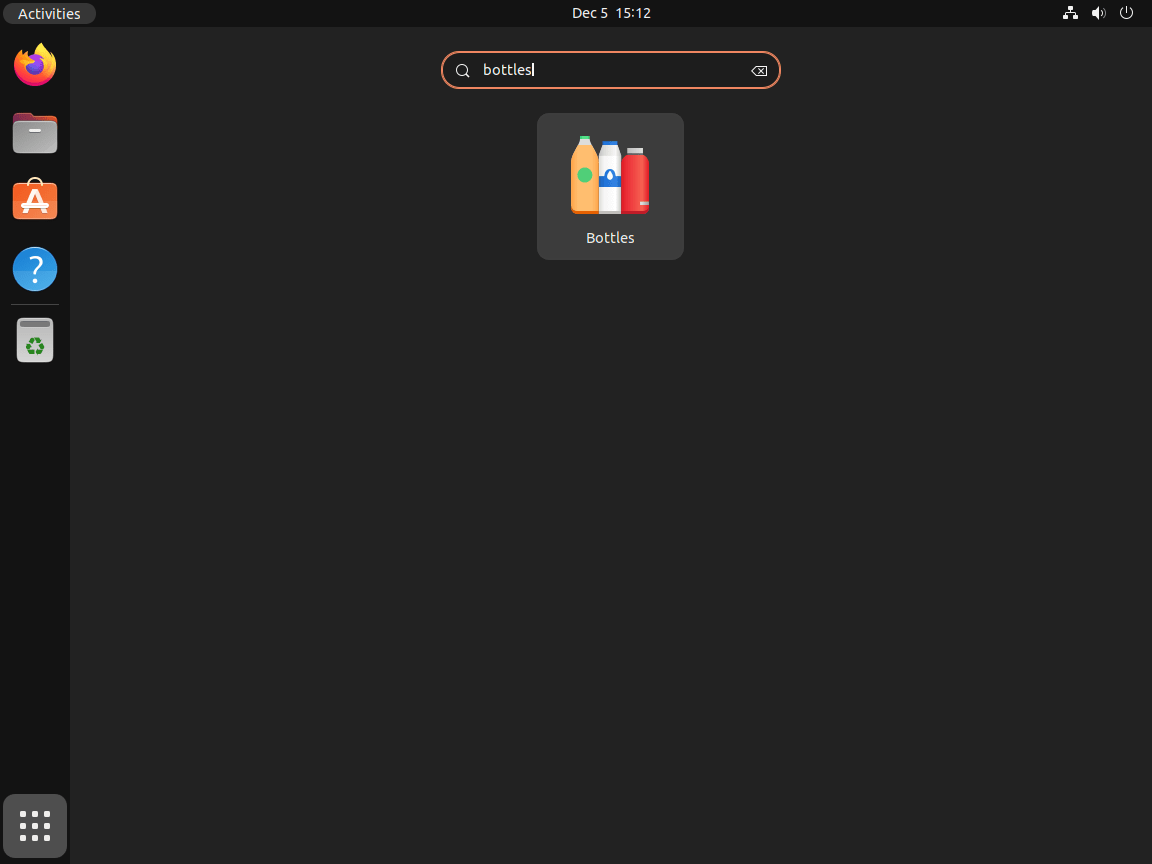
- First, click Activities in the top-left corner or press the Super key.
- Then, type “Bottles” in the search field.
- Finally, click the Bottles application icon to launch.
Create Your First Bottle Environment
When you first launch Bottles, it downloads essential components like Wine runners and DXVK. This one-time setup takes a few minutes. Once complete, you can create your first bottle environment.
Create a New Environment
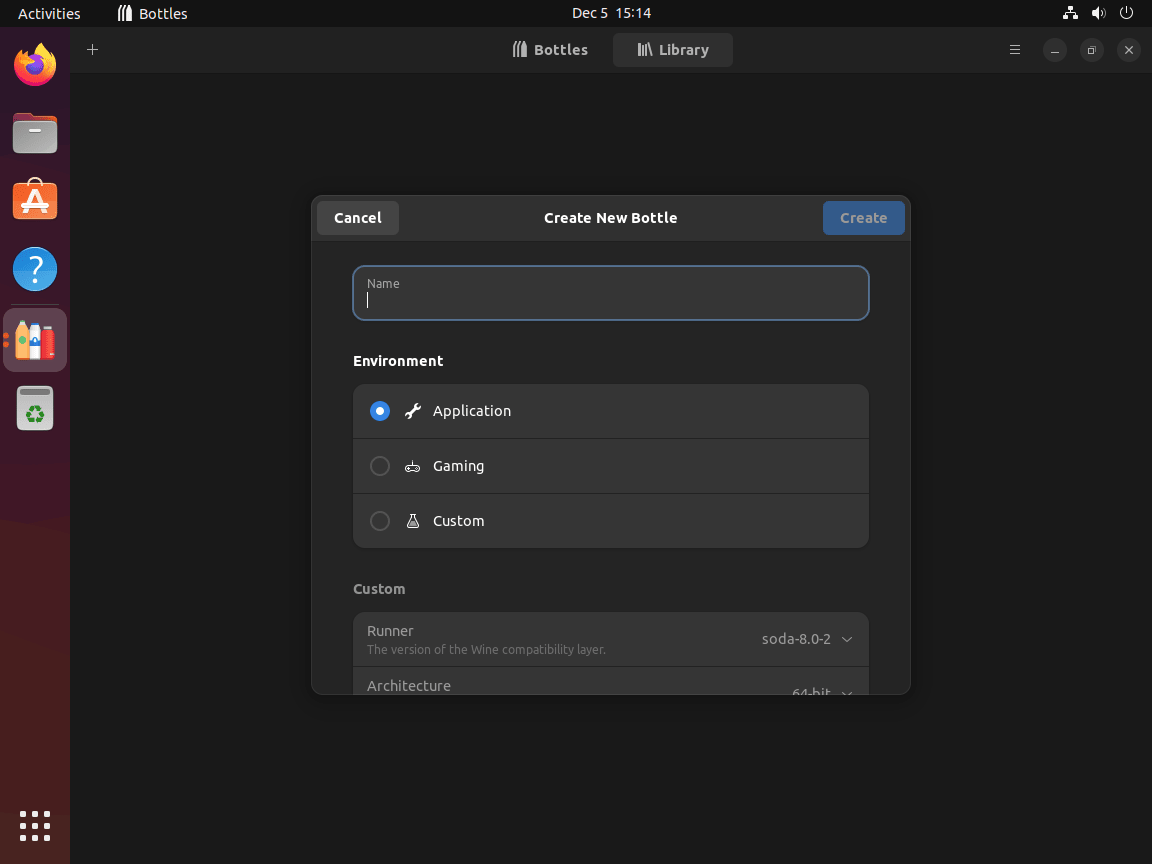
To begin, click the + button or Create New Bottle to start. Bottles offers several environment presets:
- Gaming: Optimized for games with DXVK, VKD3D, and gaming-focused dependencies pre-configured.
- Application: General-purpose environment for productivity software and Windows utilities.
- Custom: Minimal environment for advanced users who want full control over configuration.
Be sure to name your environment descriptively. For example, use “Work Apps” for office software or “Steam Games” for gaming. Clear naming helps when managing multiple bottles.
Wait for Environment Setup
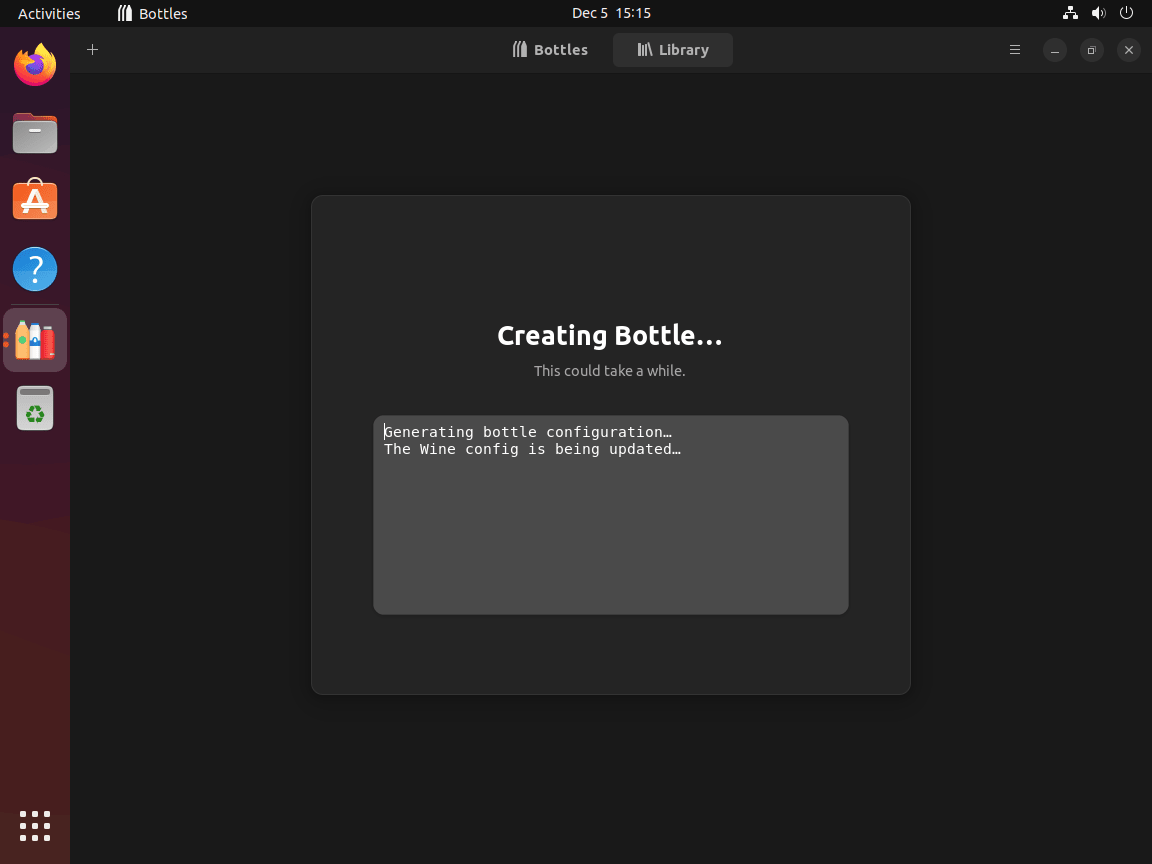
After selecting a preset, Bottles creates the Windows environment and installs necessary dependencies. For instance, the Gaming preset installs DXVK for DirectX translation and various Windows runtime libraries. Note that setup time varies based on your system specifications and the selected preset.
Configure Environment Settings
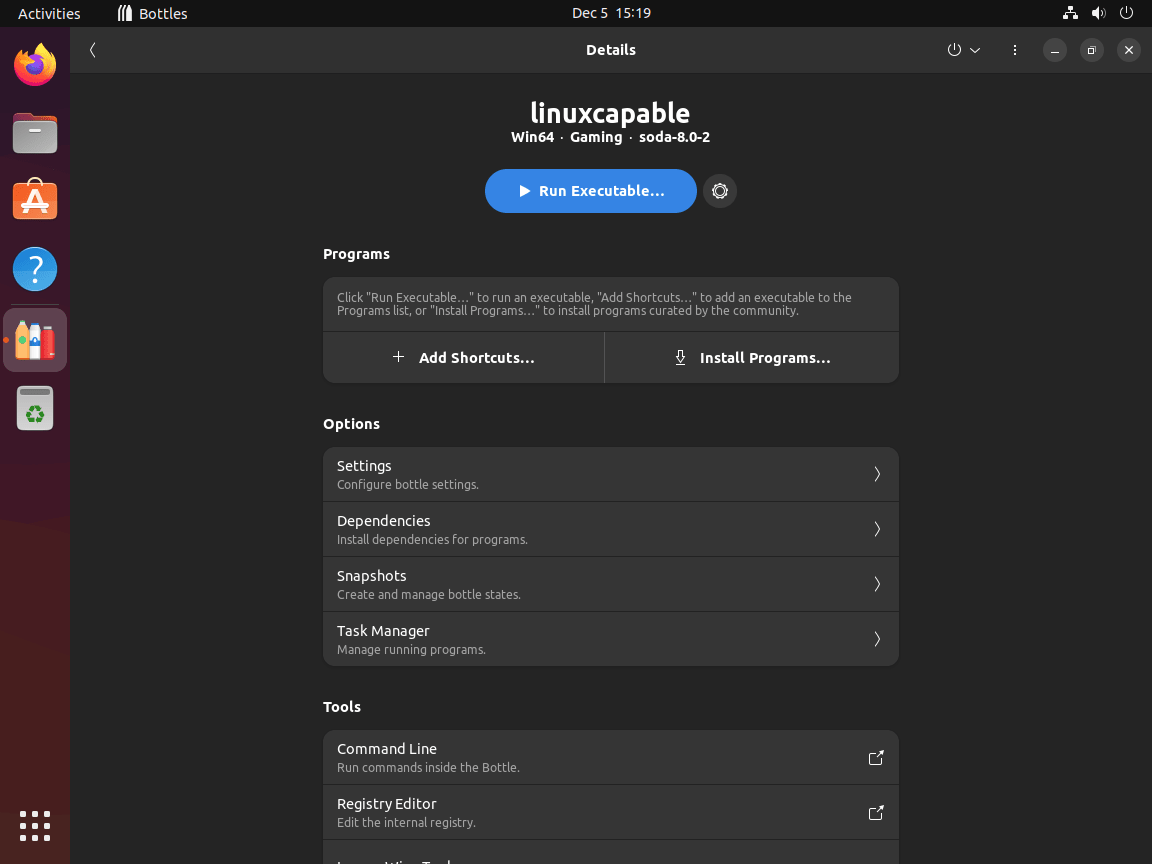
Once creation completes, the bottle details screen appears. From here you can:
- Run Executable: Launch Windows .exe files directly.
- Manage Dependencies: Install additional Windows libraries like .NET Framework, Visual C++ redistributables, or DirectX.
- Switch Runners: Change between Wine versions or alternative runners like Proton-GE.
- Adjust Settings: Configure display resolution, virtual desktop mode, or DXVK settings.
Run Windows Games with Bottles
Bottles excels at running Windows games on Linux. If you created a Gaming environment, it comes pre-configured with gaming optimizations. Accordingly, this section covers installing gaming platforms and running games.
Install Gaming Launchers
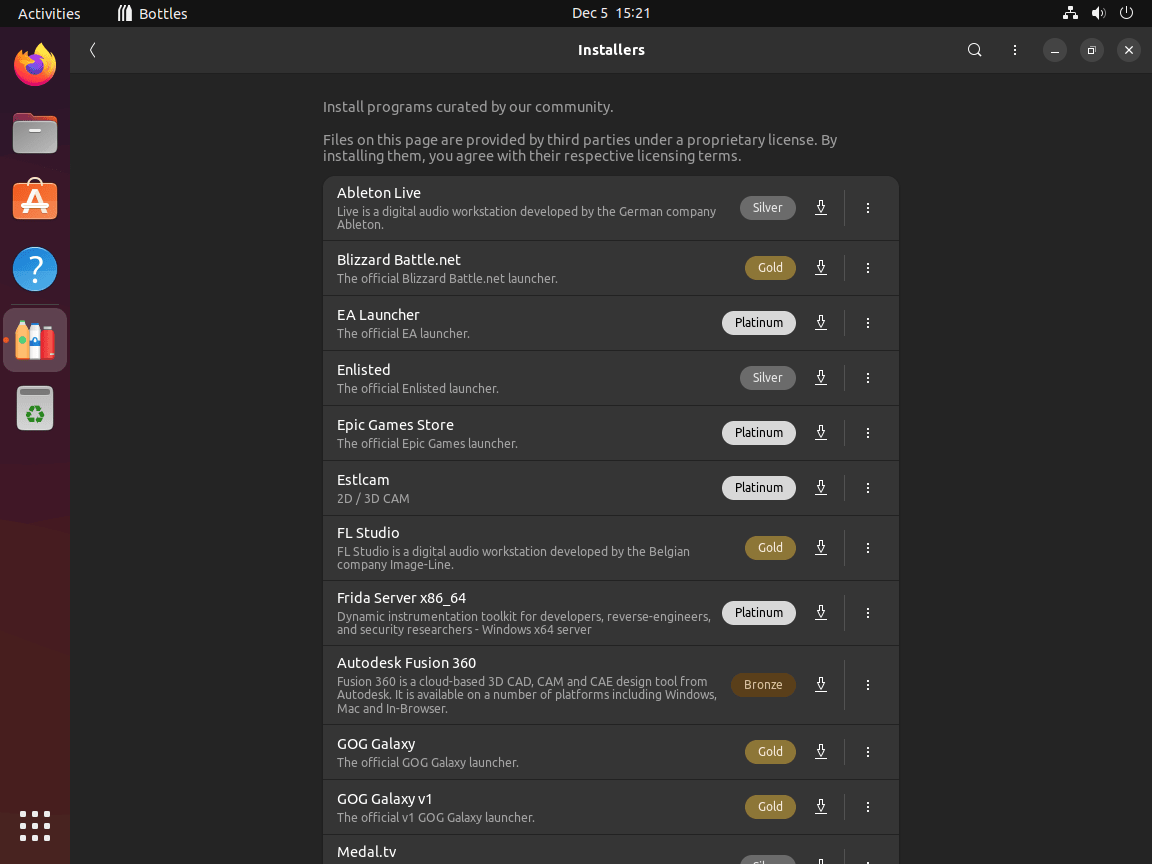
Bottles includes built-in installers for popular gaming platforms. To access them, navigate to the Installers tab in your Gaming bottle to find one-click installers for:
- Battle.net (Blizzard games)
- EA App (formerly Origin)
- Epic Games Launcher
- GOG Galaxy
- Ubisoft Connect
Simply select a launcher and click Install. Bottles then downloads the installer and runs it within the environment, handling dependency installation automatically.
Launch Installed Games
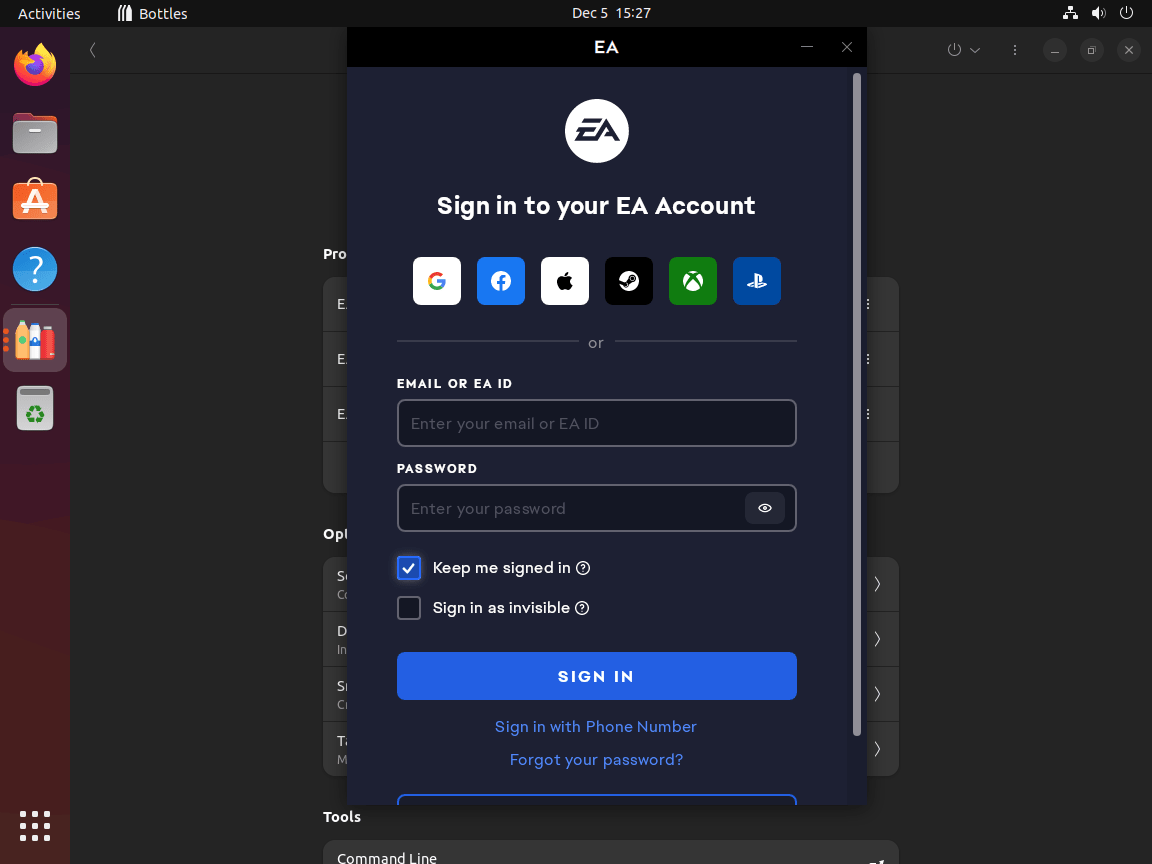
After installing a gaming platform, launch it from the Programs section of your bottle. Bottles automatically detects installed programs and creates launch entries. In addition, you can create desktop shortcuts for frequently used applications.
For native Linux gaming through Steam with Proton support, see our guide to installing Steam on Ubuntu. If you prefer working with Wine directly for greater control, our Wine installation guide for Ubuntu covers manual configuration.
Update and Remove Bottles
Update Bottles
Keep Bottles current with the latest features and security fixes by updating through Flatpak:
sudo flatpak updateThis command updates all installed Flatpak applications, including Bottles and its runtimes. Alternatively, GNOME Software and other graphical package managers also notify you of available Flatpak updates.
Remove Bottles
If you no longer need Bottles, remove it with the following command. The --delete-data flag removes application data stored by the Flatpak:
sudo flatpak uninstall --delete-data com.usebottles.bottlesAfter uninstalling, clean up unused Flatpak runtimes that were only needed by Bottles:
sudo flatpak uninstall --unusedImportantly, Flatpak stores application data separately from the package itself. Bottles keeps its data in ~/.var/app/com.usebottles.bottles/, which contains your bottle environments, configurations, and any installed Windows applications.
Warning: The following command permanently deletes all Bottles data, including your bottle environments, installed Windows applications, and any associated settings. If you have important Windows software installed through Bottles, back up your data before proceeding.
To completely remove all traces of Bottles after uninstalling, delete this directory:
rm -rf ~/.var/app/com.usebottles.bottles/Conclusion
In summary, Bottles provides a straightforward way to run Windows applications on Ubuntu through isolated Wine environments. With Flatpak handling installation and updates, you receive the latest features without repository configuration complexity. Moreover, the Gaming preset streamlines setup for Windows games, while Application environments handle productivity software with minimal configuration. Finally, explore the dependency manager and runner options to fine-tune compatibility for specific applications.
Useful Links
These official resources provide additional documentation and community support:
- Bottles Official Website: Project overview, features, and download information.
- Bottles on Flathub: Official Flatpak package page with version history and permissions.
- Bottles Documentation: Comprehensive guides covering configuration, troubleshooting, and advanced usage.
- Bottles App Store: Community-maintained installers for popular Windows applications.
- Bottles Database: Application compatibility database with user-submitted reports.
- Bottles Community Discussions: GitHub Discussions for community support, feature requests, and troubleshooting help.
